
How to Forward Heavy Files by Email: A Step-by-step Guide
Are you tired of running into problems when trying to forward large files via email? Look no further! In this article, we’ll explore the various ways to share heavy rows road *email, and provide you with a comprehensive guide on how to do it effectively.
Understanding Email Size Limits
Before we dive into the solutions, let’s understand the size limits imposed by different email providers. The maximum file size limit varies across platforms:
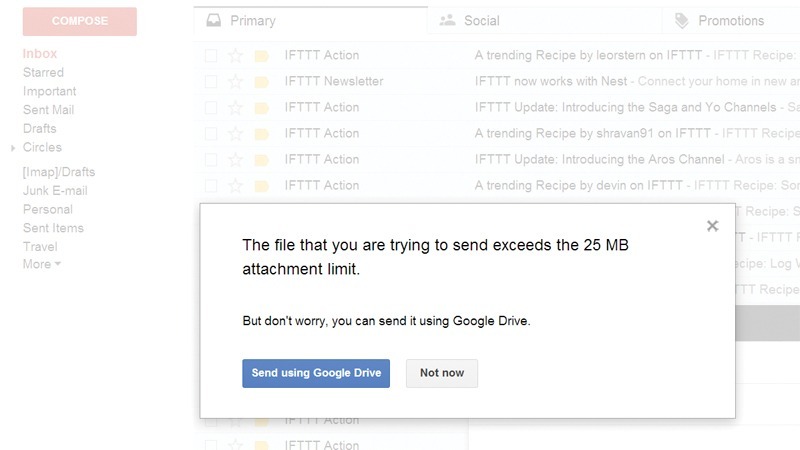
- Gmail: 25 MB (with an option to upload files up to 15 GB using Google Drive)
- Outlook: 34 MB (with an option to upload files up to 5 GB using OneDrive)
- Apple Mail: 20 MB to 5 GB (using iCloud and Mail Drop)
Forwarding Heavy Files With Gmail
If you’re using Gmail, you can forward heavy files by uploading them to Google Drive. Here’s how:
- Log in to your Gmail account.
- Compose a new email and click on the paperclip icon to attach a file.
- If the file exceeds the 25 MB limit, Google Drive will automatically upload it and share a link with the recipient.
Forwarding Heavy Files With Outlook
If you’re using Outlook, you can forward heavy files by uploading them to OneDrive. Here’s how:
- Log in to your Outlook account.
- Compose a new email and click on the paperclip icon to attach a file.
- If the file exceeds the 34 MB limit, OneDrive will automatically upload it and share a link with the recipient.
Forwarding Heavy Files With Apple Mail
If you’re using Apple Mail, you can forward heavy files by using iCloud and Mail Drop. Here’s how:
- Log in to your Apple Mail account.
- Compose a new email and click on the paperclip icon to attach a file.
- If the file exceeds the 20 MB limit, Mail will automatically upload it to iCloud and share a link with the recipient.
Forwarding Heavy Files With Pec
If you’re using PEC (Public Electronic Service), you can forward heavy files by uploading them to your email account. Here’s how:
- Log in to your PEC account.
- Compose a new email and click on the paperclip icon to attach a file.
- If the file exceeds the 30 MB limit, PEC will automatically upload it and share a link with the recipient.
Alternative Solutions
If none of these options work for you, there are alternative solutions available:
- Wetransfer: A service that allows you to forward files up to 2 GB without any size limits.
- Jumbomail: A service that allows you to forward files up to 2 GB without any size limits.
Conclusion
Forwarding heavy files via email can be a challenge, but with the right solutions, it’s easier than ever. Whether you’re using Gmail, Outlook, Apple Mail, or PEC, there are options available to help you share large files with ease.
Frequently Asked Questions (FAQs)
- Q: What is The Maximum File Size Limit For Gmail?
A: The maximum file size limit for Gmail is 25 MB. - Q: How Can I Forward Heavy Files Using Google Drive?
A: You can forward heavy files by uploading them to Google Drive and sharing a link with the recipient. - Q: What is The Maximum File Size Limit For Outlook?
A: The maximum file size limit for Outlook is 34 MB. - Q: How Can I Forward Heavy Files Using Onedrive?
A: You can forward heavy files by uploading them to OneDrive and sharing a link with the recipient. - Q: What is The Maximum File Size Limit For Apple Mail?
A: The maximum file size limit for Apple Mail is 20 MB to 5 GB. - Q: How Can I Forward Heavy Files Using Icloud And Mail Drop?
A: You can forward heavy files by uploading them to iCloud and sharing a link with the recipient. - Q: What is The Maximum File Size Limit For Pec?
A: The maximum file size limit for PEC is 30 MB.
By following these steps, you’ll be able to share large files with ease, without worrying about running into problems. Happy emailing!


