
How to Delete Contacts on Iphone: A Step-by-step Guide
Are you tired of having unnecessary contacts on your iPhone? Do you want to delete duplicate contacts, but don’t know where to start? Look no further! In this article, we’ll show you how to delete contacts on iPhone using the built-in iOS app and third-party apps.
Why Delete Contacts on Iphone?
Deleting contacts on iPhone can help declutter your phonebook and prevent confusion when trying to contact someone. Duplicate contacts can also take up valuable storage space on your device. By deleting unnecessary contacts, you’ll have a more organized and efficient phonebook.
Using The Ios App to Delete Contacts
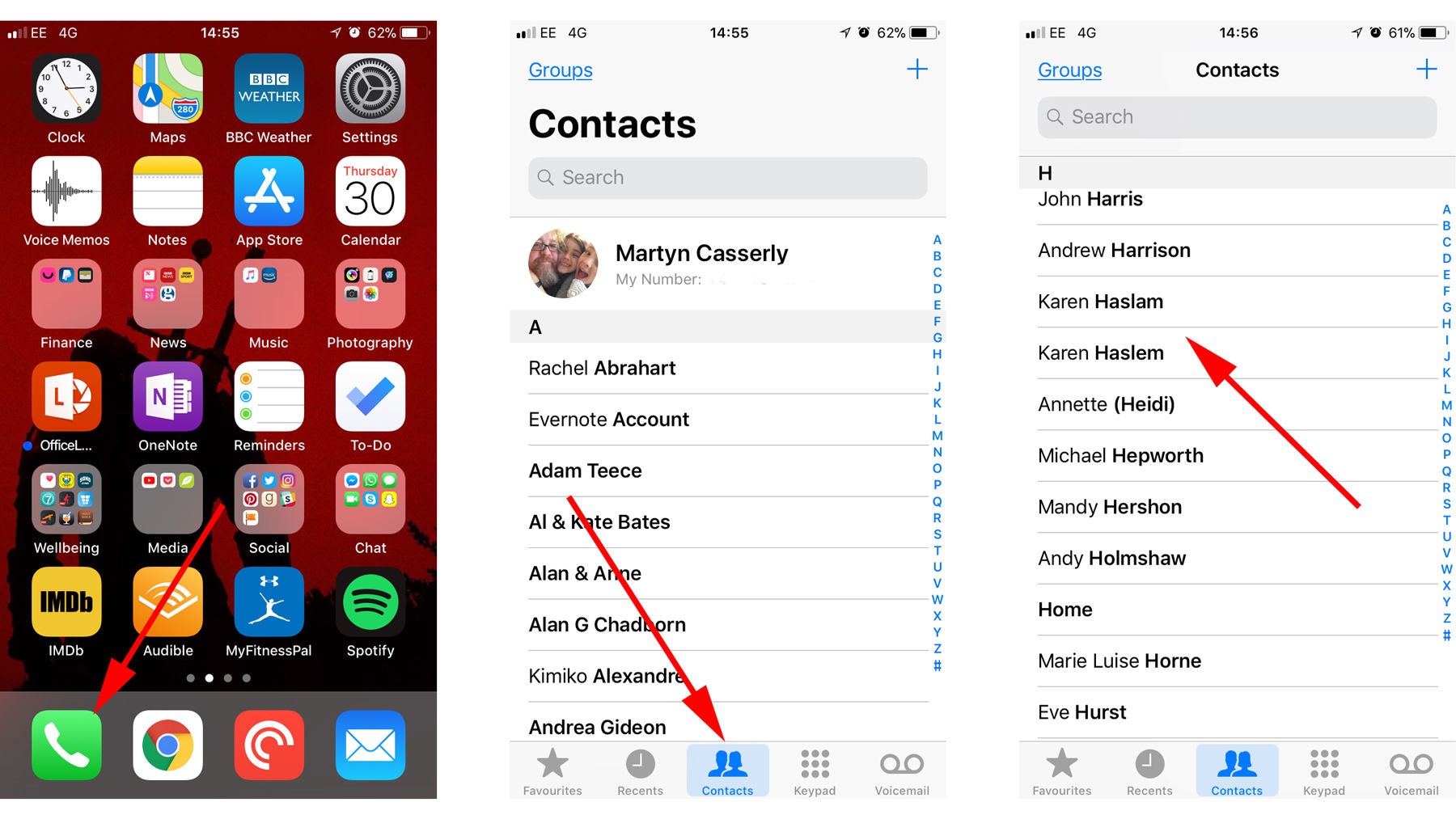
The built-in iOS app, Contacts, allows you to delete individual contacts or groups of contacts. Here’s how:
- Open The Contacts App: Find the Contacts app on your iPhone home screen.
- Select The Contact to Delete: Tap on the contact you want to delete from the list of all contacts.
- Tap The Edit Button: Located in the top-right corner, tap the Edit button.
- Tap Delete Contact: Confirm that you want to delete the contact by tapping Delete Contact.
Using Third-party Apps to Delete Contacts
If you’re looking for a more streamlined experience or want to delete multiple contacts at once, consider using third-party apps like:
- Cinder: A free app that allows you to delete duplicate contacts and clean up your phonebook.
- Clean Contacts: An app that helps you delete unnecessary contacts, including duplicates, and filters contacts based on various criteria.
Deleting Duplicate Contacts Using Ios 16 or Later
If you’re running iOS 16 or later, you can use the built-in feature to merge duplicate contacts. Here’s how:
- Open The Contacts App: Find the Contacts app on your iPhone home screen.
- Tap Lists in The Top-left Corner: Tap the Lists tab at the top of the screen.
- Tap All Contacts: Select all contacts from the list.
- Tap Visualize Duplicate: If you have duplicate contacts, this option will be available.
Deleting Contacts on Mac
If you’ve synced your iPhone with iCloud and want to delete contacts on your Mac, follow these steps:
- Open Contacts: Find the Contacts app on your Mac.
- Select The Contact to Delete: Tap on the contact you want to delete from the list of all contacts.
- Right-click on The Contact: Select Delete Contact from the dropdown menu.
Deleting Duplicate Contacts in Icloud And Google
If you’ve synced your iPhone with iCloud or Google, you can delete duplicate contacts using the web interfaces:
- Icloud.Com: Sign in to your iCloud account and select the contact to delete.
- Google Contacts: Sign in to your Google account and select the contact to delete.
Conclusion
Deleting contacts on iPhone is a straightforward process that can help declutter your phonebook. Using the built-in iOS app or third-party apps, you can easily remove unnecessary contacts, including duplicates. Remember to always backup your contacts before making any changes!
Frequently Asked Questions (FAQs)
- Q: How do I Delete All Contacts on Iphone?
A: To delete all contacts on iPhone, use the Contacts app and select “Delete All” from the menu. - Q: Can I Delete Duplicate Contacts Using Ios 16 or Later?
A: Yes, you can merge duplicate contacts using the built-in feature in iOS 16 or later. - Q: How do I Delete Contacts on Mac?
A: To delete contacts on Mac, use the Contacts app and select “Delete Contact” from the menu. - Q: Can I Delete All Contacts on Icloud And Google?
A: Yes, you can delete all contacts on iCloud and Google using their web interfaces. - Q: How do I Backup my Contacts Before Deleting Them?
A: To backup your contacts, use a third-party app like Clean Contacts or export your contacts to VCF or CSV format. - Q: Can I Restore Deleted Contacts on Iphone?
A: Yes, you can restore deleted contacts from iCloud or Google backup. - Q: How do I Prevent Duplicate Contacts in The Future?
A: To prevent duplicate contacts, use a third-party app like Cinder to merge and clean up your phonebook. - Q: Can I Delete Contacts on Iphone Without Deleting Them From my Computer or Cloud Account?
A: Yes, you can delete contacts on iPhone independently of your computer or cloud account.
References
- Apple Support – Delete a contact (iOS 16 or later)
- Clean Contacts App – User Guide
- Cinder App – User Guide


