
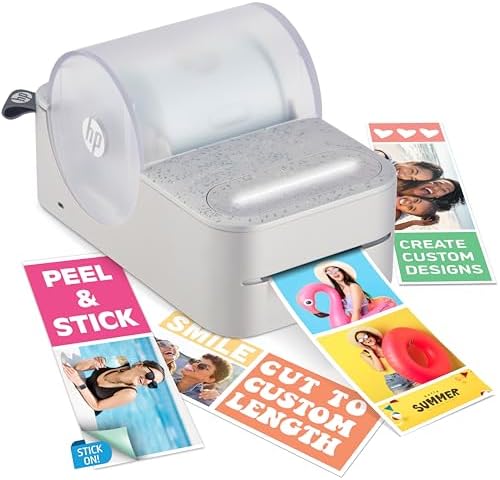
How to Personalize Your Photos: A Step-by-step Guide
Are you tired of having mediocre photos that don’t quite do justice to your incredible memories? Do you want to learn how to personalize your photos like a pro without breaking the bank or needing extensive photo editing skills? Look no further! In this article, we’ll show you how to modify and personalize your photos using some amazing apps available for both Android and iPhone devices.
The Truth About Photo Editing
We’ve all been told that modifying a photo requires expertise in graphic design or being a magician of photo editing. But the truth is, there are many user-friendly apps that make it easy to edit and enhance your photos without needing extensive knowledge of photo editing software.
Apps For Android And Iphone
There are numerous apps available on both Android and iPhone devices that can help you personalize your photos. In this article, we’ll focus on some of the best ones:
- Snapseed: This app is a must-have for anyone who wants to edit their photos on-the-go. With Snapseed, you can apply various effects and filters to enhance your photos. It’s available on both Android and iPhone devices.
- Google Photos: If you have an Android device, Google Photos is likely the default photo gallery app. However, it also has a built-in editor that allows you to edit and modify your photos.
- Xnconvert: This app is specifically designed for Windows, macOS, and Linux users. It’s a free solution that allows you to batch convert images and add a watermark with your name.
How to Use These Apps
Now that we’ve introduced these amazing apps, let’s dive into the step-by-step guide on how to use them:
Using Snapseed on Android
- Download and install Snapseed from the Google Play Store.
- Open the app and tap on the “+” icon in the center of the screen.
- Select the photo you want to edit from your gallery.
- Choose an effect or filter from the “Effects” tab.
- To apply manual edits, go to the “Tools” tab and select an instrument (e.G., Calibrate, Sharpen, etc.).
- Once you’ve completed editing, tap on the “Export” tab to save or share your modified photo.
Using Snapseed on Iphone
- Download and install Snapseed from the App Store.
- Open the app and tap on the “+” icon in the center of the screen.
- Select the photo you want to edit from your gallery.
- Choose an effect or filter from the “Filters” tab.
- To apply manual edits, go to the “Tools” tab and select an instrument (e.G., Rule, Luminosity, etc.).
- Once you’ve completed editing, tap on the “Done” button.
Using Google Photos on Android
- Open Google Photos and select the photo you want to edit.
- Tap on the three dots in the top-right corner of the screen.
- Select “Edit photo.”
- Apply filters or manual edits using the built-in editor tools.
- Once you’ve completed editing, tap on the “Save” button.
Using Xnconvert
- Download and install XnConvert from the official website (Windows, macOS, Linux).
- Open the app and select the photo(s) you want to add a watermark with your name.
- Go to the “Actions” tab and select “Image > Filigree.”
- Choose the file in PNG format containing your name or logotype that you want to use as a watermark.
- Define the opacity, dimension, and position of the watermark using the dedicated fields.
- Save your modified photo.
Tips And Tricks
- To avoid modifying photos unnecessarily, make sure to work on a copy rather than the original file.
- Experiment with different effects and filters to find what works best for you.
- Don’t be afraid to ask for help or consult online tutorials if you’re unsure about how to use these apps.
Conclusion
In conclusion, personalizing your photos has never been easier! With these user-friendly apps available on both Android and iPhone devices, you can enhance your memories without needing extensive photo editing skills. Whether you’re a seasoned photographer or just starting out, these tips and tricks will help you become a pro at modifying and personalizing your photos.
Frequently Asked Questions (FAQs)
- Q: What’s The Best App For Android to Personalize my Photos?
A: Snapseed is an excellent choice for Android users. - Q: Can I Use These Apps on my Iphone?
A: Yes, all of these apps have iOS versions available in the App Store. - Q: How do I Add a Watermark With my Name Using Xnconvert?
A: Refer to the step-by-step guide provided earlier for instructions on how to use XnConvert. - Q: Can I Modify Photos Already Posted on Instagram?
A: Yes, but you can only edit the description or tag users in existing posts. - Q: How do I Post Edited Photos on Instagram?
A: Refer to the step-by-step guide provided earlier for instructions on how to post edited photos on Instagram. - Q: Can I Use These Apps on my Computer?
A: Yes, XnConvert is available on Windows, macOS, and Linux devices. - Q: How do I Share Edited Photos With Others?
A: Use the “Share” button within the app to share your edited photo with friends or family.
I hope this article has been helpful in teaching you how to personalize your photos like a pro!


