
How to Forward Mms With Iphone: A Step-by-step Guide
Are you wondering how to forward MMS with your iPhone? Look no further! In this article, we will guide you through the process of forwarding multimedia messages (MMS) using your Apple smartphone.
Understanding The Basics
Before we dive into the steps, it’s essential to understand the basics. MMS is a service that allows you to send and receive multimedia content such as images, videos, and audio files. To forward MMS with iPhone, you need to have the correct settings enabled on your device.
Step 1: Check Your Settings
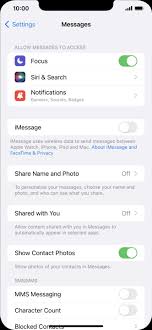
The first step in forwarding MMS with iPhone is to check your settings. Ensure that the “MMS” option is enabled under the “Messages” app. If it’s not, tap on the icon of the Settings (the grey cogwheel present in the Home screen) and scroll down to find the Messages option. Tap on it and make sure that the MMS switch is turned on.
Step 2: Check Your Apn Settings
The second step is to check your APN settings. Normally, these settings are configured automatically, but sometimes you might encounter issues. To resolve this, go back to the Settings app and tap on “Cellular” followed by “Cellular Networks”. Look for the option that says “APN” and ensure that it’s set correctly.
Step 3: Forward Mms
Now that you’ve checked your settings, it’s time to forward MMS. Open the Messages app and compose a new message. Select the icon of the pen in the top-right corner to start composing. Tap on the camera icon at the bottom-left corner to take a photo or record a video. You can also select an existing image or video from your library.
Step 4: Add Text And Recipient
If you want to add a text message along with the multimedia content, type it in the “Comment” field. Then, enter the recipient’s name or phone number in the “To:” Field. Finally, tap on the arrow button at the top-right corner to forward the MMS.
Troubleshooting Issues
If you encounter any issues while forwarding MMS, don’t worry! Simply check that your settings are correct and ensure that you have enough credits to send multimedia messages.
Conclusion
Forwarding MMS with iPhone is a straightforward process. By following these steps, you’ll be able to share multimedia content with your friends and family using your Apple smartphone. Remember to check your settings regularly to avoid any issues.
Frequently Asked Questions (FAQs)
- Why Can’t I Forward Mms?
Answer: Ensure that the MMS option is enabled under the Messages app, and check your APN settings. - What if I’m Running Out of Credits?
Answer: Check your remaining credit balance in the Settings app under Cellular. - Can I Send Mms Without a Text Message?
Answer: Yes, you can simply forward an image or video without adding a text message.
Additional Resources
For more information on iPhone settings and troubleshooting tips, visit our website’s resources section.


