
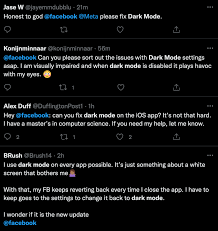
How to Have Facebook Black on Your Devices
Are you tired of looking at a bright white background on your social media apps? Do you want to experience the same dark mode on your Facebook app that you have on other devices? Look no further! In this article, we will guide you through the steps to have Facebook black on your Android, iPhone, iPad, and PC.
Why Have Facebook Black?
Having a dark background on social media apps can be beneficial for several reasons. Firstly, it reduces eye strain caused by prolonged screen time. Secondly, it can help conserve battery life on devices with OLED or AMOLED displays. Lastly, it can simply make your experience more visually appealing.
How to Have Facebook Black on Android
To have Facebook black on your Android device, follow these steps:
- Access The Facebook App: Open the Facebook app on your Android device.
- Tap on The Menu Icon: Tap on the three horizontal lines (☰) located at the top right corner of the screen.
- Select Settings And Privacy: From the menu, select “Settings and privacy”.
- Choose Modality Sfondo Black: Scroll down to the “Modality” section and choose the option for a black background.
Alternative Method: Use System Settings
Alternatively, you can also use your device’s system settings to enable dark mode on Facebook. To do this:
- Access Device Settings: Go to your Android device’s settings.
- Select Display And Luminosity: Select “Display and luminosity” from the settings menu.
- Enable Dark Mode: Enable the dark mode option.
How to Have Facebook Black on Iphone And Ipad
To have Facebook black on your iPhone or iPad, follow these steps:
- Access The Facebook App: Open the Facebook app on your device.
- Tap on The Menu Icon: Tap on the three horizontal lines (☰) located at the top right corner of the screen.
- Select Settings And Privacy: From the menu, select “Settings and privacy”.
- Choose Modality Sfondo Black: Scroll down to the “Modality” section and choose the option for a black background.
Alternative Method: Use System Settings
Alternatively, you can also use your device’s system settings to enable dark mode on Facebook. To do this:
- Access Device Settings: Go to your iPhone or iPad’s settings.
- Select Accessibility And Improvements of Visibility: Select “Accessibility” and then “Improvements of visibility”.
- Enable Inversion of Colors: Enable the “Inversion of colors” option.
How to Have Facebook Black on PC
To have Facebook black on your PC, follow these steps:
- Access The Facebook Website: Open the Facebook website on your PC.
- Click on Your Profile Icon: Click on the profile icon located at the top right corner of the screen.
- Select Visualization And Accessibility: From the menu, select “Visualization and accessibility”.
- Choose Modality Sfondo Black: Select the option for a black background.
Alternative Method: Use System Settings
Alternatively, you can also use your device’s system settings to enable dark mode on Facebook. To do this:
- Access Device Settings: Go to your PC’s settings.
- Select Display And Graphics: Select “Display and graphics” from the settings menu.
- Enable Dark Mode: Enable the dark mode option.
Conclusion
Having a black background on your social media apps can be beneficial for several reasons, including reduced eye strain and improved visual appeal. By following these steps, you can easily have Facebook black on your Android, iPhone, iPad, and PC devices.


