
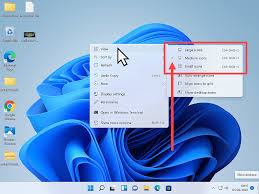
How to Enlarge Icons on Your Desktop: A Step-by-step Guide
Are you tired of looking at small icons on your desktop? Do you want to make them bigger and more visible? Look no further! In this article, we will guide you through the process of enlarging icons on your desktop for various operating systems, including Windows, macOS, Linux, Android, and iOS.
Why Enlarge Icons?
Enlarging icons can be beneficial in several ways:
- Improved visibility: Larger icons are easier to see, especially for people with vision impairments.
- Reduced clutter: By making icons bigger, you can reduce the number of items on your desktop, creating a cleaner and more organized look.
- Enhanced user experience: Enlarged icons can make your computer interface more intuitive and enjoyable to use.
Windows Desktop Icon Enlargement
For Windows users, there are two ways to enlarge icons:
Method 1: Using The “Large Icons” Option
If you’re using Windows 10 or later versions, follow these steps:
- Right-click on an empty area of your desktop.
- Select “Personalize.”
- Click on “Themes.”
- Under “Related settings,” click on “Display.”
- In the “Display settings” window, scroll down to the “Scaling” section.
- Click on “Large icons.”
Alternatively, you can use the shortcut key combination:
- Press and hold the Ctrl key while clicking on an empty area of your desktop.
- Use the mouse wheel or trackpad to adjust the icon size.
Method 2: Using The “View” Option
For Windows users who prefer a more customized experience, follow these steps:
- Right-click on an empty area of your desktop.
- Select “Personalize.”
- Click on “Themes.”
- Under “Related settings,” click on “Display.”
- In the “Display settings” window, scroll down to the “View” section.
- Click on “Large icons.”
Macos Desktop Icon Enlargement
For macOS users, follow these steps:
- Right-click (or control-click) on an empty area of your desktop.
- Select “Desktop” from the context menu.
- In the “Desktop settings” window, click on the “Display options” tab.
- Drag the “Icon size” slider to the desired size.
Linux Desktop Icon Enlargement
For Linux users, follow these steps:
- Right-click (or control-click) on an empty area of your desktop.
- Select “Desktop settings.”
- In the “Desktop settings” window, click on the “Appearance” tab.
- Adjust the “Icon size” setting to your desired value.
Android Desktop Icon Enlargement
For Android users, follow these steps:
- Long-press (or press and hold) on an empty area of your home screen.
- Tap on the “Home settings” icon.
- In the “Home settings” window, tap on the “Layout icons” option.
- Adjust the “Icon size” slider to your desired value.
Ios Desktop Icon Enlargement
For iOS users, follow these steps:
- Go to Settings > Display & Brightness.
- Tap on “Display Zoom.”
- In the “Display Zoom” window, tap on the “+” icon.
- Adjust the “Icon size” slider to your desired value.
Conclusion
Enlarging icons on your desktop can be a simple yet effective way to improve your user experience and make your computer interface more enjoyable to use. By following the steps outlined in this article, you should be able to enlarge icons for various operating systems, including Windows, macOS, Linux, Android, and iOS.
Frequently Asked Questions
- Q: Why do I Need to Enlarge Icons?
A: Enlarging icons can improve visibility, reduce clutter, and enhance the user experience. - Q: How do I Enlarge Icons on my Windows Computer?
A: You can use either Method 1 (using the “Large Icons” option) or Method 2 (using the “View” option). - Q: Can I Enlarge Icons on my Android Device?
A: Yes, you can long-press and tap on an empty area of your home screen to adjust icon size. - Q: How do I Restore The Default Icon Size?
A: You can usually find a “Reset” or “Default” option in the settings menu for each operating system. - Q: Will Enlarging Icons Affect my Computer’s Performance?
A: Generally, no. Icon size adjustments should not significantly impact your computer’s performance.
I hope this article has been helpful!


