
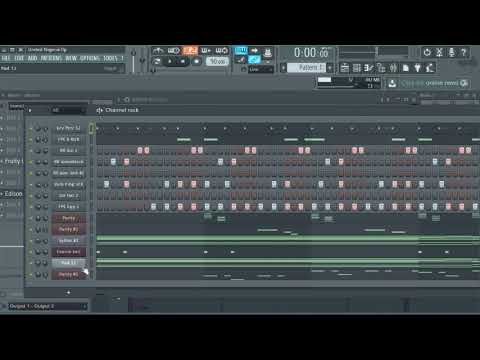
The Ultimate Guide to Creating Beats on FL Studio
Are you ready to unlock your musical creativity and produce professional-sounding beats on the legendary FL Studio? Look no further! In this comprehensive guide, we’ll take you through the basics of creating a beat on FL Studio, from setting up the software to exporting your final product.
What is FL Studio?
FL Studio (formerly known as Fruity Loops) is a digital audio workstation (DAW) that has been a staple in the music production industry for over two decades. It’s user-friendly interface and powerful features make it an ideal choice for producers of all levels, from beginners to seasoned pros.
Setting Up FL Studio
Before you start creating beats on FL Studio, you need to set up the software correctly. Here are the basic steps:
- Launch FL Studio and select your project settings (e.G., Resolution, sample rate, etc.)
- Choose a tempo and time signature for your beat
- Create a new pattern or import an existing one
Creating Beats on FL Studio
Now that you have set up FL Studio, it’s time to create some beats! Here are the basic steps:
- Create a New Pattern: Go to File > New Pattern, and choose the type of pattern you want to create (e.G., Drum pattern, melody, etc.)
- Add Instruments: Choose an instrument from the browser or add one using the plugin manager
- Program Your Beats: Use the step sequencer to program your beats, adjusting parameters like pitch, velocity, and duration as needed
- Arrange Your Patterns: Create a new arrangement by adding patterns to your song and arranging them in the desired order
Working With FL Studio’s Interface
FL Studio’s interface is highly customizable, but here are some essential features you need to know:
- Channel Rack: This panel allows you to organize your instruments and plugins
- Mixer: Use this panel to adjust the levels and effects of each instrument
- Playlist: Arrange your patterns in a logical order
Exporting Your Beat
Once you’ve created and arranged your beat, it’s time to export it. Here are the basic steps:
- Go to File > Export > Audio Files
- Choose the format (e.G., WAV, MP3) and settings for your exported audio file
- Select a folder and name for your exported file
Tips And Tricks
Here are some additional tips and tricks to help you get the most out of FL Studio:
- Experiment With Different Plugins: FL Studio has a vast library of plugins that can enhance your sound
- Use The Step Sequencer: This powerful tool allows you to program complex beats and melodies
- Pay Attention to Tempo And Time Signature: These settings will greatly affect the overall feel of your beat
Conclusion
Creating beats on FL Studio is an art form that requires patience, practice, and creativity. With this guide, we’ve covered the basics of setting up and using FL Studio to create professional-sounding beats. Whether you’re a seasoned producer or just starting out, FL Studio has something for everyone.
Frequently Asked Questions (FAQs)
- What is The Best Way to Learn FL Studio?
Answer: The best way to learn FL Studio is through hands-on practice and watching tutorials. - Can I Use FL Studio on a Mac or Linux Computer?
Answer: Yes, FL Studio supports multiple platforms, including Windows, Mac, and Linux. - How do I Import Plugins Into FL Studio?
Answer: You can find and install plugins using the browser or plugin manager within FL Studio. - Can I Export my Beat in Different Formats?
Answer: Yes, you can export your beat in various formats, including WAV, MP3, and more. - How do I Adjust The Tempo And Time Signature of my Beat?
Answer: You can find these settings in the File > Project Settings menu within FL Studio.
Recommended Reading
For further reading on FL Studio and music production, we recommend checking out the following resources:
- The Official FL Studio User Manual: This comprehensive guide covers all aspects of using FL Studio.
- Music Production 101: This article series provides an introduction to the basics of music production.
- FL Studio Tutorials: YouTube channels like The Pro Audio Files and Music Production Tuts offer a wealth of tutorials on using FL Studio.


