
Reset Iphone 4s: A Step by Step Guide
How can I reset my iPhone 4s? is a very common question, especially when deciding to sell or upgrade to a new device. But don’t worry, resetting iPhone 4s is a quick and easy process that you can do yourself. In this article, I’ll walk you through the steps needed to reset your iPhone 4s, both from your computer and directly from your device.
What to do Before Resetting Your Iphone 4s
Before resetting your iPhone 4s, it is important to make a backup of the data on the device. This will allow you to recover settings, photos and apps if something goes wrong. To find out how to back up data on your iPhone 4s, you can follow the instructions in my guide on how to backup iPhone.
Turn Off Find my Iphone
Also, I suggest you turn off the “find my iPhone” feature before resetting your iPhone 4s. This feature prevents you from resetting your phone to factory settings when it is active. To do this, grab your “iPhone”, press on the iOS settings section icon on the home screen, select the iCloud item and then tap on Find My iPhone from the menu that opens. Then move the find my iPhone switch to off and then type your Apple ID password.
Reset Iphone 4s From Computer
If you want to reset the iPhone 4s and prefer to carry out this operation via computer, the first thing you need to do is connect the iPhone to the Mac or PC using the appropriate cable supplied and wait for iTunes to start. If you are using a Mac, iTunes is included as standard. If, however, you are using a Windows computer and have not yet installed iTunes, you can remedy this by clicking here to connect to the appropriate section of the official Apple website and then pressing the download button located on the side.
Steps to Reset Iphone 4s From Computer
After starting (and possibly downloading and installing) iTunes on your computer and after connecting your iPhone to it, wait a few moments for the Apple software to start automatically. At this point, you can start resetting your smartphone by selecting the device icon from the iTunes menu, the summary item from the left sidebar and pressing the reset iPhone button…. Confirm the operation, accept the ios terms of use and wait patiently for the “formatting” procedure to be started and completed.
Reset Iphone 4s From Device
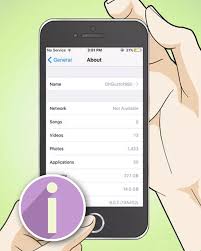
If you want to reset iPhone 4s and you have no intention of using a computer, the steps you need to carry out are very few and decidedly simple. To be able to reset iPhone 4s without a computer, the first thing you need to do is press on the icon in the settings section of your device on the home screen. Once this is done, tap on the general item then scroll through the displayed screen and press restore.
What to do if There Are Problems Resetting The Iphone 4s
If you can’t reset iPhone 4S due to some error, no problem. Surely by putting the phone in dfu mode – otherwise known as “recovery mode” – you will be able to deal with the matter and return the phone to its factory state in no time.
Conclusion
Resetting iPhone 4S is a quick and easy process that you can do yourself. I hope this guide has been useful for resetting your device successfully, both from the computer and directly from the device. If you have any further questions or problems, please feel free to contact me.
Faqs
-
How to Reset The Iphone 4s?
-
To reset your iPhone 4s, follow the steps in this guide.
-
Why is it Important to Back up Your Data Before Resetting Your Iphone 4s?
-
Backing up your data allows you to recover your settings, photos and apps if something goes wrong.
-
How to Turn Off The “find my Iphone” Function Before Resetting The Iphone 4s?
-
To deactivate the “find my iPhone” function, grab your “iPhone” and press the icon in the iOS settings section on the home screen, select the iCloud item and then tap on Find My iPhone from the menu that appears opens. Then move the find my iPhone switch to off and then type your Apple ID password.
-
How to Reset Iphone 4s From Computer?
-
To reset the iPhone 4s from the computer, connect the iPhone to the Mac or PC using the provided cable and wait for iTunes to start. At this point, you can start resetting your smartphone by selecting the device icon from the iTunes menu, the summary item from the left sidebar and pressing the reset iPhone button…. Confirm the operation, accept the ios terms of use and wait patiently for the “formatting” procedure to be started and completed.
-
How to Reset Iphone 4s From Device?
-
To be able to reset iPhone 4s without a computer, the first thing you need to do is press the icon in the settings section of your device on the home screen. Once this is done, tap on the general item then scroll through the displayed screen and press restore.
-
What if There Are Problems Resetting The Iphone 4s?
-
If you are unable to reset iPhone 4s due to some error, put the phone in dfu mode – otherwise known as “recovery mode” – to deal with the matter and return the phone to its factory state.


