
How to Change Your Name on a Mac: A Step-by-step Guide
Are you tired of using your old name on your Mac? Do you want to give your computer a fresh new identity? Changing your name on a Mac is easier than you think! In this article, we’ll guide you through the simple steps to change your name and complete name on your Mac.
Why Change Your Name on a Mac?
Changing your name on a Mac can be useful for various reasons. You may want to:
- Give your computer a new identity
- Separate personal and work files
- Create a new account for a family member or guest
Whatever your reason, changing your name on a Mac is a straightforward process that we’ll walk you through in this article.
Understanding The Different Names on Your Mac
Before we dive into the steps, it’s essential to understand the different names associated with your Mac:
- Name: This is the name of the user account.
- Complete Name: This is the full name of the user account, which can be modified by an administrator.
Modifying The Name on Your Mac
To change the name on your Mac, you’ll need to follow these steps:
Modifying The Account Name
- Go to System Preferences: Click on the Apple menu and select “System Preferences.”
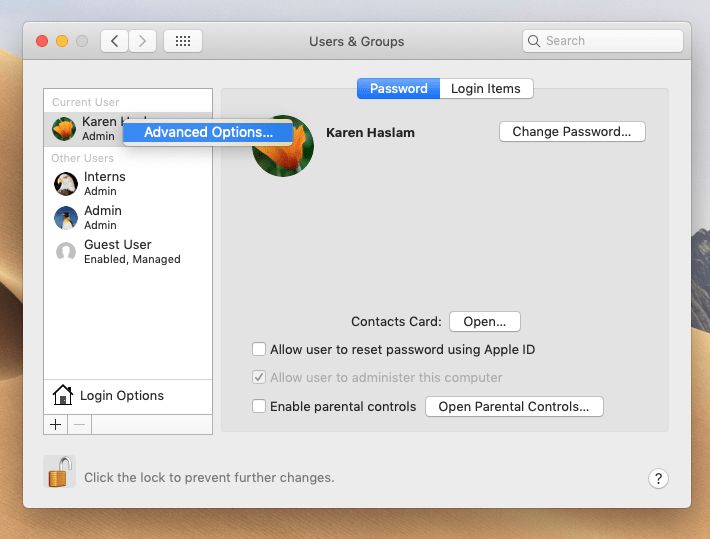
- Click on Users & Groups: Select “Users & Groups” from the list of preferences.
- Click on The Lock Icon: Click on the lock icon in the bottom left corner of the window and enter your administrator password.
- Select The User Account: Select the user account you want to modify.
- Click on The Name Field: Click on the name field and type a new name for the account.
Modifying The Complete Name
- Go to System Preferences: Click on the Apple menu and select “System Preferences.”
- Click on Users & Groups: Select “Users & Groups” from the list of preferences.
- Click on The Lock Icon: Click on the lock icon in the bottom left corner of the window and enter your administrator password.
- Select The User Account: Select the user account you want to modify.
- Click on The Complete Name Field: Click on the complete name field and type a new complete name for the account.
Renaming The Folder
If you’re changing the name of an existing account, you’ll need to rename the corresponding folder:
- Go to The Finder: Open the Finder and navigate to the “Users” folder.
- Select The User Account Folder: Select the user account folder that corresponds to the name you want to change.
- Right-click on The Folder: Right-click on the folder and select “Rename.”
- Type a New Name For The Folder: Type a new name for the folder.
Deleting an Account
If you’re no longer using an account, you can delete it:
- Go to System Preferences: Click on the Apple menu and select “System Preferences.”
- Click on Users & Groups: Select “Users & Groups” from the list of preferences.
- Select The User Account: Select the user account you want to delete.
- Click on The Minus Button: Click on the minus button next to the user account.
- Confirm Deletion: Confirm that you want to delete the account.
Conclusion
Changing your name on a Mac is a simple process that can be completed in just a few steps. Whether you’re looking to give your computer a fresh new identity or separate personal and work files, we’ve walked you through the easy-to-follow instructions to modify your account name and complete name.
If you have any further questions or need additional help, feel free to ask!
Frequently Asked Questions
- Q: How do I Change my Name on a Mac?
A: To change your name on a Mac, go to System Preferences > Users & Groups, select the user account, and click on the name field. - Q: Can I Change Both The Account Name And Complete Name at The Same Time?
A: Yes, you can change both the account name and complete name simultaneously by following the steps outlined in this article. - Q: How do I Rename a Folder Associated With an Account?
A: To rename a folder associated with an account, go to the Finder, select the user account folder, right-click on it, and select “Rename.” - Q: Can I Delete an Account That is no Longer in Use?
A: Yes, you can delete an account by going to System Preferences > Users & Groups, selecting the user account, and clicking on the minus button next to it. - Q: How do I Modify The Complete Name of an Administrator Account?
A: To modify the complete name of an administrator account, go to System Preferences > Users & Groups, select the administrator account, click on the complete name field, and type a new complete name.
References
- Apple Support
- Microsoft Support


