
Installing Windows 8 on a Usb Drive: A Step-by-step Guide
Are you tired of using an old operating system on your computer? Do you want to upgrade to the latest version, but don’t have a DVD drive or prefer not to use one? Look no further! Installing Windows 8 on a USB drive is a great alternative that can be done with ease. In this article, we will guide you through the process of installing Windows 8 on a USB drive using Microsoft’s official tool.
Why Install Windows 8 on a Usb Drive?
Before we dive into the installation process, let’s take a look at why you might want to install Windows 8 on a USB drive. Here are some benefits:
- Portability: A USB drive can be easily taken with you wherever you go, making it a great option for those who need to use their computer in different locations.
- Space-saving: Installing Windows 8 on a USB drive frees up space on your computer’s hard drive, allowing you to store more files and programs.
- Ease of Use: The installation process is relatively simple and can be completed with minimal technical expertise.
Requirements
Before we begin, make sure you have the following requirements:
- A 4 GB or larger empty USB drive (preferably one that has never been used before)
- A computer with a working operating system
- Microsoft’s official Windows 8 installation tool
Step 1: Download And Install The Installation Tool
The first step is to download and install Microsoft’s official Windows 8 installation tool. You can do this by following these steps:
- Visit the Microsoft website (www.Microsoft.Com) and search for “Windows 8 installation tool”.
- Click on the link that says “Download” and follow the prompts to save the file.
- Run the downloaded file and follow the instructions to install the tool.
Step 2: Create a Bootable Usb Drive
Now that you have the installation tool, it’s time to create a bootable USB drive. Here’s how:
- Insert your USB drive into the computer.
- Open the installation tool and select the option to create a bootable USB drive.
- Follow the instructions to format the USB drive and install Windows 8.
Step 3: Install Windows 8 on Your Computer
Once you have created the bootable USB drive, it’s time to install Windows 8 on your computer. Here’s how:
- Insert the USB drive into the computer.
- Restart the computer and enter the BIOS settings (usually by pressing F2 or Del).
- Set the computer to boot from the USB drive instead of the hard drive.
- Save the changes and exit the BIOS settings.
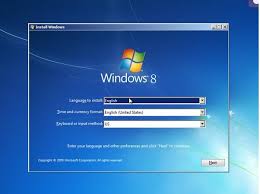
- The installation process will begin, and you’ll be prompted to select the language, time zone, and other settings.
Step 4: Configure Your Computer
After installing Windows 8, you’ll need to configure your computer. Here’s what to do:
- Set up your user account and password.
- Choose your country or region.
- Select your keyboard layout and input method.
- Set up any other settings that you prefer.
Conclusion
Installing Windows 8 on a USB drive is a relatively simple process that can be completed with minimal technical expertise. By following these steps, you’ll have a fully functional copy of Windows 8 on your computer in no time!
Frequently Asked Questions (FAQs)
Here are some frequently asked questions about installing Windows 8 on a USB drive:
- Q: Do I Need a Specific Type of Usb Drive to Install Windows 8?
A: Yes, you’ll need a 4 GB or larger empty USB drive. - Q: Can I Use Any Computer to Create The Bootable Usb Drive?
A: Yes, you can use any computer with a working operating system to create the bootable USB drive. - Q: Do I Need to Format my Hard Drive to Install Windows 8 on a Usb Drive?
A: No, you don’t need to format your hard drive to install Windows 8 on a USB drive. The installation process will take place entirely on the USB drive.
Additional Resources
If you’re still unsure about any part of the process, here are some additional resources that might help:
- Microsoft’s official Windows 8 installation tool: Www.Microsoft.Com
- Windows 8 support page: Support.Microsoft.Com
We hope this guide has been helpful in walking you through the process of installing Windows 8 on a USB drive. If you have any further questions or need additional assistance, feel free to ask!


