
How to Widen a Cell in Excel: A Step-by-step Guide
Are you tired of having cells in Excel that are too small to read? Do you want to know how to widen a cell or multiple cells without losing any data? Look no further! In this article, we will show you how to widen a single cell, multiple cells, and even entire columns in Excel.
Understanding Cell Width in Excel
Before we dive into the steps, it’s essential to understand how cell width works in Excel. By default, Excel sets the cell width based on the content of each cell. However, if you want to make a cell or multiple cells wider than their default setting, you’ll need to adjust the column width.
Widening a Single Cell
If you only want to widen a single cell, you can use the “Merge Cells” feature in Excel. Here’s how:
- Highlight the cell(s) you want to merge.
- Go to the Home tab in the Excel ribbon.
- Click on the “Merge & Center” button.
- Select “Merge Cells” from the dropdown menu.
Widening Multiple Cells
To widen multiple cells, you can follow these steps:
- Highlight the range of cells you want to widen (e.G., A1:A10).
- Go to the Home tab in the Excel ribbon.
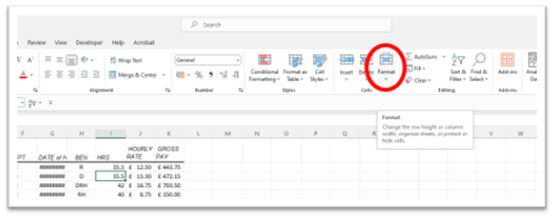
- Click on the “Format” button.
- Select “Column Width” from the dropdown menu.
- Enter the desired width for each column.
Widening an Entire Column
To widen an entire column, you can follow these steps:
- Highlight the entire column (e.G., Column A).
- Go to the Home tab in the Excel ribbon.
- Click on the “Format” button.
- Select “Column Width” from the dropdown menu.
- Enter the desired width for each column.
Using The Union Cells Feature
If you want to widen multiple cells without losing any data, you can use the “Union Cells” feature. Here’s how:
- Highlight the range of cells you want to union (e.G., A1:A10).
- Go to the Home tab in the Excel ribbon.
- Click on the “Merge & Center” button.
- Select “Union Cells” from the dropdown menu.
Widening Cells in Excel Online
If you’re using Excel Online, widening cells is a bit different. Here’s how:
- Highlight the range of cells you want to widen (e.G., A1:A10).
- Go to the Home tab in the Excel ribbon.
- Click on the “Format” button.
- Select “Column Width” from the dropdown menu.
- Enter the desired width for each column.
Using The App on Mobile Devices
If you’re using the Excel app on a mobile device, widening cells is even simpler. Here’s how:
- Highlight the range of cells you want to widen (e.G., A1:A10).
- Tap on the “Format” button.
- Select “Column Width” from the dropdown menu.
- Enter the desired width for each column.
Conclusion
Widening cells in Excel is a simple process that can be done in just a few steps. Whether you want to widen a single cell, multiple cells, or an entire column, we’ve got you covered. With these tips and tricks, you’ll be able to make your cells as wide as you need them without losing any data.
Faqs
- Q: How do I Widen a Single Cell in Excel?
A: To widen a single cell, use the “Merge Cells” feature or the “Union Cells” feature. - Q: Can I Widen Multiple Cells at Once?
A: Yes, you can widen multiple cells by highlighting the range of cells and using the “Format” button to select “Column Width”. - Q: How do I Widen an Entire Column in Excel?
A: To widen an entire column, highlight the column and use the “Format” button to select “Column Width”. - Q: Can I Use The Union Cells Feature to Widen Multiple Cells?
A: Yes, you can use the Union Cells feature to widen multiple cells without losing any data. - Q: How do I Widen Cells in Excel Online?
A: To widen cells in Excel Online, highlight the range of cells and use the “Format” button to select “Column Width”. - Q: Can I Use The App on Mobile Devices to Widen Cells?
A: Yes, you can use the app on mobile devices to widen cells by highlighting the range of cells and using the “Format” button. - Q: How do I Know if my Cells Are Too Small?
A: If your cells are too small, they may be truncated or cut off when printing or saving your file. - Q: Can I Adjust The Column Width For Each Column Separately?
A: Yes, you can adjust the column width for each column separately by highlighting the column and using the “Format” button to select “Column Width”.


