
How to Transfer Music From Iphone to Pc: A Step-by-step Guide
Are you tired of listening to music on your iPhone and want to transfer it to your PC or Mac? Look no further! In this article, we will guide you through the process of transferring music from your iPhone to your computer, using various methods.
Introduction
Transferring music from an iPhone to a PC or Mac can be a bit tricky, but don’t worry, we’ve got you covered. With the rise of streaming services, it’s becoming increasingly popular to transfer personal music libraries from one device to another. In this article, we will explore different methods to transfer music from your iPhone to your computer, using Apple’s official software, third-party apps, and streaming services.
Why Transfer Music From Iphone to Pc?
There are several reasons why you might want to transfer music from your iPhone to your PC or Mac:
- Space-saving: Transferring music from your iPhone to your computer can free up space on your phone, making it easier to manage your music library.
- Convenience: Having your music library on your computer allows you to access it from any device connected to the same network.
- Backup: Transferring music from your iPhone to your computer creates a backup of your music library, ensuring that you don’t lose your favorite songs in case something happens to your phone.
Method 1: Using Apple’s Official Software
Apple provides several methods to transfer music from your iPhone to your PC or Mac. Here’s how:
Step-by-step Guide For Windows Users
- Download and install the latest version of iTunes on your computer.
- Connect your iPhone to your computer using a USB cable.
- Open iTunes and select your iPhone from the top navigation bar.
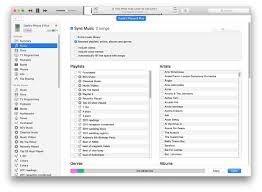
- Click on “Music” and then select “Sync Music.”
- Choose the music you want to transfer and click “Apply.”
Step-by-step Guide For Mac Users
- Connect your iPhone to your computer using a USB cable.
- Open Finder and select your iPhone from the top navigation bar.
- Click on “Music” and then select “Sync Music.”
- Choose the music you want to transfer and click “Apply.”
Method 2: Using Third-party Apps
There are several third-party apps available that can help you transfer music from your iPhone to your PC or Mac. Here’s how:
Imazing
- Download and install iMazing on your computer.
- Connect your iPhone to your computer using a USB cable.
- Open iMazing and select your iPhone from the top navigation bar.
- Click on “Music” and then select “Export Music.”
- Choose the music you want to transfer and click “Export.”
Other Third-party Apps
There are several other third-party apps available that can help you transfer music from your iPhone to your PC or Mac. Some popular options include:
- Syncios
- PhoneTrans
- AnyTrans
Method 3: Using Streaming Services
Streaming services like Apple Music, Spotify, and Amazon Music allow you to transfer music from your iPhone to your PC or Mac using their official apps.
Step-by-step Guide For Apple Music Users
- Download and install the latest version of Apple Music on your computer.
- Connect your iPhone to your computer using a USB cable.
- Open Apple Music and select your iPhone from the top navigation bar.
- Click on “Music” and then select “Synchronize Book.”
- Choose the music you want to transfer and click “Apply.”
Step-by-step Guide For Spotify Users
- Download and install the latest version of Spotify on your computer.
- Connect your iPhone to your computer using a USB cable.
- Open Spotify and select your iPhone from the top navigation bar.
- Click on “Music” and then select “Synchronize Book.”
- Choose the music you want to transfer and click “Apply.”
Step-by-step Guide For Amazon Music Users
- Download and install the latest version of Amazon Music on your computer.
- Connect your iPhone to your computer using a USB cable.
- Open Amazon Music and select your iPhone from the top navigation bar.
- Click on “Music” and then select “Synchronize Book.”
- Choose the music you want to transfer and click “Apply.”
Conclusion
Transferring music from your iPhone to your PC or Mac can be a bit tricky, but with these methods, you should be able to do it easily. Remember to always back up your music library before making any changes to ensure that you don’t lose your favorite songs.
Frequently Asked Questions (FAQs)
Here are some frequently asked questions and answers related to transferring music from iPhone to PC:
- Q: How do I transfer music from my iPhone to my computer using iTunes?
A: To transfer music from your iPhone to your computer using iTunes, follow the step-by-step guide provided above. - Q: Can I use third-party apps to transfer music from my iPhone to my computer?
A: Yes, you can use third-party apps like iMazing, Syncios, PhoneTrans, and AnyTrans to transfer music from your iPhone to your computer. - Q: How do I transfer music from my iPhone to my computer using streaming services?
A: To transfer music from your iPhone to your computer using streaming services, follow the step-by-step guide provided above for Apple Music, Spotify, or Amazon Music users.


