
Unblocking Windows 10: A Comprehensive Guide
Are you tired of facing issues while using your Windows 10 computer? Do you find yourself struggling to unblock Windows 10, recover forgotten passwords, or resolve update problems? Look no further! In this article, we’ll provide a step-by-step guide on how to unblock Windows 10, including recovering forgotten passwords, unblocking administrator accounts, and resolving update issues.
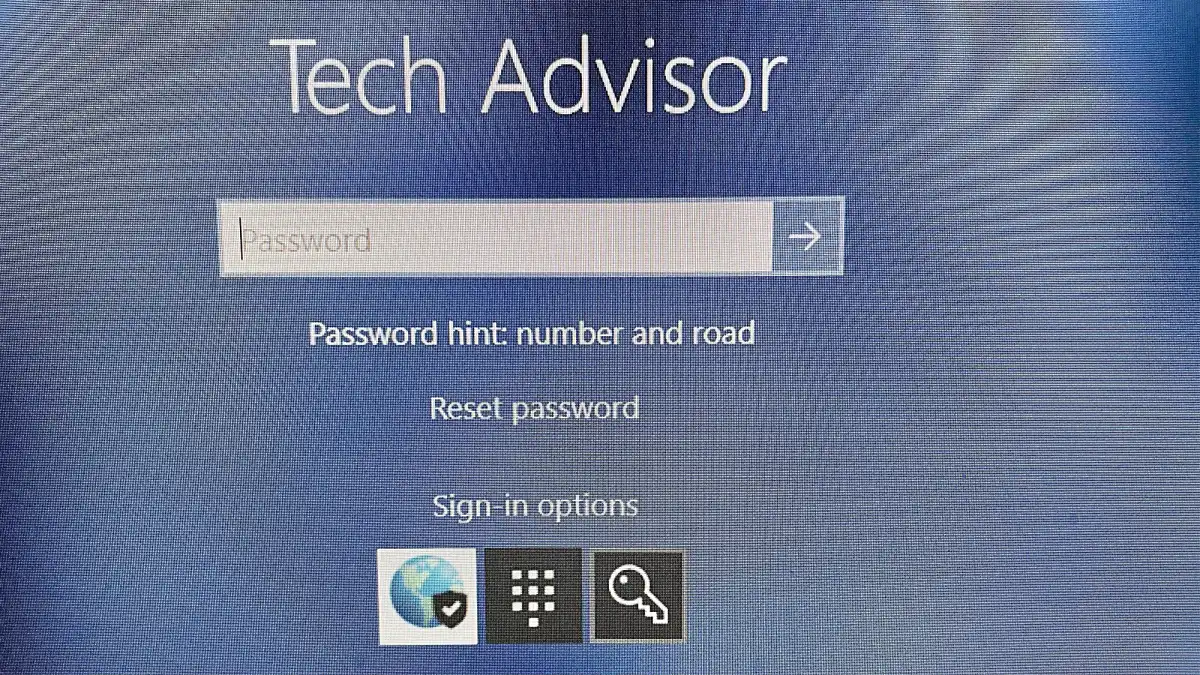
Unblocking Windows 10 With Forgotten Password
If you’ve forgotten your Windows 10 password, don’t worry. There are several ways to recover it. Here’s one method:
- Method 1: Using Kon-boot
- Download and install Kon-Boot on a USB drive.
- Boot from the USB drive and follow the instructions.
- You’ll be able to access Windows without entering your password.
Unblocking Administrator Accounts
If you need to act as an administrator, here’s how to unblock the administrator account:
- Method 1: Using Powershell
- Open PowerShell with administrator privileges.
- Run the command
net user administrator /active:YES. - Set a new password for the administrator account.
Unblocking Windows 10 Updates
If you’re experiencing issues with Windows 10 updates, here’s how to unblock them:
- Method 1: Restarting Windows Update
- Go to Settings > Update and Safety.
- Click on “Restart” under Windows Update.
- The updates should resume normally.
Unblocking Apps And Microsoft Store
If you’re experiencing issues with apps or the Microsoft Store, here’s how to resolve them:
- Method 1: Reinstalling The App
- Go to Settings > Apps.
- Find the app that’s causing issues.
- Click on “Advanced options” and select “Uninstall”.
- Reinstall the app.
How to Unblock Microsoft Store
If you’re experiencing issues with the Microsoft Store, here are a few methods:
- Method 1: Using Wsreset
- Press the Windows key + R.
- Type
wsreset.Exeand press Enter. - The Microsoft Store should restart normally.
- Method 2: Uninstalling And Reinstalling The App
- Go to Settings > Apps.
- Find the Microsoft Store app.
- Click on “Uninstall” and then “Reinstall”.
How to Unblock Application Bars
If you need to move or reorganize application bars, here’s how:
- Method 1: Blocking And Moving The Bar
- Identify an empty spot on the taskbar.
- Right-click on it and select “Block the taskbar”.
- Move the bar to a different location.
Conclusion
In conclusion, unblocking Windows 10 is not as difficult as you might think. By following these steps, you should be able to recover forgotten passwords, unblock administrator accounts, resolve update issues, and even unblock application bars. Remember to always follow proper procedures when performing system-level tasks to avoid potential risks.
Faqs
- Q: Can I Use Kon-boot on a Computer That’s Not Mine?
A: No, it’s recommended to only use Kon-Boot on computers that you own or have permission from the owner. - Q: How do I Recover my Password if I’ve Forgotten It?
A: You can try using Kon-Boot or resetting your password through the Microsoft account website. - Q: Can I Unblock Administrator Accounts on a Computer That’s Not Mine?
A: No, you should only perform system-level tasks on computers that you own or have permission from the owner. - Q: How do I Resolve Update Issues With Windows 10?
A: Try restarting Windows Update, reinstalling the app, or using WSReset to restart the Microsoft Store. - Q: Can I Move The Application Bar on a Windows 10 Computer?
A: Yes, you can block and move the taskbar to a different location. - Q: How do I Recover my Password if It’s Been Blocked?
A: Try using Kon-Boot or resetting your password through the Microsoft account website. - Q: Can I Unblock Administrator Accounts on a Windows 10 Computer That’s Not Mine?
A: No, you should only perform system-level tasks on computers that you own or have permission from the owner. - Q: How do I Resolve Issues With The Microsoft Store on Windows 10?
A: Try reinstalling the app, using WSReset to restart the store, or following proper procedures for resolving issues.
Remember to always follow proper procedures when performing system-level tasks to avoid potential risks.


