
How to Underline Text on Word
As a tech-savvy individual, you might be familiar with the various ways to underline text on Microsoft Word. However, if you’re new to the world of word processing or simply need a quick refresher, this guide is for you.
In this article, we’ll walk you through the steps to underline text on Word, whether you’re using the desktop version, online version, or mobile app. We’ll also cover some additional tips and tricks to help you get the most out of your digital documents.
Getting Started With Underlining on Word
Before we dive into the specifics, let’s take a look at why underlining text is useful in the first place.
Underlining text can be used to highlight important information, draw attention to specific sections of a document, or even create visual emphasis. Whether you’re writing an essay, creating a presentation, or simply editing a document, underlining can be a powerful tool in your toolbox.
How to Underline Text on Word For Desktop
If you’re using the desktop version of Microsoft Word, underlining text is relatively straightforward.
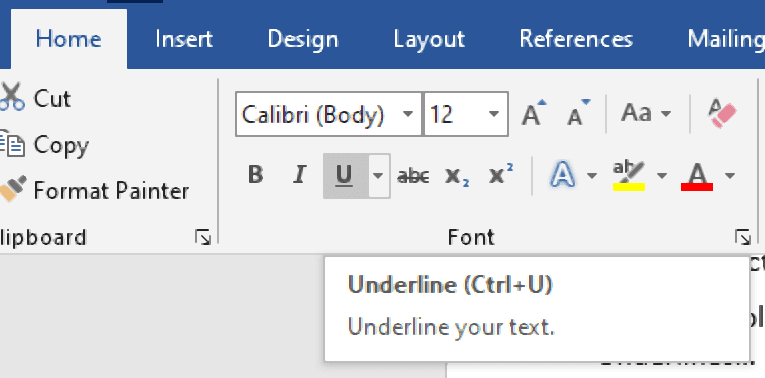
To get started, select the portion of text you want to underline by highlighting it with your mouse. Next, click on the “U” or “S” button in the toolbar, depending on the version of Word you’re using. You can also use the keyboard shortcut Ctrl+U (Windows) or cmd+U (Mac).
That’s it! The selected text should now be underlined.
How to Highlight Text With Diverse Styles
But what if you want to highlight text in different styles? Perhaps you need to draw attention to specific sections of a document using bold, italic, or even colored font.
In that case, you can use the “U” or “S” button again, but this time click on the dropdown arrow next to it. This will open up a menu with various highlighting options, including different line styles and colors.
How to Highlight Text in Different Colors
If you’re using an older version of Word that doesn’t support color-changing highlighting, don’t worry! There’s still a way to get around this limitation.
To highlight text in different colors, select the text first, then right-click on it (or press Ctrl+Click on Mac). From there, choose “Character” from the menu, and select the color you want to use for highlighting.
How to Highlight Text With White Spaces
But what if you want to highlight text without showing white spaces between words? Perhaps you’re working with a document that has multiple paragraphs and don’t want the highlighted sections to interrupt the flow of your writing.
In this case, follow these steps:
- Select the text you want to highlight.
- Click on the “Character” menu and select the option to show only the first letter of each paragraph (or line).
- You can now highlight the selected text without showing white spaces between words.
How to Underline Text on Word Online
Underlining text on Word online is surprisingly similar to doing so on the desktop version.
To get started, log in to your Microsoft account and access the document you want to edit. Select the portion of text you want to underline, then click on the “S” button in the toolbar or use the keyboard shortcut Ctrl+U (Windows) or cmd+U (Mac).
That’s it! The selected text should now be underlined.
How to Underline Text on Word Mobile
Underlining text on Word mobile is a bit more intuitive than you might expect.
To get started, open the document you want to edit in the Word app. Select the portion of text you want to underline by tapping and holding at the beginning of the selected section. You’ll see blue indicators appear at the start and end of the highlighted area – just tap and hold again to amplify or diminish their range.
Next, click on the “S” button (or “U”, depending on your device) located in the bottom-right corner of the screen. That’s it! The selected text should now be underlined.
Conclusion
Underlining text on Word is a straightforward process that can be achieved using various methods across different versions and devices.
Whether you’re working with the desktop version, online version, or mobile app, our guide has provided you with step-by-step instructions to get started. Remember to use underlining to highlight important information, draw attention to specific sections of a document, or create visual emphasis in your writing.


