
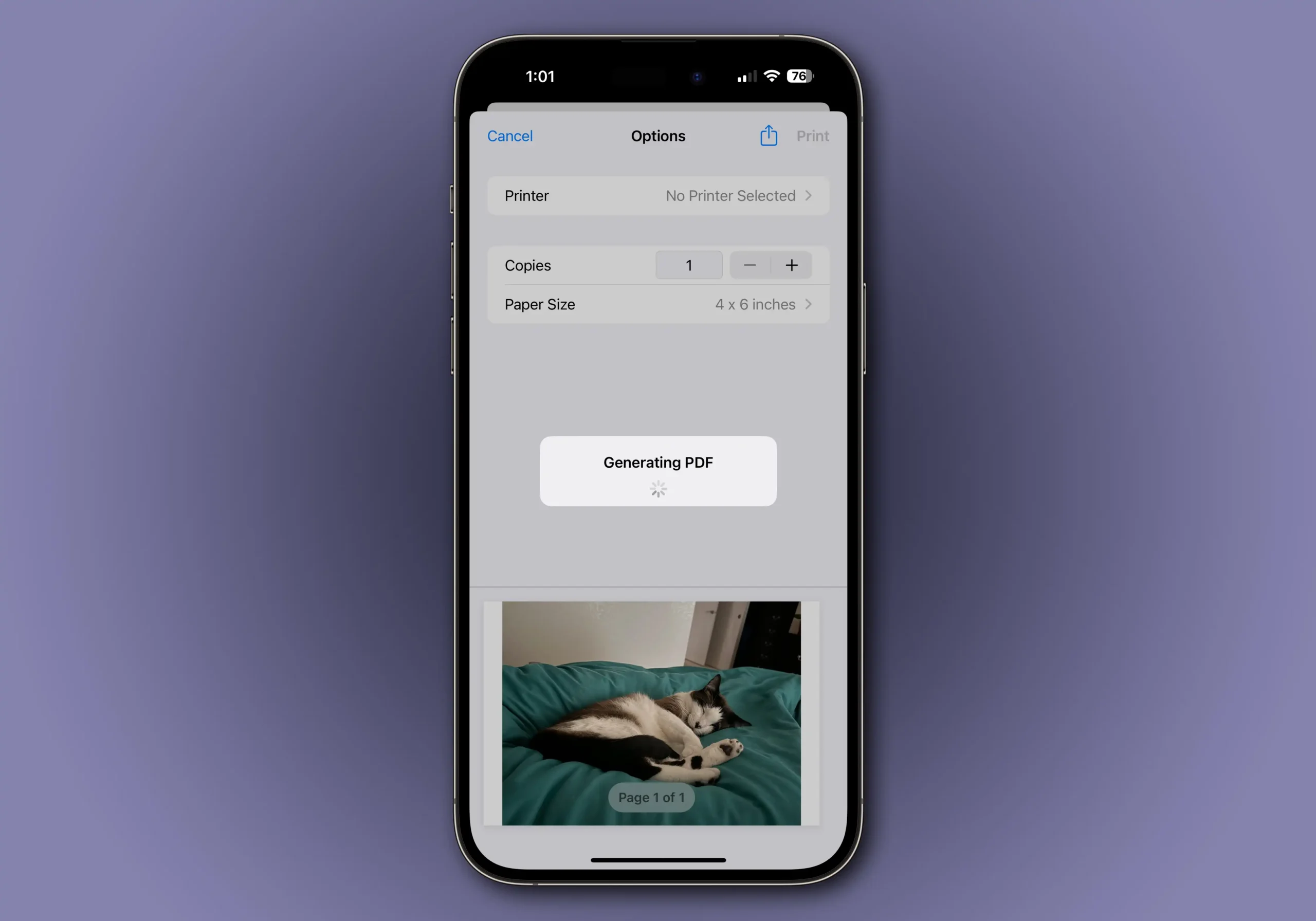
How to Transform a Photo Into Pdf on Iphone
Are you tired of dealing with messy photos and want to transform them into a neat and organized PDF document? Look no further! In this article, we’ll guide you through the process of converting a photo into a PDF file using your iPhone.
Understanding The Basics
Before we dive into the nitty-gritty details, let’s understand what we’re working with. A PDF (Portable Document Format) file is a digital document that can be viewed and printed on various devices. In this case, we want to convert our photo into a PDF file using our iPhone.
Method 1: Using The Built-in Printer Feature
The first method involves using the built-in printer feature on your iPhone. This is a straightforward process that doesn’t require any additional apps or software.
- Open the Photos app and select the photo you want to convert.
- Tap the “Share” icon (represented by a square with an arrow pointing upwards).
- Select “Print” from the menu options.
- Choose the PDF printer option and adjust the settings as needed.
- Tap “Print” to generate the PDF file.
Method 2: Using The Command Fast App
For more advanced users, we have Method 2, which involves using the Command Fast app. This app allows you to automate tasks, including exporting photos to PDF format.
- Download and install the Command Fast app from the App Store.
- Open the app and create a new command by tapping the “+” icon.
- Select “Photos” as the input source and choose the photo you want to convert.
- Tap “Export to PDF” to generate the file.
- Save the PDF file in your desired location.
Method 3: Using Third-party Apps
If the above methods don’t meet your requirements, there are several third-party apps available that can help you transform photos into PDF files. Some popular options include:
- Genius Scan
- Microsoft Lens
- Converters Online
These apps offer a range of features and functionalities, including OCR (Optical Character Recognition) capabilities and automatic naming of documents.
Choosing The Right Method
The method you choose will depend on your specific needs and preferences. If you’re looking for a straightforward solution, Method 1 is the way to go. For more advanced users, Method 2 offers greater flexibility and customization options. If you prefer to use third-party apps, there are plenty of options available that can help you achieve your goal.
Conclusion
Transforming a photo into a PDF file on iPhone is a straightforward process that can be achieved using various methods. Whether you choose the built-in printer feature, the Command Fast app, or a third-party app, we’ve got you covered. Follow these simple steps, and you’ll have your PDF file in no time.
Frequently Asked Questions
Here are some additional questions and answers to help clarify any doubts:
Q: What is the maximum size of a photo that can be converted into a PDF file?
A: The maximum size of a photo that can be converted into a PDF file depends on the method used. In general, photos up to 4GB in size can be handled.
Q: Can I convert multiple photos at once?
A: Yes, you can convert multiple photos at once using various methods. This can save time and effort, especially when dealing with large collections of photos.
Q: Are there any limitations or restrictions on the use of third-party apps?
A: Yes, some third-party apps may have limitations or restrictions on their usage. Be sure to check the app’s terms and conditions before using it.
Q: Can I edit or modify the PDF file after conversion?
A: Yes, you can edit or modify the PDF file after conversion using various software applications.
Q: Is there a cost associated with converting photos into PDF files?
A: The cost of converting photos into PDF files depends on the method used. In general, the built-in printer feature is free, while third-party apps may have subscription-based models or one-time payment options.
Q: Can I convert videos into PDF files as well?
A: No, you cannot convert videos into PDF files using the methods described in this article. However, there are other software applications and services available that can help with video conversion.


