
Creating Mp3 Files From CD Audio: A Step-by-step Guide
Are you a music enthusiast looking to convert your favorite CDs into digital formats that can be easily stored and played on various devices? Look no further! In this article, we will guide you through the process of creating MP3 files from CD audio using different software options available for Windows and Mac.
What is Mp3 Format?
Before we dive into the step-by-step guides, let’s first understand what MP3 format is. MP3 (MPEG Audio Layer 3) is a widely used digital audio compression format that reduces the size of audio files while maintaining acceptable sound quality. This makes it ideal for storing and sharing music files on various devices.
Creating Mp3 Files From CD Audio With Windows
If you’re using a Windows computer, there are several software options available to convert your CD audio into MP3 files. Here’s how you can do it:
Using Windows Media Player
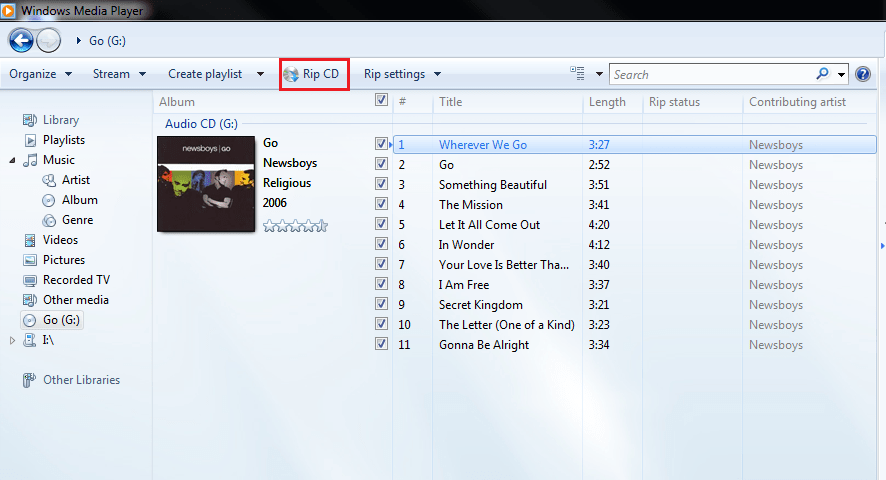
Windows Media Player is a default media player that comes pre-installed on most Windows computers. Not only can it play various media formats, but it also allows you to rip CDs and save them in different formats, including MP3.
Step 1: Insert The CD Into The Computer
Insert the CD you want to convert into your computer’s CD drive.
Step 2: Launch Windows Media Player
Launch Windows Media Player from the Start menu or desktop icon.
Step 3: Select The CD And Choose The Output Format
Select the CD in the library, click on the “Start” button, and choose the output format as MP3. You can also adjust the quality settings according to your preference.
Step 4: Rip The CD to Mp3 Files
Click on the “Copy to My Computer” button, and the program will start ripping the CD into MP3 files.
Creating Mp3 Files From CD Audio With Nero
Nero is a powerful media suite that includes tools for burning CDs, DVDs, and Blu-ray discs. It also allows you to rip CDs and convert them into various formats, including MP3.
Step 1: Download And Install Nero
Download the free trial version of Nero Burning ROM from their official website.
Step 2: Insert The CD Into The Computer
Insert the CD you want to convert into your computer’s CD drive.
Step 3: Launch Nero Burning Rom
Launch Nero Burning ROM, select the CD, and choose the output format as MP3.
Step 4: Rip The CD to Mp3 Files
Click on the “Copy” button, and the program will start ripping the CD into MP3 files.
Other Software Options For Creating Mp3 Files From CD Audio With Windows
There are other software options available that can help you create MP3 files from CD audio using Windows. Some popular alternatives include:
- Free AC – Free Software And Open-source by Which You Can Carry Out Operations of Conversion Acting on All The More Spread Formed Audio.
- Vlc – A Famous Multimedia Player, Free, Open-source, And Able to “digest” Practically Each Format Audio And Video Without Resorting to Codec External.
- Express Rip – A Software That Costs Zero, Which Allows You to Rip Cds in Mp3 And Other Formats.
Creating Mp3 Files From CD Audio With Mac
If you’re using a Mac computer, you can create MP3 files from CD audio using the built-in Music app.
Step 1: Insert The CD Into The Computer
Insert the CD you want to convert into your computer’s CD drive.
Step 2: Launch The Music App
Launch the Music app on your Mac.
Step 3: Select The CD And Choose The Output Format
Select the CD in the library, click on the “Preferences” button, and choose the output format as MP3.
Step 4: Rip The CD to Mp3 Files
Click on the “Import” button, and the program will start ripping the CD into MP3 files.
Conclusion
Converting your favorite CDs into digital formats is now easier than ever! With these step-by-step guides, you can create MP3 files from CD audio using different software options available for Windows and Mac. Remember to choose the output format according to your preference, and adjust the quality settings if needed.
Frequently Asked Questions
-
Q: What is Mp3 Format?
A: MP3 (MPEG Audio Layer 3) is a widely used digital audio compression format that reduces the size of audio files while maintaining acceptable sound quality. -
Q: Which Software Options Are Available For Creating Mp3 Files From CD Audio With Windows?
A: You can use Windows Media Player, Nero Burning ROM, Free AC, VLC, and Express Rip to create MP3 files from CD audio using Windows. -
Q: How do I Convert Cds Into Mp3 Files on a Mac?
A: Use the built-in Music app on your Mac to select the CD, choose the output format as MP3, and rip the CD into MP3 files. -
Q: What Are Some Popular Software Options For Creating Mp3 Files From CD Audio With Windows?
A: Some popular alternatives include Free AC, VLC, and Express Rip. -
Q: Can I Convert Cds Into Other Formats Besides Mp3?
A: Yes! You can choose different output formats according to your preference when ripping the CD using various software options.


