
Modifying Your Instagram Profile: A Step-by-step Guide
Are you looking to give your Instagram profile a fresh new look? Perhaps you’ve had second thoughts about the name, photo, or description you initially chose when creating your account. Don’t worry; modifying your Instagram profile is easier than you think! In this article, we’ll guide you through the process of making changes to your profile, whether you’re using an Android or iOS device.
Modifying Your Profile on Android And Ios
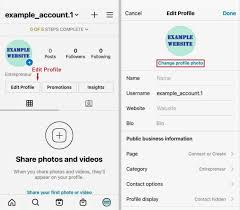
To start, open the Instagram app on your device and access your account. Tap on the miniature of your profile picture located in the bottom right corner of the screen. Then, tap on the “Edit Profile” button that appears at the top of the screen.
Changing Your Profile Picture
If you want to change the image of your profile, tap on the “Change Profile Picture” option at the top of the screen. You can choose to upload a photo from Facebook, take a new photo, or select one from your device’s gallery.
Modifying Your Profile Name And Description
To modify your profile name or description, tap on the respective fields in the “Edit Profile” section. If you want to change your username, simply type in the new name you’ve chosen. For the description, use up to 150 characters to summarize who you are or what you’re about.
Changing Your Password
If you need to change your password, tap on the three horizontal lines at the top right corner of the screen and select “Settings.” Then, navigate to the “Account” section and choose “Password.” Enter your current password, followed by a new one that you’ll use in the future. Make sure it’s strong and unique!
Aesthetic Changes
To give your profile an extra touch, consider creating story highlights that showcase some of your favorite posts or features. This will draw attention to specific content without overwhelming your feed.
Modifying Your Profile on PC
If you prefer using Instagram on your computer, the process is similar:
- Log in to your account if prompted.
- Click on your profile picture at the top right corner.
- Select “Edit Profile” from the dropdown menu.
- Make any necessary changes to your name, description, or photo.
Changing Your Account Type
If you’ve changed your mind about having a business account, follow these steps:
- For Android and iOS devices:
- Tap on the three horizontal lines at the top right corner of the screen.
- Select “Settings.”
- Choose “Account” > “Switch to Personal Account.”
- For PC users:
- Click on your profile picture at the top right corner.
- Select “Edit Profile.”
- Scroll down and select the option to switch from a business account to a personal one.
Conclusion
Modifying your Instagram profile is a straightforward process that allows you to update your name, photo, description, or other settings. Whether you’re using a mobile device or PC, we hope this guide has been helpful in getting your profile just right!


