
How to Delete Notification Windows 10: A Step-by-step Guide
Are you tired of seeing the annoying notification on your Windows 10 desktop? Do you want to get rid of it without installing any additional software or going through complicated procedures? Look no further! In this article, we will guide you through a step-by-step process on how to delete notification Windows 10.
Why Should You Delete Notification Windows 10?
Before we dive into the steps, let’s first understand why deleting notification Windows 10 is necessary. The notification is a reminder that Windows 10 is available for upgrade, but if you’re not interested in upgrading, it can be quite annoying to see every day. By deleting this notification, you’ll no longer see it on your desktop, and you can focus on other things.
Method 1: Conceal The Icon of The Notification
One way to delete notification Windows 10 is by concealing its icon from view. Here’s how:
Step 1: Click on The Start Menu
Click on the Start menu (usually located at the bottom left corner of your screen) and type “personalize” in the search bar.
Step 2: Open Personalization Settings
Open the Personalization settings window by clicking on it from the search results.
Step 3: Click on Lock Screen
In the Personalization settings window, click on the “Lock screen” tab.
Step 4: Uncheck The Box
Uncheck the box next to “Show notifications from apps” to conceal the icon of the notification.
Method 2: Remove The Update Responsible For The Notification
Another way to delete notification Windows 10 is by removing the update responsible for it. Here’s how:
Step 1: Click on Start Menu
Click on the Start menu and type “windows update” in the search bar.
Step 2: Open Windows Update Settings
Open the Windows Update settings window by clicking on it from the search results.
Step 3: Click on Installed Updates
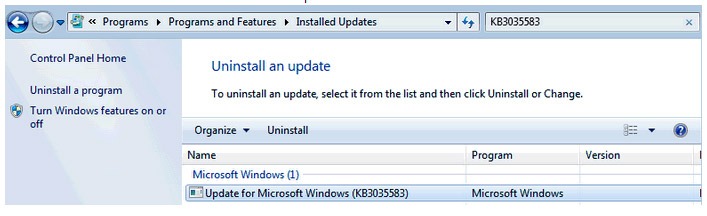
In the Windows Update settings window, click on the “Installed updates” tab.
Step 4: Find And Remove The Update Kb3035583
Find the update named “Update for Microsoft Windows (KB3035583)” and remove it. This will delete notification Windows 10 from your desktop.
Method 3: Use Gwx Control Panel
If you’re not comfortable with removing updates or concealing icons, you can use the GWX Control Panel tool to delete notification Windows 10. Here’s how:
Step 1: Download Gwx Control Panel
Download the GWX Control Panel tool from Microsoft’s website.
Step 2: Run The Tool
Run the downloaded tool and follow the prompts to configure it.
Step 3: Disable Windows 10 Upgrade
Disable the Windows 10 upgrade option in the GWX Control Panel settings.
Conclusion
Deleting notification Windows 10 is a straightforward process that can be completed using one of the three methods outlined above. By following these steps, you’ll no longer see the annoying notification on your desktop, and you can focus on other things. Remember to always exercise caution when making changes to your computer’s settings.
Frequently Asked Questions (FAQs)
- What is The Purpose of Deleting Notification Windows 10?
Deleting notification Windows 10 allows you to get rid of the annoying reminder that Windows 10 is available for upgrade, which can be distracting and clutter up your desktop.
- How do I Know if I Need to Delete Notification Windows 10?
If you’re not interested in upgrading to Windows 10 or find the notification annoying, it’s time to delete it.
- Will Deleting Notification Windows 10 Affect my Computer’s Performance?
Deleting notification Windows 10 will not affect your computer’s performance; it simply removes the reminder that Windows 10 is available for upgrade.
- Can I Still Install Windows 10 if I Delete Its Notification?
Yes, you can still install Windows 10 even after deleting its notification. If you change your mind about upgrading, you can enable the Windows 10 upgrade option in the GWX Control Panel settings or reinstall it using the standard upgrade process.
- How do I Prevent Future Notifications From Appearing on my Desktop?
To prevent future notifications from appearing on your desktop, make sure to disable the Windows 10 upgrade option in the GWX Control Panel settings or use a third-party tool to block such notifications.
- Can I Delete Notification Windows 10 if I’m Running an Earlier Version of Windows?
Unfortunately, deleting notification Windows 10 is only possible if you’re running Windows 10 on your computer. If you’re using an earlier version of Windows, the process might be different or not applicable at all.
Best Practices
- Be Cautious When Making Changes to Your Computer’s Settings: Always make a backup of your data and follow proper procedures before making any significant changes to your computer’s settings.
- Use Reputable Sources For Software Downloads: Only download software from trusted websites, such as Microsoft or the official website of the developer.
- Read Reviews And Tutorials Before Using New Tools or Software: Understand how new tools or software work and their potential impact on your system.
By following these steps and best practices, you’ll be able to delete notification Windows 10 with confidence and keep your computer running smoothly.


