
Mastering Microsoft Word: A Guide to Navigating Its Interface
Are you struggling to navigate the interface of Microsoft Word? Do you find yourself getting lost in the various menus and options available? You’re not alone. In this guide, we’ll walk you through the process of navigating Microsoft Word’s interface, including how to come back behind on a document, use keyboard shortcuts, and more.
Understanding The Interface
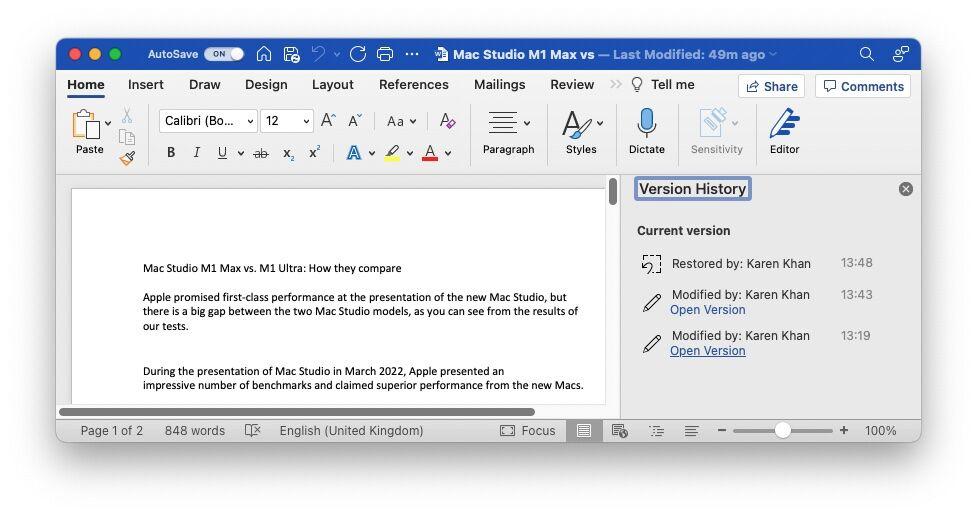
Microsoft Word’s interface is designed to be intuitive and user-friendly. However, with so many features and options available, it can be overwhelming for beginners. To start, let’s take a look at the different parts of the interface:
- Menu Bar: Located at the top of the window, the menu bar contains various menus that allow you to access different features and options.
- Ribbon: Below the menu bar is the ribbon, which provides quick access to commonly used features and tools.
- Document Area: This is where your document will be displayed. You can edit text, add images, and perform other actions within this area.
- Status Bar: Located at the bottom of the window, the status bar displays information about your document, such as word count and formatting.
Coming Back Behind on a Document
Have you ever accidentally deleted or modified an important part of your document? Coming back behind on a document can be a lifesaver. Here’s how to do it:
- Windows: To come back behind on a document in Windows, click on the “Undo” button located at the top-left corner of the window. You can also press Ctrl+Z.
- Mac: On a Mac, you can come back behind by clicking on the “Edit” menu and selecting “Undo”. Alternatively, you can press Command+Z.
Using Keyboard Shortcuts
Keyboard shortcuts are a great way to speed up your work in Microsoft Word. Here are some of the most useful shortcuts:
- Ctrl+z: Undo
- Ctrl+y: Redo
- Ctrl+c: Copy
- Ctrl+v: Paste
- Ctrl+a: Select all
Navigating Menus And Options
Microsoft Word’s menus and options can be complex, but here are some tips to help you navigate them:
- Menu Bar: Use the menu bar to access different features and options. You can find common actions such as “File”, “Edit”, “View”, and “Help” in this area.
- Ribbon: The ribbon provides quick access to commonly used features and tools. You can customize the ribbon by clicking on the “Customize Ribbon” button.
- Dialog Boxes: Dialog boxes are small windows that appear when you need to make a decision or input information. Use these boxes carefully, as they may contain important options.
Using Microsoft Word Online
Microsoft Word Online is a free version of Microsoft Word that can be accessed through your web browser. Here’s how to use it:
- Accessing Microsoft Word Online: Go to the Microsoft website and sign in with your account credentials.
- Navigating Microsoft Word Online: Once you’re logged in, click on the “Word” icon to access the application. The interface is similar to the desktop version, but with some differences.
Using Microsoft Word on Mobile Devices
Microsoft Word can also be used on mobile devices such as Android and iOS smartphones and tablets. Here’s how to use it:
- Accessing Microsoft Word on Mobile: Download the Microsoft Word app from your device’s app store.
- Navigating Microsoft Word on Mobile: Once you’ve opened the app, tap on the “New” button to create a new document. You can then edit text, add images, and perform other actions using the touchscreen interface.
Tips And Tricks
Here are some additional tips and tricks for mastering Microsoft Word:
- Use Templates: Microsoft Word comes with various templates that can help you get started quickly.
- Customize Your Interface: Use the “Customize Ribbon” button to tailor your interface to suit your needs.
- Practice, Practice, Practice: The more you use Microsoft Word, the more comfortable you’ll become with its features and options.
Conclusion
Mastering Microsoft Word’s interface takes time and practice. By following this guide, you should be able to navigate the application with confidence and ease. Remember to experiment with different features and options to find what works best for you. Happy typing!
Bonus Material:
If you’re interested in learning more about Microsoft Word or other productivity software, check out these additional resources:
- Microsoft Word Tutorials: Visit the Microsoft website for a range of tutorials and guides on how to use Microsoft Word.
- Productivity Software Guides: Check out online resources such as PCMag and Lifewire for tips and tricks on using various productivity software applications.
Disclaimer:
This guide is intended for informational purposes only. While we strive to provide accurate and up-to-date information, there may be changes or updates that are not reflected here. Use Microsoft Word at your own risk!


