
How to Contact a Video on The History of Instagram
Are you looking to share a video on your Instagram history? Well, you’ve come to the right place! In this article, we’ll guide you through the steps to contact a video on your Instagram history, using both the official app and third-party tools.
Why Can’t I Find The Video Feature in Instagram?
If you’re having trouble finding the feature to contact a video on your Instagram history, don’t worry! This is a common issue. The reason behind this problem is that Instagram’s algorithm has changed over time, making it difficult for users to find the feature.
Using The Official App
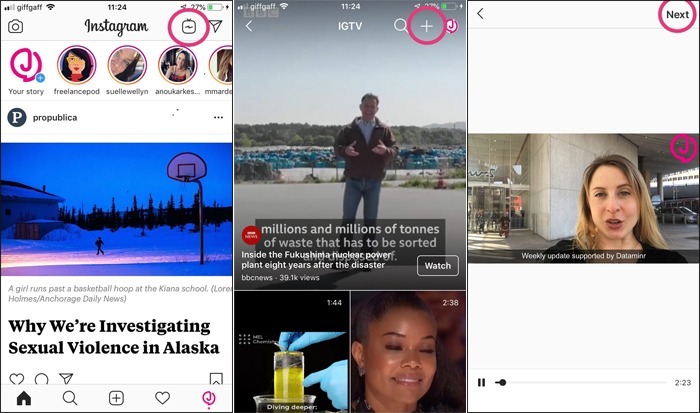
The easiest way to contact a video on your Instagram history is by using the official app. Here are the steps:
- Open the Instagram app and log in to your account.
- Tap the “+” icon at the top right corner of the screen.
- Select “Create a post” from the menu.
- Choose the video you want to contact and select it.
- Add any additional text, tags, or effects you like.
- Tap the “Share” button.
Using Third-party Tools
If you’re having trouble finding the feature in the official app, don’t worry! There are third-party tools that can help you achieve your goal. Here’s how to do it:
- Download and install a video editing app such as InShot or Avidemux.
- Open the app and select the video you want to contact.
- Use the app’s editing features to trim, split, or merge videos as needed.
- Export the edited video as an MP4 file.
- Go back to Instagram and follow the steps above to share the video.
How to Share a Video From Youtube on Instagram
Unfortunately, you cannot directly share a YouTube video on your Instagram history. However, there are workarounds!
- Download the YouTube video using a third-party app such as Tubemate or Videoder.
- Record the screen of your device using an app like Screen Recorder or QuickTime Player.
- Upload the recorded video to Instagram and follow the steps above.
Tips For Sharing Videos on Instagram
Here are some tips to keep in mind when sharing videos on Instagram:
- Use a clear and concise title that accurately describes the content of the video.
- Add relevant hashtags to increase visibility.
- Tag any people or businesses mentioned in the video.
- Consider adding a caption or description to provide context.
Conclusion
In conclusion, contacting a video on your Instagram history is easier than you think! With the steps outlined above, you can share videos from both your device and third-party tools. Remember to use clear titles, hashtags, and captions to increase visibility and engagement.
Frequently Asked Questions (FAQs)
- Q: Can I Contact a Video on my Instagram History Using an Iphone?
A: Yes, the steps outlined above are applicable to both Android and iOS devices. - Q: How Long Can Videos be on Instagram?
A: Videos can be up to 60 seconds in length, although they may be split into shorter segments. - Q: Can I Share a Video From Youtube on Instagram?
A: Unfortunately not, but there are workarounds using third-party tools. - Q: How do I Add Tags or Effects to a Video on Instagram?
A: Simply tap the “+” icon at the top right corner of the screen and select “Edit” to access the editing features. - Q: Can I Share Multiple Videos in One Post?
A: Yes, you can use third-party tools to edit and merge multiple videos into one.
I hope this article has helped you understand how to contact a video on your Instagram history! If you have any further questions or need more clarification, please don’t hesitate to ask.


