
How to Scannerizzare in Pdf: A Step-by-step Guide
Are you tired of scanning documents only to have them saved as images? Do you want to know how to scannerizzare in PDF directly on your computer, smartphone, or tablet? Look no further! In this article, we will guide you through the process of scannerizzare in PDF using various devices and operating systems.
Why Scannerizzare in Pdf?
Scannerizzare in PDF is a convenient way to save documents without having to convert them from image format. It’s also a great way to reduce paper clutter and make it easier to store and share files. With the ability to scannerizzare in PDF, you can easily scan multiple pages at once and save them as a single document.
Scannerizzare in Pdf on Windows
If you’re using a Windows computer, you can use the built-in application called Scan to Windows to scannerizzare in PDF. Here’s how:
- Install Scan to Windows: Download and install the Scan to Windows app from the Microsoft Store.
- Launch Scan to Windows: Open the app and click on the “Scan” button.
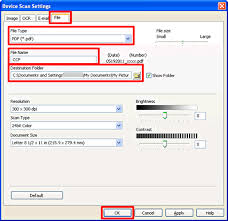
- Select Pdf as The Output Format: Choose PDF as the output format in the settings menu.
- Scannerizzare Your Document: Place the document under the scanner or camera, and scan it using the app.
- Save The File: Once scanned, save the file to your computer.
Scannerizzare in Pdf on Macos
If you’re using a Mac, you can use the built-in application called Preview to scannerizzare in PDF. Here’s how:
- Launch Preview: Open the Preview app and select “Scan” from the menu.
- Select Pdf as The Output Format: Choose PDF as the output format in the settings menu.
- Scannerizzare Your Document: Place the document under the scanner or camera, and scan it using the app.
- Save The File: Once scanned, save the file to your computer.
Scannerizzare in Pdf on Android
If you’re using an Android device, you can use various apps to scannerizzare in PDF. Here’s how:
- Install HP Smart or Epson Documentscan: Download and install either HP Smart (for HP printers) or Epson DocumentScan (for Epson printers).
- Launch The App: Open the app and select “Scan” from the menu.
- Select Pdf as The Output Format: Choose PDF as the output format in the settings menu.
- Scannerizzare Your Document: Place the document under the scanner or camera, and scan it using the app.
- Save The File: Once scanned, save the file to your device.
Scannerizzare in Pdf on Ios
If you’re using an iPhone or iPad, you can use various apps to scannerizzare in PDF. Here’s how:
- Install HP Smart or Epson Iprint & Scan: Download and install either HP Smart (for HP printers) or Epson iPrint & Scan (for Epson printers).
- Launch The App: Open the app and select “Scan” from the menu.
- Select Pdf as The Output Format: Choose PDF as the output format in the settings menu.
- Scannerizzare Your Document: Place the document under the scanner or camera, and scan it using the app.
- Save The File: Once scanned, save the file to your device.
Scannerizzare in Pdf Any More Pages
If you need to scannerizzare multiple pages of a document, there are apps that can help you do so. Here’s how:
- Install Naps2 or Trailer: Download and install either NAPS2 (for Windows) or Trailer (for macOS).
- Launch The App: Open the app and select “Scan” from the menu.
- Select Pdf as The Output Format: Choose PDF as the output format in the settings menu.
- Add Pages: Add multiple pages to the scan by selecting the “Add Pages” option.
- Save The File: Once scanned, save the file to your device.
Conclusion
Scannerizzare in PDF is a convenient way to save documents without having to convert them from image format. With various apps available for different devices and operating systems, it’s easier than ever to scannerizzare in PDF directly on your computer, smartphone, or tablet. Whether you’re using Windows, macOS, Android, or iOS, there are options available to help you scannerizzare in PDF.
Faqs
- What is Scannerizzare in Pdf?
Scannerizzare in PDF is the process of scanning a document and saving it as a PDF file. - How do I Scannerizzare in Pdf on Windows?
You can use the built-in application called Scan to Windows to scannerizzare in PDF. - How do I Scannerizzare in Pdf on Macos?
You can use the built-in application called Preview to scannerizzare in PDF. - How do I Scannerizzare in Pdf on Android?
You can use various apps such as HP Smart or Epson DocumentScan to scannerizzare in PDF. - How do I Scannerizzare in Pdf on Ios?
You can use various apps such as HP Smart or Epson iPrint & Scan to scannerizzare in PDF. - Can I Scannerizzare Multiple Pages at Once?
Yes, there are apps available that allow you to scannerizzare multiple pages at once and save them as a single PDF file. - What Are Some Popular Apps For Scannerizzare in Pdf?
Some popular apps include HP Smart, Epson DocumentScan, NAPS2, Trailer, Genius Scan, and Grades of iOS/iPadOS. - Can I Use my Smartphone’s Camera to Scannerizzare Documents?
Yes, you can use your smartphone’s camera to scannerizzare documents using various apps available for Android and iOS devices.


