
How to Create Another Gmail Account: A Step-by-step Guide
Are you tired of using only one Gmail account? Do you want to have multiple accounts for personal or professional use? Creating another Gmail account is easier than you think! In this article, we will guide you through the process of creating a new Gmail account on your PC, smartphone, and tablet.
Why Create Another Gmail Account?
Having multiple Gmail accounts can be useful in several ways:
- Separate Personal And Professional Life: You can use one account for personal emails and another for professional communications.
- Access to Multiple Devices: With multiple accounts, you can access your emails on different devices without having to switch between accounts.
- Improved Organization: Having separate accounts can help you stay organized by keeping your personal and professional emails separate.
Creating a New Gmail Account on PC
To create another Gmail account on your PC:
- Open your preferred browser and go to the Google homepage.
- Click on the “Sign in” button and select “Create an account.”
- Fill out the form with your name, surname, and email address.
- Choose a password and confirm it by re-entering it in the designated field.
- Provide your phone number and recovery email address to ensure account security.
- Check the box to agree to Google’s terms of service and click “Next.”
- Follow the prompts to complete the account creation process.
Creating a New Gmail Account on Smartphone or Tablet
To create another Gmail account on your smartphone or tablet:
- Open the Google app or go to the Settings menu.
- Select “Add an account” or “Create a new account.”
- Fill out the form with your name, surname, and email address.
- Choose a password and confirm it by re-entering it in the designated field.
- Provide your phone number and recovery email address to ensure account security.
- Check the box to agree to Google’s terms of service and click “Next.”
- Follow the prompts to complete the account creation process.
Accessing Another Gmail Account on PC
To access another Gmail account on your PC:
- Open your preferred browser and go to the Google homepage.
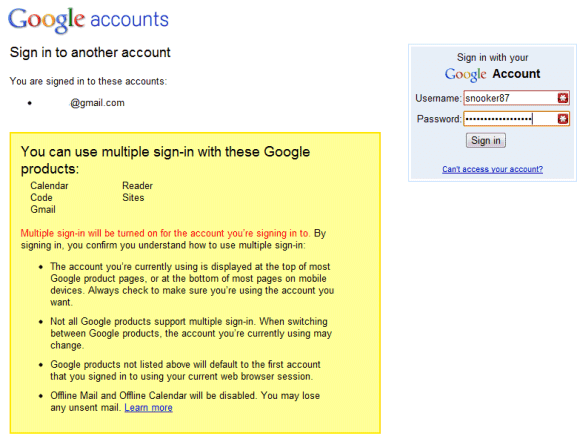
- Click on the “Sign in” button and select “Add another account.”
- Enter your email address and password for the secondary account.
- You will be logged into the secondary account, and you can access your emails.
Accessing Another Gmail Account on Smartphone or Tablet
To access another Gmail account on your smartphone or tablet:
- Open the Google app or go to the Settings menu.
- Select “Add an account” or “Create a new account.”
- Enter your email address and password for the secondary account.
- You will be logged into the secondary account, and you can access your emails.
How to Access Another Gmail Account Without Password
If you have forgotten your password, don’t worry! You can still access another Gmail account without a password by following these steps:
- Go to the Google account recovery page.
- Click on “I don’t know my password” and follow the prompts.
- Enter your email address and the recovery information associated with it.
- Follow the instructions to reset your password.
Conclusion
Creating another Gmail account is a straightforward process that can be completed on both PC and mobile devices. By following these steps, you can have multiple accounts for personal or professional use, improving organization and access to emails across different devices.


