
How to Connect Your Ps4 to a Pc: A Step-by-step Guide
Are you tired of playing games on your console and want to experience them on your PC? Look no further! In this article, we will guide you through the process of connecting your PlayStation 4 (PS4) to your computer using remote play.
What is Remote Play?
Remote play is a service that allows you to play PS4 games on your PC or Mac without having to physically connect the console. It’s like streaming your favorite games from the cloud, but with a much faster and more stable connection.
Requirements For Remote Play
To use remote play, you’ll need:
- A PS4 console updated with the latest firmware
- A Windows 10 or macOS computer with an Intel Core i7 processor or equivalent
- A good internet connection (at least 15 Mbps download and upload speed)
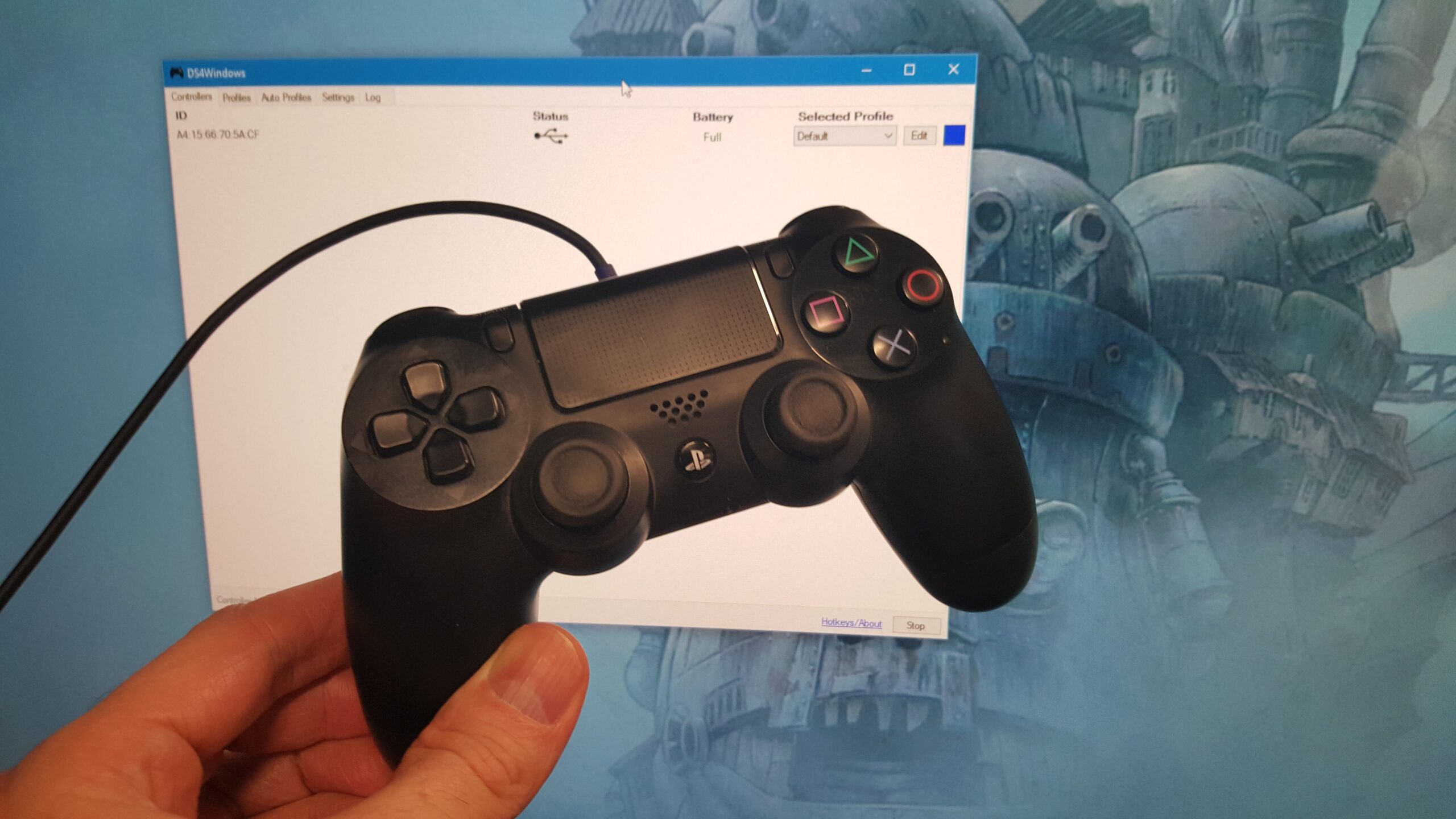
- A DualShock 4 controller with a USB cable
Step 1: Configure Your Ps4
Before you can start playing games on your PC, you need to configure your PS4. Here’s how:
- Go to the Settings menu on your PS4
- Select “System” and then “Account Management”
- Activate your PS4 as the primary system on your account
- Set up remote play by going to Settings > Connection Settings > Remote Play and selecting “Qualify Remote Play”
Step 2: Download And Install The Software
To start playing games on your PC, you’ll need to download and install the remote play software. Here’s how:
- Go to the PlayStation website and click on “Remote Play” in the top menu bar
- Select “PC Windows” or “Mac” depending on your computer’s operating system
- Download and install the RemotePlayInstaller.Exe file (for Windows) or RemotePlayInstaller.Pkg (for Mac)
- Follow the instructions to complete the installation
Step 3: Connect Your Ps4 to Your PC
Now it’s time to connect your PS4 to your PC. Here’s how:
- Launch the remote play software on your PC
- Select “Connect to PS4” and enter the code displayed on your TV screen
- Follow the instructions to complete the connection
Troubleshooting Tips
If you encounter any issues during the connection process, here are some troubleshooting tips to help you out:
- Check that your internet connection is stable and fast enough for remote play
- Make sure your PS4 is updated with the latest firmware
- Try restarting both your PS4 and PC
- If none of these steps work, contact Sony support for further assistance
Alternative Ways to Play Ps4 Games on Your PC
If you don’t have a PS4 console or want an alternative way to play PS4 games on your PC, consider using the PlayStation Now service. This cloud gaming platform allows you to stream and play PS4 games on your PC without needing a physical copy.
How to Connect Your Ps4 to Your PC With Hdmi
If you want to connect your PS4 directly to your PC monitor using an HDMI cable, here’s how:
- Use a 1.8M HDMI cable (such as the Amazon Basics – Cable HDMI 4K)
- Connect the HDMI cable from your PS4 to your PC monitor
- If your PC monitor has built-in speakers, you’ll be able to hear the game audio directly from the monitor
Connecting Your Ps4 to a Portable PC With Hdmi
If you want to connect your PS4 to a portable PC using an HDMI cable, consider using a capture card (such as the TreasLin Game Scheda Of acquisition Video #USB 1080p 60fps) to record and display the game footage on your laptop.
Conclusion
In this article, we’ve shown you how to connect your PS4 to your PC using remote play. With these simple steps, you can enjoy playing your favorite PS4 games on a larger screen with a more stable internet connection. Don’t forget to troubleshoot any issues that may arise and consider alternative methods like PlayStation Now if you don’t have a PS4 console.
Frequently Asked Questions (FAQs)
- Q: Do I Need a Ps4 Console to Use Remote Play?
A: Yes, you’ll need a PS4 console updated with the latest firmware to use remote play. - Q: Can I Use Remote Play on Any PC or Mac?
A: No, remote play requires a Windows 10 or macOS computer with an Intel Core i7 processor or equivalent. - Q: Do I Need to Purchase a Separate Subscription For Playstation Now?
A: Yes, you’ll need to subscribe to the PlayStation Now service to access its cloud gaming platform. - Q: Can I Connect my Ps4 Directly to my PC Monitor Using an Hdmi Cable?
A: Yes, but ensure your PC monitor has built-in speakers or use a separate audio device to hear the game audio. - Q: How do I Troubleshoot Issues With Remote Play?
A: Check your internet connection, firmware updates on your PS4, and restart both devices if necessary.
References
- Sony’s official PlayStation website
- Amazon Basics – Cable HDMI 4K
- TreasLin Game Scheda Of acquisition Video #USB 1080p 60fps


