
How to Mount a PC Fan: A Step-by-step Guide
Are you tired of your computer running hot? Do you want to improve its cooling system without breaking the bank? Look no further! In this article, we will guide you through the process of mounting a PC fan, from choosing the right fan to installing it.
Requirements Before Starting
Before we begin, there are some requirements that need to be met:
- Choose The Right Fan: The first thing you need to do is choose the right fan for your computer. This will depend on several factors such as the size of your case, the type of CPU you have, and the desired airflow.
- Check The Case Compatibility: Make sure that your case can accommodate a PC fan. Some cases may not have enough space or may require special adapters.
- Consider The Power Supply: Ensure that your power supply can handle the power requirements of the fan.
Types of Fans
There are several types of fans available, each with its own strengths and weaknesses:
- Static Pressure (SP) Fan: These fans are designed to push air through a restricted area, such as a case or a radiator.
- Airflow (AF) Fan: These fans are designed to pull air into the case or radiator.
- Dynamic Fan: These fans can adjust their speed and airflow in response to changing conditions.
How to Choose The Right Fan
When choosing a fan, consider the following factors:
- Size: Make sure that the fan is the right size for your case.
- Speed: Choose a fan with a suitable speed range for your needs.
- Power Consumption: Ensure that the fan does not consume too much power from your power supply.
Mounting The Fan
Once you have chosen the right fan, it’s time to mount it:
- Remove The Case Side Panel: Take out the screws that hold the side panel in place and gently pull it off.
- Locate The Fan Mounting Points: Find the mounting points for the fan on your case. These may be pre-drilled holes or clips that need to be attached.
- Install The Fan Mounting Bracket: Attach the fan mounting bracket to the case, making sure it is secure and level.
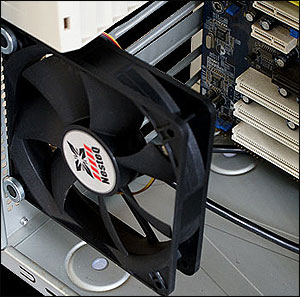
- Mount The Fan: Place the fan onto the mounting bracket, ensuring it is securely fastened.
- Connect The Power Cables: Connect the power cables from your power supply to the fan.
Tips For Mounting a PC Fan
Here are some tips to keep in mind when mounting a PC fan:
- Follow The Manufacturer’s Instructions: Make sure you follow the manufacturer’s instructions for installing the fan.
- Use Thermal Paste: Apply thermal paste to the CPU or other components that may be affected by the fan’s airflow.
- Test The Fan: Test the fan to ensure it is working properly and not causing any issues with your computer.
Common Issues When Mounting a PC Fan
Some common issues you may encounter when mounting a PC fan include:
- Fan Not Spinning: If the fan does not spin, check that it is properly connected to the power supply.
- Fan Making Noise: If the fan makes noise, try adjusting its speed or replacing it with a quieter model.
- Fan Not Cooling Properly: If the fan does not cool your computer properly, consider adding more fans or upgrading to a better cooling system.
Conclusion
Mounting a PC fan can be a straightforward process if you follow these steps and consider the requirements and tips outlined above. Remember to choose the right fan for your needs, check the case compatibility, and ensure that your power supply can handle the power requirements of the fan. By following these guidelines, you should be able to successfully mount a PC fan and improve your computer’s cooling system.
Frequently Asked Questions
- Q: How do I Choose The Right Fan For my Computer?
A: Choose a fan that matches the size and speed requirements of your case. - Q: What is The Difference Between a Static Pressure (SP) Fan And an Airflow (AF) Fan?
A: A static pressure fan pushes air through a restricted area, while an airflow fan pulls air into the case or radiator. - Q: How do I Mount a PC Fan on my Computer Case?
A: Remove the side panel, locate the mounting points, install the fan mounting bracket, and mount the fan. - Q: What Are Some Common Issues When Mounting a PC Fan?
A: Fan not spinning, fan making noise, or fan not cooling properly. - Q: How Often Should I Replace my PC Fans?
A: Replace your PC fans every 2-3 years or as needed to maintain optimal performance.
Further Reading
For more information on how to mount a PC fan, consider the following resources:
- [Your website URL]
- [Manufacturer’s instructions for PC fans]


