
How to Set a Secure Password: A Step-by-step Guide
Are you worried about your personal photos, documents, chats, or payment information being compromised? Do you want to protect your device from unauthorized access? Setting a secure password is the best way to safeguard your data and ensure that only you can access it. In this article, we will guide you through the process of setting a strong password on various devices, including computers, smartphones, tablets, and more.
Why Set a Secure Password?
Setting a secure password is crucial in today’s digital age where cyber threats are becoming increasingly common. A weak or easily guessable password can be exploited by hackers to access your device and steal sensitive information. By setting a strong password, you can prevent unauthorized access and protect your data from falling into the wrong hands.
Choosing a Strong Password
When choosing a password, it’s essential to make it long and complex. Aim for a minimum of 15-20 characters, including a mix of uppercase and lowercase letters, numbers, symbols, and special characters. Avoid using familiar phrases or words that can be easily guessed by others. Instead, opt for a series of random characters or a combination of different elements.
Avoiding Common Password Mistakes
Don’t make the mistake of using easy-to-guess passwords like your birthday, anniversary, or common names. These are often the first things hackers try when attempting to breach security. Also, avoid repeating the same password across multiple accounts, as this can compromise all of them if one is compromised.
Setting a Secure Password on Your PC
Protecting your computer with a strong password is essential for safeguarding sensitive information and preventing unauthorized access. Here’s how to set a secure password on Windows 10:
- Click on the Start button and select Settings.
- In the new window, click on the icon of the gear (Settings).
- Select Account from the menu.
- Choose Options for Access and then Password.
- Add a new password by filling out the form provided.
Setting a Secure Password on Your Mac
Protecting your Mac with a strong password is crucial for safeguarding sensitive information and preventing unauthorized access. Here’s how to set a secure password on your Mac:
- Go to System Preferences and select Users & Groups.
- Click on Options for Login and then select Password.
- Add a new password by filling out the form provided.
Setting a Secure Password on Your Smartphone
Protecting your smartphone with a strong password is essential for safeguarding sensitive information and preventing unauthorized access. Here’s how to set a secure password on Android:
- Go to Settings and select Safety.
- Click on Block Monitor and then tap on Sequence, PIN, or Password.
- Enter the new code twice for confirmation.
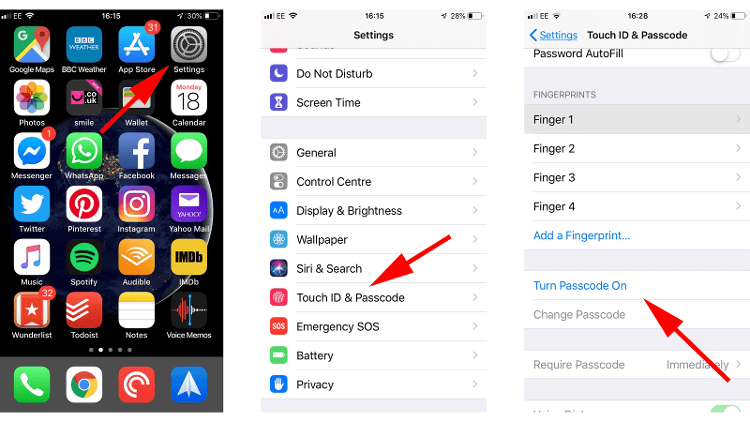
Setting a Secure Password on Your Iphone
Protecting your iPhone with a strong password is crucial for safeguarding sensitive information and preventing unauthorized access. Here’s how to set a secure password on your iPhone:
- Go to Settings and select Face ID & Code or Touch ID & Code.
- Tap on Modify Code and enter the new code twice for confirmation.
Setting a Secure Password on Your Smartwatch
Protecting your smartwatch with a strong password is essential for safeguarding sensitive information and preventing unauthorized access. Here’s how to set a secure password on your Android Wear:
- Go to Settings and select Security.
- Tap on Screen Lock and then tap on Password.
Setting a Secure Password on Your Social Media Accounts
Protecting your social media accounts with strong passwords is crucial for safeguarding sensitive information and preventing unauthorized access. Here’s how to set a secure password on Instagram:
- Go to the app and log in with your credentials.
- Tap on the icon of the profile picture (in top-right corner) and select Settings & Safety.
- Under Protection of Access, tap on Create Password.
Setting a Secure Password on Your Online Accounts
Protecting your online accounts with strong passwords is essential for safeguarding sensitive information and preventing unauthorized access. Here’s how to set a secure password on Zoom:
- Go to the official page of Zoom and log in with your credentials.
- Tap on My Account (in top-right corner).
- Select Settings and then Meetings.
- Under Security, tap on Require a passcode for new meetings.
Setting a Secure Password on Your Gaming Console
Protecting your gaming console with a strong password is crucial for safeguarding sensitive information and preventing unauthorized access. Here’s how to set a secure password on PlayStation 4:
- Go to Settings (using the directional arrows).
- Select Users and then Settings of Login.
- Tap on Management codes of access.
Conclusion
Setting a secure password is the best way to protect your device, online accounts, and sensitive information from unauthorized access. By following these step-by-step guides, you can ensure that only you have access to your personal data. Remember to choose a strong and unique password for each account, avoid common password mistakes, and keep your passwords up-to-date.
Frequently Asked Questions
- Q: Why is Setting a Secure Password Important?
A: Setting a secure password is crucial for safeguarding sensitive information and preventing unauthorized access. - Q: How Can I Choose a Strong Password?
A: Choose a password that is long (15-20 characters) and complex, including a mix of uppercase and lowercase letters, numbers, symbols, and special characters. - Q: Can I Use The Same Password For Multiple Accounts?
A: No, it’s not recommended to repeat the same password across multiple accounts, as this can compromise all of them if one is compromised. - Q: How do I Set a Secure Password on Windows 10?
A: Go to Settings > Account > Options for Access and then Password. - Q: How do I Set a Secure Password on my Mac?
A: Go to System Preferences > Users & Groups > Options for Login and then select Password.
Setting a Secure Password: A Step-by-step Guide
| Device/account | Steps |
|---|---|
| Windows 10 | Go to Settings > Account > Options for Access and then Password. |
| Mac | Go to System Preferences > Users & Groups > Options for Login and then select Password. |
| Android | Go to Settings > Safety > Block Monitor and tap on Sequence, PIN, or Password. |
| IPhone | Go to Settings > Face ID & Code or Touch ID & Code and tap on Modify Code. |
| Smartwatch (Android Wear) | Go to Settings > Security > Screen Lock and then tap on Password. |
| Tap on the icon of the profile picture (top-right corner) > Settings & Safety > Create Password. | |
| Zoom | Go to official page > My Account > Settings > Meetings > Security > Require a passcode for new meetings. |
| PlayStation 4 | Go to Settings > Users > Settings of Login > Management codes of access. |
How to Set a Secure Password
- Choose a password that is long and complex.
- Avoid using easy-to-guess passwords like birthdays or common names.
- Don’t repeat the same password across multiple accounts.
- Keep your passwords up-to-date.
- Use different passwords for each account, device, and system.
Why Set a Secure Password?
- Protect sensitive information from unauthorized access.
- Prevent cyber threats and hacking attempts.
- Ensure that only you have access to your personal data.
- Safeguard online accounts and digital assets.
- Maintain confidentiality and integrity of sensitive information.


