
How to Identify Your Motherboard: A Step-by-step Guide
As a computer user, you might have wondered what’s under the hood of your PC, especially when it comes to identifying the motherboard. In this article, we’ll guide you through the process of finding out what kind of motherboard you have, whether you’re using a Windows or Mac device.
Understanding Your Motherboard
Before diving into the step-by-step process, let’s quickly discuss what a motherboard is. Simply put, it’s the main circuit board of your computer that connects all the hardware components together. It’s like the brain of your PC, responsible for facilitating communication between various parts such as the CPU, RAM, and storage devices.
Why Identify Your Motherboard?
Knowing the type of motherboard you have can be useful in several situations:
- Upgrading or Replacing Components: If you want to upgrade or replace any hardware component, knowing the specifications of your motherboard is essential.
- Troubleshooting Issues: Understanding what’s under the hood can help you identify and troubleshoot problems with your PC.
- Buying a New Computer: If you’re planning to buy a new PC, knowing the type of motherboard it has can give you an idea of its capabilities.
Windows-based Pcs: Identifying Your Motherboard
If you’re using a Windows-based PC, there are several ways to identify your motherboard:
Method 1: Using Powershell
Step 1: Open PowerShell with administrative privileges. To do this, click on the Start menu, type “PowerShell,” and select the option that says “Windows PowerShell (Administrator).”
Step 2: Type the command wmic baseboard get product, manufacturer, version, serialnumber and press Enter.
Step 3: The output will display the producer, model, version, and serial number of your motherboard.
Method 2: Using Command Prompt
Step 1: Open the Command Prompt with administrative privileges. To do this, click on the Start menu, type “cmd,” and select the option that says “Command Prompt (Admin).”
Step 2: Type the command wmic baseboard get product, manufacturer, version, serialnumber and press Enter.
Step 3: The output will display the producer, model, version, and serial number of your motherboard.
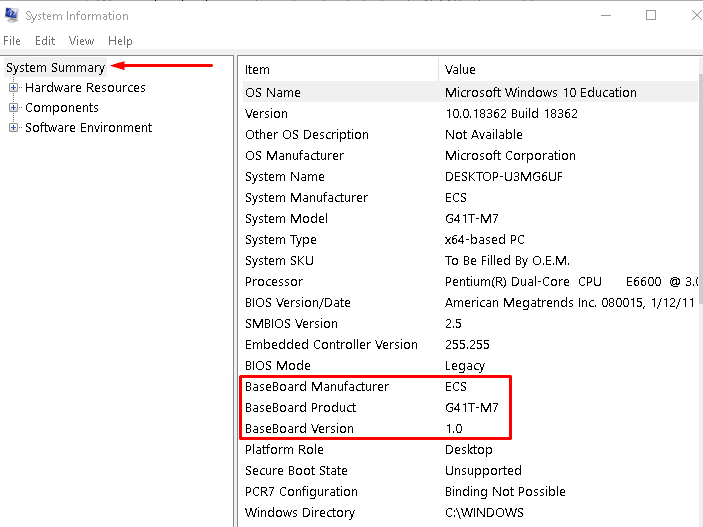
Method 3: Using System Information
Step 1: Press the Windows key + R to open the Run dialog box.
Step 2: Type “msinfo32” and press Enter.
Step 3: Click on the “System Summary” tab and look for the “Baseboard Product Name” section. This will display the producer and model of your motherboard.
Mac-based Pcs: Identifying Your Motherboard
If you’re using a Mac, identifying your motherboard is a bit more complicated due to Apple’s restrictions on hardware information. However, here are some steps you can follow:
Method 1: Using System Information
Step 1: Click on the Apple menu and select “About This Mac.”
Step 2: Click on the “System Report” button.
Step 3: Scroll down to the “Hardware” section and click on it.
Step 4: Look for the “Motherboard” or “Logic Board” section. Unfortunately, this will not give you detailed information about your motherboard.
Method 2: Using a Website
Unfortunately, there is no straightforward way to get detailed information about your Mac’s motherboard using built-in tools. However, you can try the following:
Step 1: Find the serial number of your Mac by clicking on the Apple menu and selecting “About This Mac.”
Step 2: Copy the serial number.
Step 3: Visit EveryMac or a similar website to search for information about your Mac’s hardware, including its motherboard.
By following these steps, you should be able to identify your motherboard and gain a better understanding of what’s under the hood of your PC.


