
How to Update Itunes: A Step-by-step Guide
Are you tired of wondering if your iTunes is up-to-date? Do you struggle with keeping track of the latest updates? Look no further! In this article, we will guide you through the process of updating iTunes on both Windows and macOS.
System of Update of Itunes
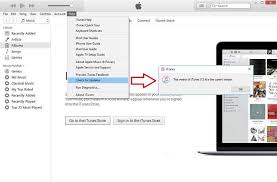
ITunes has a built-in system for automatic updates. This means that every time you open the program, it checks for available updates and notifies you if there are any new versions. If you want to update manually, follow these steps:
- Open iTunes.
- Click on “Help” in the top menu bar.
- Select “Check for Updates.”
- If an update is available, click on “Download iTunes.”
Apple Software Update
If you have installed Apple Software Update, you can also use this program to check for updates. Here’s how:
- Open the Start menu and search for “Apple Software Update.”
- Click on the icon.
- Look for iTunes in the list of available updates.
- Check if there is a tick beside its name and click on “Install” then “Accept” and “Yes.”
Microsoft Store
If you have downloaded iTunes from the Microsoft Store, you can also use this method to update it automatically.
- Open the Microsoft Store.
- Click on the three dots in the top right corner.
- Select “Settings.”
- Look for the option “Updates” and make sure it is set to “On.”
Updating Itunes on Mac
If you are using a Mac, updating iTunes is even easier.
Macos 10.15 Catalina And Successive
Since macOS 10.15 Catalina, iTunes is no longer included in the operating system. Instead, you will find separate apps for Music, Podcasts, and TV.
Macos 10.14 Mojave And Successive
If you are using macOS 10.14 Mojave or a successive version, follow these steps to update iTunes:
- Go to System Preferences.
- Click on “Software Update.”
- Look for the option “Keep your Mac up to date automatically” and make sure it is selected.
Macos 10.13 High Sierra And Precedent
If you are using macOS 10.13 High Sierra or an earlier version, follow these steps:
- Go to System Preferences.
- Click on “Software Update.”
- Look for the option “Check updates automatically” and make sure it is selected.
Troubleshooting
If you encounter any problems during the update process, check that your firewall is not blocking communication with the server. If this still doesn’t resolve the issue, try reinstalling iTunes following our tutorial on the subject.
Conclusion
Updating iTunes may seem daunting, but with these simple steps, you can ensure that you always have the latest version of the software. Remember to check for updates regularly and take advantage of the automatic update features available in both Windows and macOS.
Faqs
- How do I know if my iTunes is up-to-date?
- Open iTunes and click on “Help” then “Check for Updates.”
- Can I use Apple Software Update to update iTunes?
- Yes, you can also use this program to check for updates.
- Do I need to update iTunes manually or can it be updated automatically?
- You can choose to update manually or let the automatic update feature do it for you.
- How often should I check for updates?
- We recommend checking regularly to ensure that you always have the latest version of iTunes.
- What if I encounter problems during the update process?
- Try reinstalling iTunes and, if necessary, contact Apple Support for further assistance.
- Can I use Microsoft Store to update iTunes on Windows?
- Yes, you can also use this method to update iTunes automatically.
- Do I need to install an updated version of Apple Software Update first?
- In some cases, yes, you may need to install an updated version of Apple Software Update before updating iTunes.
- How do I enable automatic updates for all software on my Mac?
- Go to System Preferences then “Software Update” and look for the option “Keep your Mac up to date automatically.”


