
How to Capsize The Pin of Your Sim Card: A Step-by-step Guide
Are you tired of dealing with the hassle of recovering a lost or forgotten PIN code for your SIM card? Look no further! In this article, we will guide you through the process of capsizing (or changing) the PIN code of your SIM card on both Android and iOS devices.
What is a Sim Card Pin Code?
Before we dive into the nitty-gritty, let’s quickly explain what a SIM card PIN code is. A PIN code, also known as a Personal Identification Number, is a four-digit numerical password that allows you to access your SIM card and use its associated services. The PIN code is usually set by the mobile network operator or can be changed by you.
Why Change Your Sim Card Pin Code?
There are several reasons why you might want to change your SIM card PIN code:
- Security: Changing your PIN code regularly helps keep your SIM card and associated data secure.
- Convenience: If you’ve forgotten your old PIN code, changing it ensures that you can access your SIM card without any issues.
- New Phone or Device: When switching to a new phone or device, changing the PIN code is a good practice to ensure compatibility.
How to Change Your Sim Card Pin Code on Android Devices
Changing your SIM card PIN code on an Android device is relatively straightforward:
- Access Settings: Go to your phone’s settings and navigate to the “Safety” or “Security” section.
- Block Sim Card Option: Select the option to block the SIM card, usually found under “SIM card” or “Mobile networks.”
- Enter Current Pin Code: Enter your current four-digit PIN code and confirm it.
- Change Pin Code: Tap on the option to change the PIN code.
- Enter New Pin Code: Enter a new four-digit PIN code and confirm it.
How to Change Your Sim Card Pin Code on Ios Devices
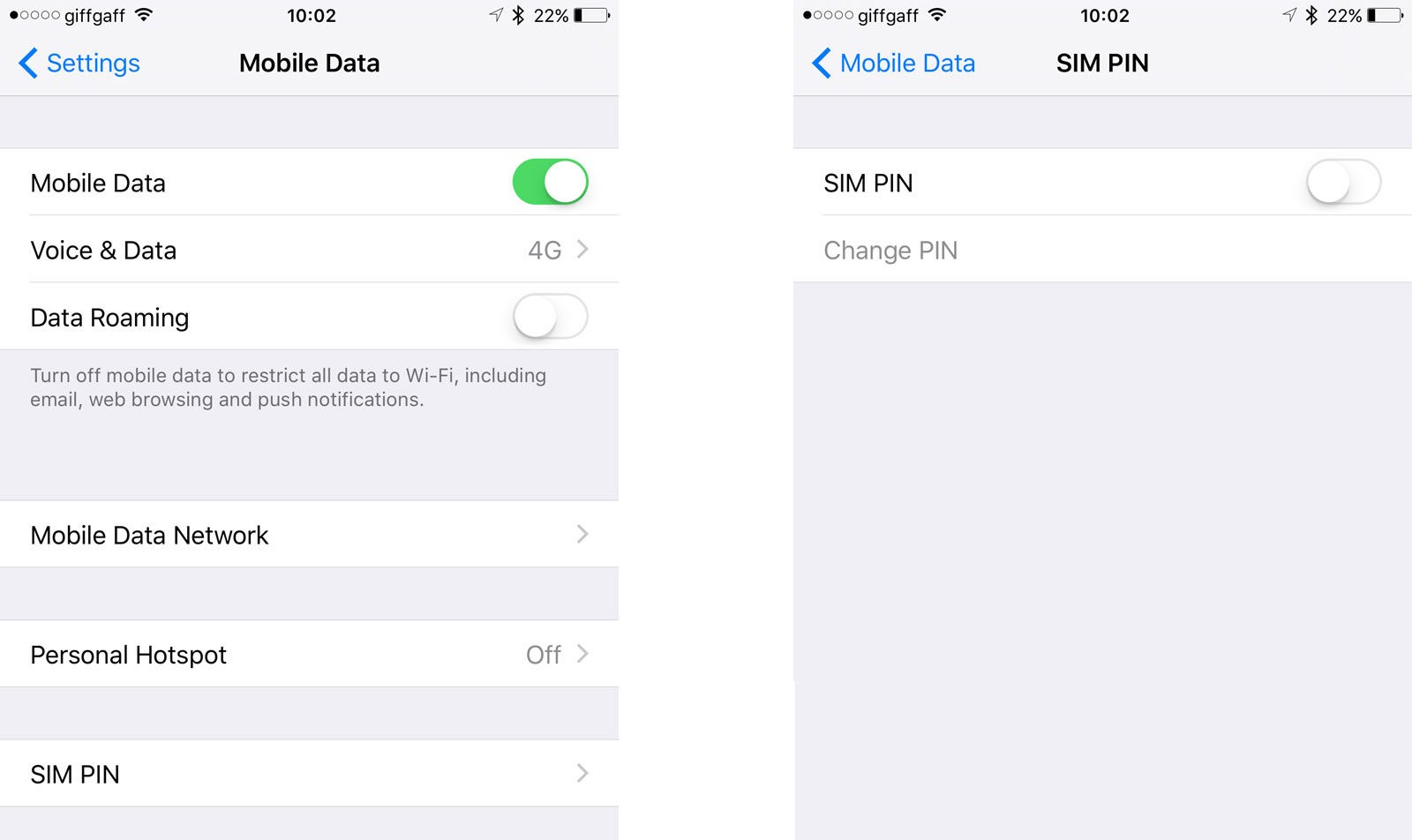
Changing your SIM card PIN code on an iOS device is equally simple:
- Access Settings: Go to your phone’s settings and navigate to the “Phone” section.
- Sim Pin Option: Select the option to change the SIM PIN, usually found under “SIM PIN.”
- Enter Current Pin Code: Enter your current four-digit PIN code and confirm it.
- Change Pin Code: Tap on the option to change the PIN code.
- Enter New Pin Code: Enter a new four-digit PIN code and confirm it.
Troubleshooting: What If I’ve Forgotten My Pin Code?
If you’ve forgotten your PIN code, don’t panic! Here are some steps to take:
- Puk (Personal Unblocking Key): Check the paper insert or package that came with your SIM card for a PUK code.
- Contact Your Mobile Network Operator: Reach out to your mobile network operator’s customer support to request assistance in resetting your PIN code.
Conclusion
Changing your SIM card PIN code is a straightforward process on both Android and iOS devices. By following these steps, you can ensure that your SIM card remains secure and up-to-date with the latest settings.
Frequently Asked Questions (FAQs)
- Q: Why do I Need to Change my Sim Card Pin Code?
A: Changing your PIN code regularly helps keep your SIM card and associated data secure. - Q: What is a Puk Code, And How Can I Get One?
A: A PUK (Personal Unblocking Key) code is an 8-digit number that allows you to unblock your device if you’ve entered the wrong PIN code three times. You can find it on the paper insert or package that came with your SIM card or contact your mobile network operator’s customer support. - Q: How Often Should I Change my Sim Card Pin Code?
A: It’s recommended to change your PIN code every 6-12 months to ensure maximum security. - Q: Can I Use The Same Pin Code For All my Devices?
A: No, it’s not recommended to use the same PIN code for multiple devices. Use a unique PIN code for each device to maintain optimal security. - Q: What if I’ve Forgotten my Sim Card Pin Code And Don’t Have Access to my Phone or Device?
A: In such cases, contact your mobile network operator’s customer support to request assistance in resetting your PIN code.
Additional Resources
For more information on changing your SIM card PIN code or general mobile-related topics, feel free to check out the following resources:


