
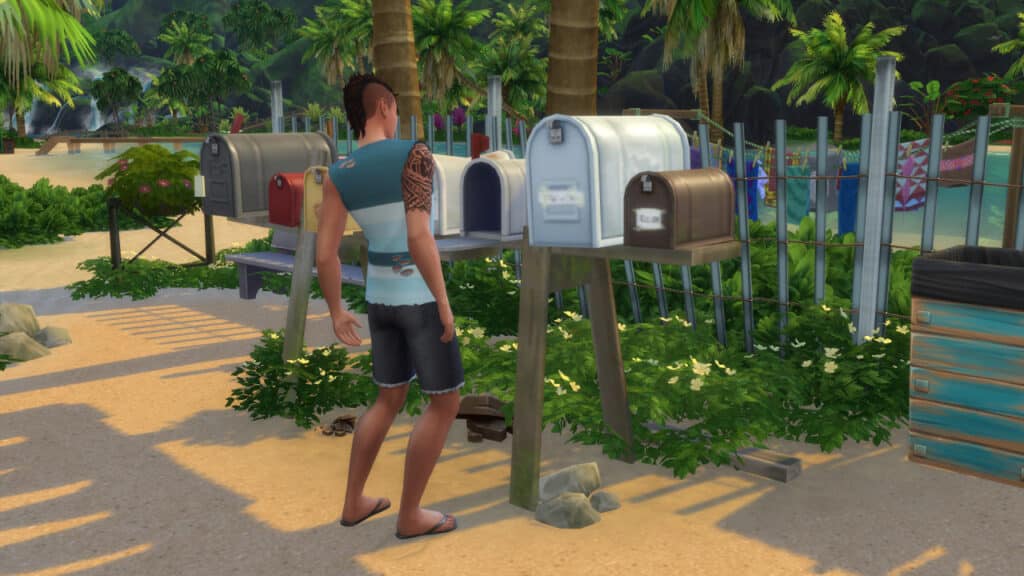
The Ultimate Guide to Paying Bills on The Sims 4: Tips And Tricks
Are you tired of stressing about paying bills in The Sims 4? Look no further! In this article, we will walk you through the step-by-step process of paying bills in the game, as well as provide some valuable tips and tricks to help you manage your Sim’s finances.
Understanding The Billing System on The Sims 4
Before we dive into the nitty-gritty of paying bills, it’s essential to understand how the billing system works in The Sims 4. In the game, each week, a bill is generated based on the goods and consumables owned by your Sim’s household. This includes items like furniture, appliances, food, and other essentials.
The Importance of Paying Bills
Paying bills on time is crucial in The Sims 4, as failure to do so can lead to some unpleasant consequences. If you ignore your bills for too long, the game will eventually send a “Notice” to your Sim’s mailbox, indicating that they are overdue. This can ultimately result in your Sim losing their home and having to live on the streets!
Step-by-step Guide to Paying Bills
Now that we’ve covered the basics, let’s move on to the step-by-step guide to paying bills:
- Access Your Mailbox: To pay a bill, first, you need to access your Sim’s mailbox. This can be done by clicking on the mailbox icon in the top-right corner of the screen.
- Check For New Bills: Once inside the mailbox, check if there are any new bills waiting to be paid.
- Select The Bill: If a bill is present, click on it to select it.
- Choose to Pay: From the menu that appears, choose the option to pay the bill.
- Confirm Payment: A confirmation window will pop up; simply confirm the payment by clicking “Yes.”
Alternative Ways to Pay Bills
If you’re experiencing trouble paying bills through the traditional method, there are alternative ways to consider:
- Use The “Pay All Bills” Option: If your Sim is running low on funds and can’t afford to pay all their bills at once, try using the “Pay All Bills” option from the mailbox menu.
- Consider a Career Change: If your Sim’s career isn’t generating enough income to cover their expenses, it might be time to consider a career change.
Tips For Managing Your Sim’s Finances
Here are some valuable tips to help you manage your Sim’s finances effectively:
- Budget Wisely: Plan ahead and budget your Sim’s funds accordingly. This will help prevent unnecessary bills from piling up.
- Prioritize Essential Expenses: Make sure to prioritize essential expenses like rent/mortgage, utilities, and groceries over non-essential items.
- Sell Unwanted Items: If you’ve accumulated unwanted items in your Sim’s inventory, consider selling them to generate extra cash.
Troubleshooting Common Issues
Sometimes, things don’t go as planned, and common issues can arise. Here are some troubleshooting tips for the most frequently encountered problems:
- Lost Mailbox Messages: If you’re experiencing trouble finding a lost mailbox message or notification, try restarting your game.
- Inability to Pay Bills: In rare cases, players might encounter difficulties paying bills through the traditional method. Try using the “Pay All Bills” option or consulting our comprehensive guide for more detailed instructions.
Conclusion
Paying bills on The Sims 4 doesn’t have to be a daunting task! By following these simple steps and implementing some effective strategies outlined above, you’ll be able to keep your Sim’s finances in check. Remember to budget wisely, prioritize essential expenses, sell unwanted items, and troubleshoot common issues as needed.
Frequently Asked Questions
Here are eight frequently asked questions related to paying bills on The Sims 4:
- Q: How Often do Bills Arrive?
A: Bills arrive every week. - Q: What Happens if I Ignore my Bills?
A: Failure to pay your bills can lead to unpleasant consequences, including losing your home. - Q: Can I Use The “Pay All Bills” Option?
A: Yes! This feature allows you to pay all outstanding bills at once. - Q: How do I Access my Mailbox?
A: Click on the mailbox icon in the top-right corner of the screen to access your Sim’s mailbox. - Q: Can I Sell Unwanted Items to Generate Extra Cash?
A: Yes! Selling unwanted items can help supplement your Sim’s income. - Q: What Should I do if I’m Experiencing Trouble Paying Bills?
A: Consider using the “Pay All Bills” option or consulting our comprehensive guide for more detailed instructions. - Q: How Often do Mailbox Messages Expire?
A: Mailbox messages typically expire after a short period, but this duration may vary depending on your game settings. - Q: Are There Any Alternative Ways to Pay Bills Besides The Traditional Method?
A: Yes! Consider using third-party tools or services specifically designed for The Sims 4 community.
Hope this comprehensive guide has helped you navigate the world of paying bills on The Sims 4!


