
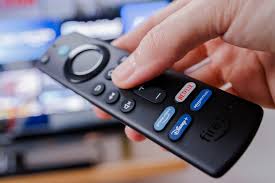
Resolving Fire TV Stick Issues: A Comprehensive Guide
Are you experiencing problems with your Fire TV Stick? Does it seem like it’s not responding to commands, or is it displaying anomalies in its operation? Don’t worry; we’ve got you covered! In this article, we’ll walk you through the steps to resolve these issues and get your Fire TV Stick up and running smoothly.
Understanding The Problem
Before we dive into the solutions, let’s first understand what might be causing the problem. Sometimes, a simple restart or reset of the device can resolve issues. However, if the problem persists, it may indicate a more complex issue that requires further troubleshooting.
Method 1: Restarting Your Fire TV Stick
One of the simplest ways to resolve issues with your Fire TV Stick is by restarting it. This process involves:
- Pressing and holding the Home button on the remote control for 40 seconds
- Waiting for the device to restart and complete its configuration
This method is often effective in resolving minor issues, such as freezing or buffering.
Method 2: Resetting Your Fire TV Stick
If restarting your Fire TV Stick doesn’t resolve the issue, it may be time to try a reset. This process involves:
- Going to Settings > My Fire TV
- Highlighting the “Riavvio” (Restart) option and pressing the central button on the remote control
- Confirming the restart in the subsequent window
This method will restore your device to its factory settings, which can resolve more complex issues.
Method 3: Resetting Your Fire TV Stick Using The Recovery Mode
If the previous methods don’t work, you may need to try resetting your Fire TV Stick using the recovery mode. This process involves:
- Going to Settings > My Fire TV
- Highlighting the “Ripristina” (Restore) option and pressing the central button on the remote control
- Confirming the restore in the subsequent window
This method will also restore your device to its factory settings, but it’s a bit more involved than the previous methods.
Method 4: Resetting Your Fire TV Stick Without a Remote Control
If you don’t have access to a remote control, there’s still hope! You can use the Amazon Fire TV app on your smartphone or tablet to reset your device. This process involves:
- Downloading and installing the Amazon Fire TV app
- Opening the app and selecting the “Fire TV” option
- Following the in-app instructions to reset your device
Alternative Solutions
If none of the above methods work, it’s possible that there’s a more complex issue at play. In this case, you may want to try:
- Unplugging and replugging the power cord for 30 seconds
- Checking if any software updates are available
- Contacting Amazon customer support for further assistance
Conclusion
Resolving issues with your Fire TV Stick can be a bit tricky, but by following these steps, you should be able to get it up and running smoothly. Remember, patience is key, and don’t hesitate to reach out to Amazon customer support if you need further assistance.
Frequently Asked Questions (FAQs)
- Why Won’t my Fire TV Stick Respond to Commands?
Your Fire TV Stick may not respond to commands due to a variety of reasons, including software issues or hardware problems.
- How do I Reset my Fire TV Stick Without a Remote Control?
You can use the Amazon Fire TV app on your smartphone or tablet to reset your device.
- What is Recovery Mode, And How Does it Work?
Recovery mode allows you to restore your device to its factory settings, which can resolve more complex issues.
- Can I Recover my Data After Resetting my Fire TV Stick?
Yes, you can recover your data by following the in-app instructions or contacting Amazon customer support.
- Why is my Fire TV Stick Slow?
Your Fire TV Stick may be slow due to software issues, hardware problems, or a full memory cache.
- How do I Troubleshoot Common Issues With my Fire TV Stick?
You can try restarting your device, checking for software updates, or contacting Amazon customer support for further assistance.
- Can I Use my Fire TV Stick Without a Remote Control?
Yes, you can use the Amazon Fire TV app on your smartphone or tablet to control your device.
- How do I Update my Fire TV Stick Software?
You can check for software updates by going to Settings > System > About and following the in-app instructions.


