
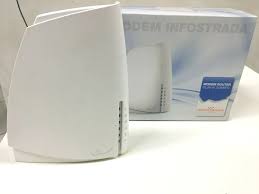
Getting Started With Your Windtre Modem: A Step-by-step Guide
Are you tired of feeling like a tech-phobe every time you try to set up your WINDTRE modem? Look no further! In this article, we’ll walk you through the simple steps to get connected and start enjoying high-speed internet with ease.
What You Need to Know Before Getting Started
Before diving in, make sure you have the following:
- A computer or mobile device (smartphone/tablet) with a browser
- The modem provided by WINDTRE (or any other provider)
- A stable electrical and telephone line connection
Step 1: Prepare Your Device
Take out your computer or mobile device and ensure it’s connected to the power source. You’ll also need a browser like Google Chrome, Mozilla Firefox, or Safari.
H2: Step 2 – Connect Your Modem
Follow these steps to connect your modem:
- Physically connect the modem to your device using an Ethernet cable (for computers) or Wi-Fi (for mobile devices)
- If you’re using a smartphone/tablet, make sure it’s connected to the same network as the modem
Step 3: Access Your Modem
To access your modem, follow these steps:
- Type in the address bar of your browser: Http://192.168.1.1 (Or 192.168.0.1 For newer models)
- Click on the “Forward” button and wait for the login screen to appear
- Enter the username and password provided on the adhesive label attached to the modem
Step 4: Accessing Your Modem’s Control Panel
Once you’ve logged in, you’ll be able to access various settings and features. Take note of the following:
- You can change your Wi-Fi network name and password
- You can modify your internet connection settings (such as changing your bandwidth)
- You can perform diagnostic tests and troubleshoot issues
Tips And Reminders
Before making any changes, remember:
- Always back up your data before modifying settings
- Be cautious when making changes to avoid disrupting your internet connection
- If you’re unsure about a specific setting or feature, take note of the instructions provided in this guide
Common Modem Models: A Quick Guide
Here’s a quick rundown on accessing some popular modem models:
- Zyxel Dx3301: Follow the same steps as above (192.168.1.1)
- D-link Dva6800z: Access using http://192.168.1.1
- Tp-link Modems: Use tplinkmodem.Net or 192.168.1.1
Troubleshooting Common Issues
Having trouble accessing your modem? Don’t worry! Try the following:
- Check if you’ve entered the correct username and password
- Ensure your device is connected to the same network as the modem
- Restart your modem and try again
Conclusion: Get Connected With Ease!
Setting up your WINDTRE modem has never been easier. With this step-by-step guide, you’ll be connected in no time. Remember to take note of any important settings or features, and don’t hesitate to reach out if you need further assistance.
Frequently Asked Questions (FAQs)
Q: What do I do if I forgot my password?
A: Check the adhesive label on your modem for the default username and password.
Q: How do I change my Wi-Fi network name and password?
A: Follow the steps outlined in this guide, or check your device’s documentation.
Q: Why can’t I access my modem’s control panel?
A: Make sure you’ve entered the correct username and password, and ensure your device is connected to the same network as the modem.
Q: What should I do if I’m experiencing issues with my internet connection?
A: Try restarting your modem or checking for any physical connections issues. If problems persist, contact WINDTRE’s customer support.
Q: How can I update my modem’s firmware?
A: Check your device’s documentation or reach out to WINDTRE’s technical support team.
Q: What are some common security measures I should take when using my modem?
A: Regularly update your firmware, use strong passwords, and keep your device software up-to-date.
Q: Can I use my WINDTRE modem with a different internet provider?
A: It depends on the specific model and features of your modem. Check with WINDTRE’s customer support team for more information.
Q: How do I reset my modem to its factory settings?
A: Look for a small button or recessed area on your modem; press and hold it using a paper clip until the lights flash, then release.
Q: What are some recommended security practices when accessing my modem’s control panel?
A: Use strong passwords, enable two-factor authentication, and regularly update your firmware to ensure optimal security.
We hope this guide has been helpful in getting you connected with ease! If you have any further questions or concerns, feel free to reach out. Happy browsing!


