
How to Select Multiple Cells on Excel: A Step-by-step Guide
As a busy professional, you may find yourself needing to perform multiple operations on your spreadsheet in Excel. To avoid having to click on each cell individually, it’s useful to know how to select multiple cells at once. In this article, we’ll explore the different ways to select multiple cells on Excel, whether you’re using the desktop version, online version, or mobile app.
Selecting Multiple Adjacent Cells
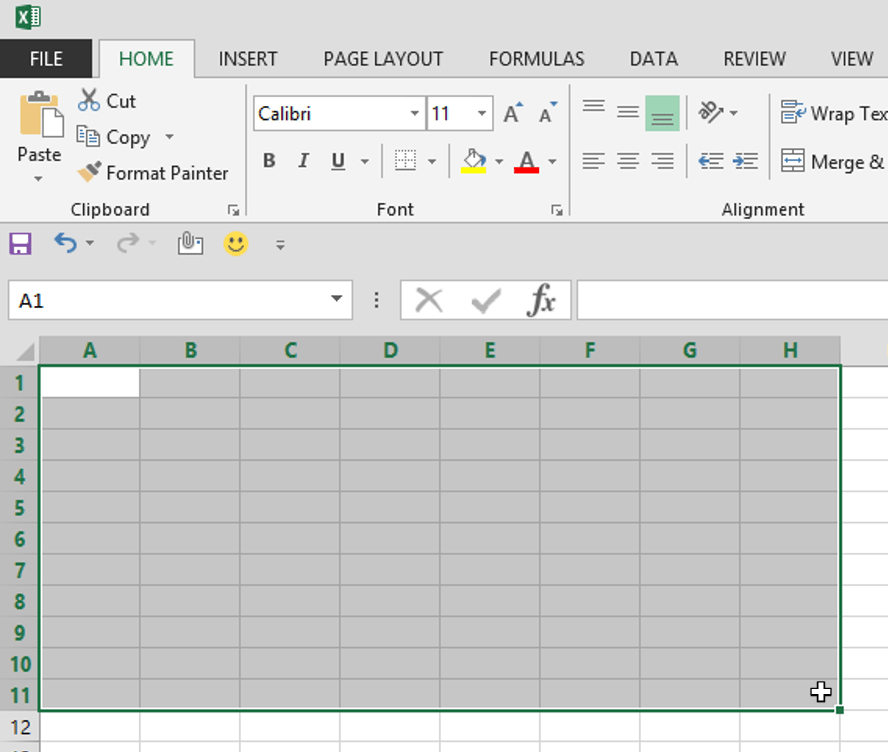
To select multiple adjacent cells on Excel, follow these steps:
- Click on a cell and hold down the left mouse button.
- Drag the cursor in one direction to highlight other cells.
- Alternatively, hold down the Shift key and click on a distant cell to select the interval of cells between them.
This method is useful for selecting groups of adjacent cells, but it can be time-consuming if you need to select multiple non-adjacent cells.
Selecting Multiple Non-adjacent Cells
To select multiple non-adjacent cells on Excel, follow these steps:
- Hold down the Ctrl key and click on each cell you want to select.
- Alternatively, hold down the Ctrl key and drag the cursor across the cells you want to select.
This method is useful for selecting individual cells that are not adjacent to each other.
Selecting All Cells in a Row or Column
To select all cells in a row or column, follow these steps:
- Click on the number of the row or letter of the column at the top of the spreadsheet.
- Alternatively, hold down the Ctrl key and click on the header label of the row or column.
This method is useful for selecting all cells in a specific row or column.
Selecting Multiple Rows or Columns
To select multiple rows or columns on Excel, follow these steps:
- Click on the header label of the rows or columns you want to select.
- Drag the cursor across the rows or columns to highlight them.
- Alternatively, hold down the Ctrl key and click on each row or column you want to select.
This method is useful for selecting multiple rows or columns that are not adjacent to each other.
Selecting All Cells in a Spreadsheet
To select all cells in a spreadsheet on Excel, follow these steps:
- Press the Ctrl+A keys simultaneously.
- Alternatively, click on the icon of a triangle in the upper-left corner of the spreadsheet.
This method is useful for selecting all cells in a spreadsheet and performing operations on them collectively.
Selecting Multiple Cells on Excel Online
To select multiple cells on Excel online, follow these steps:
- Click on a cell to select it.
- Drag the cursor across the cells you want to select.
- Alternatively, hold down the Ctrl key and click on each cell you want to select.
This method is useful for selecting multiple cells on Excel online, which can be accessed through a web browser.
Selecting Multiple Cells on Excel Mobile App
To select multiple cells on the Excel mobile app, follow these steps:
- Tap on a cell to select it.
- Drag an of the two selectors (the circular icons on the corners of the cell) across the cells you want to select.
- Alternatively, tap and hold on each cell you want to select.
This method is useful for selecting multiple cells on the Excel mobile app, which can be accessed through a smartphone or tablet device.
Conclusion
Selecting multiple cells on Excel can save you time and effort when performing operations on your spreadsheet. By following these step-by-step guides, you can learn how to select multiple cells using different methods, whether you’re using the desktop version, online version, or mobile app. Whether you need to select adjacent or non-adjacent cells, rows or columns, or all cells in a spreadsheet, this article has provided you with the necessary information to get started.
Frequently Asked Questions
- Q: How do I select multiple cells on Excel?
A: To select multiple cells on Excel, click and hold down the left mouse button, drag the cursor across the cells, or hold down the Ctrl key and click on each cell. - Q: Can I select all cells in a spreadsheet at once?
A: Yes, you can select all cells in a spreadsheet by pressing the Ctrl+A keys simultaneously or clicking on the icon of a triangle in the upper-left corner of the spreadsheet. - Q: How do I select multiple rows or columns on Excel?
A: To select multiple rows or columns on Excel, click and hold down the left mouse button, drag the cursor across the rows or columns, or hold down the Ctrl key and click on each row or column.
Recommended Resources
- Excel Online: Access Excel online through a web browser.
- Excel Mobile App: Download the Excel mobile app on your smartphone or tablet device.
- Excel Desktop Version: Use the desktop version of Excel for Windows or macOS.
I hope this article has been helpful in teaching you how to select multiple cells on Excel. Happy spreadsheeting!


