
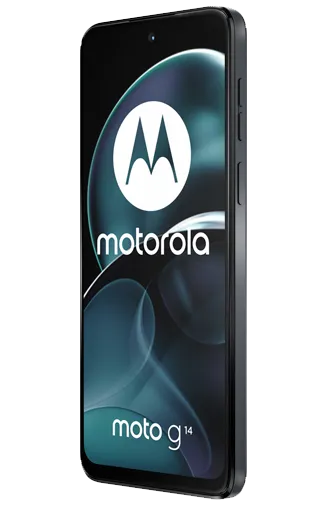
How to Turn Off Your Motorola Smartphone: A Step-by-step Guide
Are you having trouble turning off your Motorola smartphone? Do you find yourself frustrated by the device’s failure to shut down properly? Look no further! In this article, we will guide you through the process of turning off your Motorola smartphone using various methods.
Why Turn Off Your Phone?
Before we dive into the nitty-gritty of shutting down your phone, let’s quickly discuss why it’s essential to do so. Turning off your phone can help:
- Conserve battery life
- Prevent overheating
- Save data and avoid losing unsaved work
- Ensure smooth performance in the long run
Method 1: Standard Procedure
The standard procedure for turning off your Motorola smartphone is straightforward:
- Press and hold the power button until the menu appears.
- Select “Turn off” from the menu.
If you’re unable to turn off your phone using this method, don’t worry! We’ve got more ways to try.
Method 2: Using an App
There’s a special app called Shutdown that can help you turn off your Motorola smartphone when the standard procedure doesn’t work. To use it:
- Download and install the Shutdown app from the Google Play Store.
- Open the app for the first time, and follow the instructions to configure it.
- Once configured, open the Shutdown app and select “Turn off” from the menu.
Method 3: Forcing a Shut Down
If your phone is stuck and won’t turn off using the standard procedure or the app, you may need to force a shut down:
- Press and hold the power button for 10 seconds.
- Release the power button and wait for 30 seconds.
- If your phone doesn’t turn on, press and hold the power button again.
Method 4: Turning Off Without Touch
If your phone’s touchscreen is damaged or unresponsive, you can try turning it off without using the touch screen:
- Connect a USB mouse to your phone using an OTG adapter.
- Use the mouse to navigate to the “Turn off” option in the menu.
Method 5: Using The Menu
If none of the above methods work, you may need to access the menu directly:
- Press and hold the power button for a few seconds until the menu appears.
- Select “Settings” or “System settings.”
- Look for the “Power management” or “Battery saver” option.
- Select “Turn off” or “Shut down.”
Tips And Tricks
- Always unplug your phone from the charger before attempting to turn it off.
- If you’re experiencing overheating issues, try turning off your phone and letting it cool down for a while.
- To prevent battery drain, consider setting your phone to sleep mode or airplane mode when not in use.
Conclusion
Turning off your Motorola smartphone may seem like a daunting task, but with these methods, you should be able to do so easily. Remember to always follow the standard procedure first and try alternative methods only if necessary. If you’re still having trouble, don’t hesitate to reach out for further assistance.
Frequently Asked Questions (FAQs)
- Q: How do I Turn Off my Motorola Smartphone?
A: Use the standard procedure by pressing and holding the power button until the menu appears. - Q: What if my Phone Won’t Turn Off Using The Standard Procedure?
A: Try using the Shutdown app or forcing a shut down. - Q: Can I Turn Off my Phone Without Using The Touchscreen?
A: Yes, use an OTG adapter and connect a USB mouse to navigate to the “Turn off” option. - Q: Why is it Essential to Turn Off my Phone Regularly?
A: To conserve battery life, prevent overheating, save data, and ensure smooth performance in the long run. - Q: What if I’m Experiencing Issues With my Phone’s Touchscreen?
A: Try using an OTG adapter and a USB mouse to navigate to the “Turn off” option.
Hope this article helps!


