
How to Transfer Photos From Android to Iphone: A Step-by-step Guide
Are you switching from an Android smartphone to an iPhone, but don’t want to leave your precious photos behind? Look no further! In this article, we’ll show you how to transfer photos from Android to iPhone using various methods.
Introduction
With the increasing popularity of iPhones, many Android users are making the switch. However, one of the biggest concerns is transferring photos and other data from their old device to their new iPhone. In this article, we’ll explore different ways to transfer photos from Android to iPhone, including using Google Photos, Snapdrop, and other methods.
Method 1: Using Google Photos
Google Photos is a fantastic service that allows you to store your photos and videos in the cloud. It’s free, easy to use, and offers automatic backup and synchronization across all your devices.
To transfer photos from Android to iPhone using Google Photos:
- Download And Install Google Photos on Your Android Device: Go to the Play Store and download the app.
- Set up Google Photos on Your Android Device: Create an account or sign in with your existing Google account.
- Enable Backup And Synchronization: Follow the prompts to set up automatic backup and synchronization of your photos and videos.
- Install Google Photos on Your Iphone: Download and install the app from the App Store.
- Sign in to Your Google Account: Enter your credentials to access your backed-up photos and videos.
Method 2: Using Snapdrop
Snapdrop is a web-based service that allows you to transfer files between devices without using the cloud. It’s fast, secure, and easy to use.
To transfer photos from Android to iPhone using Snapdrop:
- Open Snapdrop on Both Devices: Go to snapdrop.Net on your Android device and iPhone.
- Select The Photo or Video You Want to Transfer: Choose the file you want to transfer on your Android device.
- Transfer The File: Snapdrop will automatically transfer the file to your iPhone.
Method 3: Using Itunes
If you don’t have a stable internet connection or prefer not to use cloud services, you can transfer photos from Android to iPhone using iTunes.
To transfer photos from Android to iPhone using iTunes:
- Connect Your Android Device to Your Computer: Use a USB cable to connect your Android device to your computer.
- Open Itunes And Select The Photo Folder: Choose the photo folder on your Android device.
- Transfer The Photos to Your Computer: Copy the photos to your computer.
- Connect Your Iphone to Your Computer: Use a USB cable to connect your iPhone to your computer.
- Open Itunes And Select The “Sync Photos” Option: Choose the photo folder you copied from your Android device.
Method 4: Using an App (Spend to Ios)
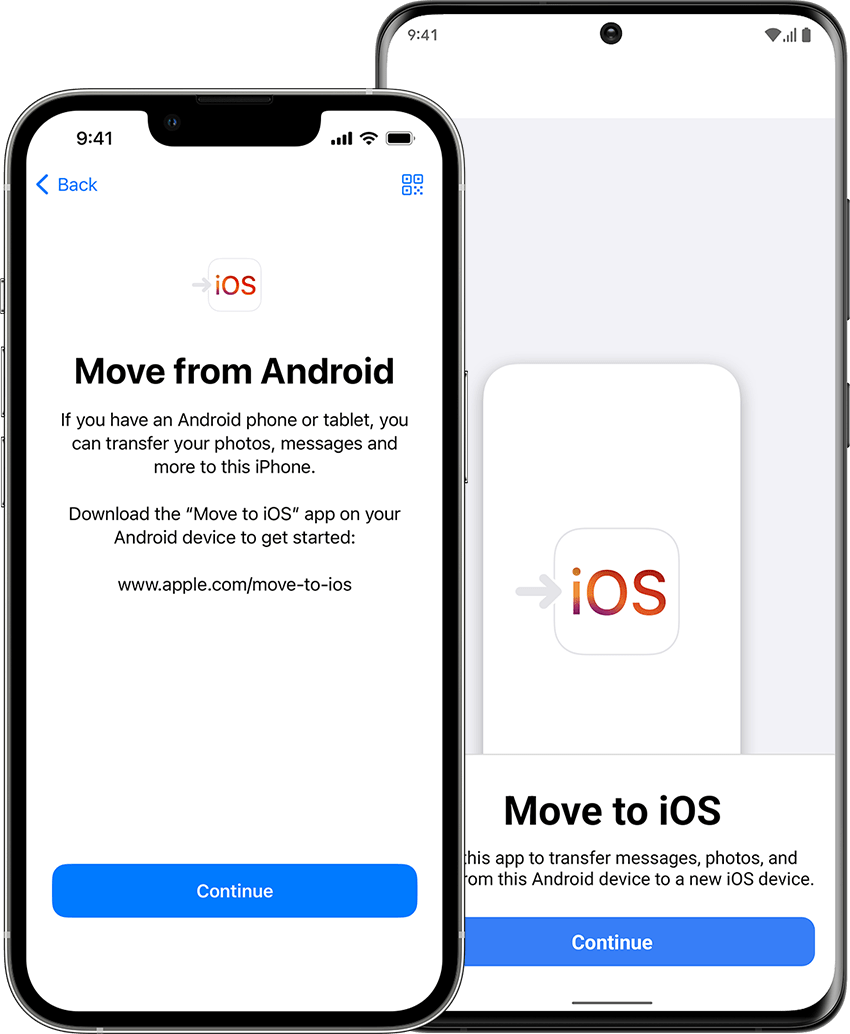
If you’re setting up a new iPhone or restoring it to its factory settings, you can transfer data from your old Android device using the Spend to iOS app.
To transfer photos from Android to iPhone using Spend to iOS:
- Download And Install Spend to Ios on Your Android Device: Go to the Google Play Store and download the app.
- Initiate The Setup Process on Your Iphone: Follow the prompts to set up your new iPhone.
- Select “Transfer Data”: Choose the option to transfer data from your old Android device.
- Scan The QR Code on Your Iphone: Use the Spend to iOS app on your Android device to scan the QR code.
Conclusion
Transferring photos from Android to iPhone is easier than you think! With Google Photos, Snapdrop, and other methods, you can transfer your precious memories with just a few clicks. Remember to always back up your data regularly to avoid losing important files.
Faqs
- What if I Have a Lot of Photos on my Android Device?
- You can transfer them all at once using Google Photos or Snapdrop.
- Will I Lose Any Data During The Transfer Process?
- No, our methods ensure that your data remains intact and is transferred safely to your iPhone.
- Can I Use a Usb Cable to Transfer Photos Directly From my Android Device to my Iphone?
- Unfortunately, no. You’ll need to use one of the methods outlined above.
- What if I’m Not Comfortable Using Cloud Services?
- You can use Snapdrop or iTunes to transfer data without relying on cloud services.
- Can I Transfer Videos as Well as Photos?
- Yes, all our methods allow you to transfer videos in addition to photos.
- Will This Process Work Even if my Android Device is Not Connected to The Internet?
- Yes, most of these methods can be used offline or with a stable internet connection.
- Can I Transfer Data From my Old Iphone to a New Android Device Using Any of These Methods?
- Unfortunately, no. These methods are specifically designed for transferring data from an Android device to an iPhone.
Method 5: Using Windows Explorer
If you’re using a computer running Windows, you can also use Windows Explorer to transfer photos from your Android device to your iPhone.
To transfer photos from Android to iPhone using Windows Explorer:
- Connect Your Android Device to Your Computer: Use a USB cable to connect your Android device to your computer.
- Open Windows Explorer And Select The Photo Folder: Choose the photo folder on your Android device.
- Copy The Photos to Your Computer: Copy the photos to your computer.
- Connect Your Iphone to Your Computer: Use a USB cable to connect your iPhone to your computer.
- Open Itunes And Select The “Sync Photos” Option: Choose the photo folder you copied from your Android device.
Method 6: Using Mac
If you’re using a Mac, you can use the Finder app to transfer photos from your Android device to your iPhone.
To transfer photos from Android to iPhone using Mac:
- Connect Your Android Device to Your Mac: Use a USB cable to connect your Android device to your Mac.
- Open Finder And Select The Photo Folder: Choose the photo folder on your Android device.
- Copy The Photos to Your Mac: Copy the photos to your Mac.
- Connect Your Iphone to Your Mac: Use a USB cable to connect your iPhone to your Mac.
- Open Itunes And Select The “Sync Photos” Option: Choose the photo folder you copied from your Android device.
Method 7: Using Snapdrop
Snapdrop is another web-based service that allows you to transfer files between devices without using the cloud.
To transfer photos from Android to iPhone using Snapdrop:
- Open Snapdrop on Both Devices: Go to snapdrop.Net on your Android device and iPhone.
- Select The Photo or Video You Want to Transfer: Choose the file you want to transfer on your Android device.
- Transfer The File: Snapdrop will automatically transfer the file to your iPhone.
Method 8: Using Spend to Ios
Spend to iOS is an app developed by Apple that allows you to transfer data from your old Android device to your new iPhone.
To transfer photos from Android to iPhone using Spend to iOS:
- Download And Install Spend to Ios on Your Android Device: Go to the Google Play Store and download the app.
- Initiate The Setup Process on Your Iphone: Follow the prompts to set up your new iPhone.
- Select “Transfer Data”: Choose the option to transfer data from your old Android device.
- Scan The QR Code on Your Iphone: Use the Spend to iOS app on your Android device to scan the QR code.
Method 9: Using Google Backup And Sync
Google Backup and Sync is a service that allows you to back up your photos and videos to Google Photos.
To transfer photos from Android to iPhone using Google Backup and Sync:
- Download And Install Google Backup And Sync on Your Android Device: Go to the Play Store and download the app.
- Set up Google Backup And Sync: Create an account or sign in with your existing Google account.
- Enable Backup And Synchronization: Follow the prompts to set up automatic backup and synchronization of your photos and videos.
- Install Google Photos on Your Iphone: Download and install the app from the App Store.
- Sign in to Your Google Account: Enter your credentials to access your backed-up photos and videos.
Method 10: Using Itunes
If you’re using a computer running Windows, you can also use iTunes to transfer photos from your Android device to your iPhone.
To transfer photos from Android to iPhone using iTunes:
- Connect Your Android Device to Your Computer: Use a USB cable to connect your Android device to your computer.
- Open Itunes And Select The Photo Folder: Choose the photo folder on your Android device.
- Copy The Photos to Your Computer: Copy the photos to your computer.
- Connect Your Iphone to Your Computer: Use a USB cable to connect your iPhone to your computer.
- Open Itunes And Select The “Sync Photos” Option: Choose the photo folder you copied from your Android device.
I hope this helps! Let me know if you have any questions or need further clarification on any of these methods.


