
How to Block Your Monitor: A Comprehensive Guide
Are you tired of having your monitor accidentally blocked by someone else while you’re away? Do you want to add an extra layer of security to your device? Look no further! In this article, we’ll show you how to block your monitor on various devices, including Windows PC, Mac, tablet, and smartphone.
Why Block Your Monitor?
Blocking your monitor is a simple yet effective way to protect your data from prying eyes. It’s especially useful in shared workspaces or when leaving your device unattended for short periods. By blocking your monitor, you can ensure that only authorized users can access your files and applications.
How to Block Your Monitor on Windows PC
To block your monitor on a Windows PC, follow these steps:
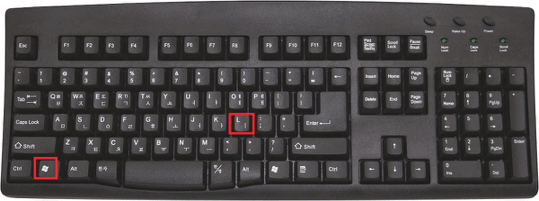
- Press the combination of keys Win+l on your keyboard.
- Alternatively, click on the Start menu, then click on your name, and finally click on the “Lock” option in the drop-down menu.
This will display a lock screen, requiring you to enter your password to access your desktop. If no password is set, anyone can simply turn off or restart the computer to bypass this security measure.
How to Block Your Monitor on Mac
To block your monitor on a Mac, follow these steps:
- Press the combination of keys Cmd+ctrl+q.
- Alternatively, click on the Apple menu, then click on “Lock” in the drop-down menu.
This will display a lock screen, requiring you to enter your password to access your desktop. If no password is set, anyone can simply turn off or restart the computer to bypass this security measure.
How to Block Your Monitor on Tablet And Smartphone
To block your monitor on a tablet or smartphone, follow these steps:
- On Android devices, go to Settings > Safety > Lock screen.
- Choose the desired lock method (e.G., Pattern, PIN, or password).
- Set up the unlock method by following the on-screen instructions.
On iOS devices, go to Settings > Face ID & Code (or Touch ID & Passcode).
- Tap on “Set Up Now” and follow the instructions to set up your face ID, touch ID, or passcode.
- Choose the desired lock method (e.G., Face ID, touch ID, or passcode).
- Set up the unlock method by following the on-screen instructions.
How to Block Automatic Rotation of Monitor
To block automatic rotation of the monitor on Android devices:
- Go to Settings > Display.
- Tap on “Auto-rotate screen.”
- Select “Off” to disable automatic rotation.
On iOS devices, go to Settings > General > Accessibility.
- Tap on “Display Accommodations.”
- Select “Auto-rotate screen.”
- Turn off the switch next to “Auto-rotate screen.”
How to Configure Automatic Block of Monitor
To configure automatic block of the monitor on Android devices:
- Go to Settings > Display.
- Tap on “Screen timeout” and select the desired duration (e.G., 30 Seconds, 1 minute, etc.).
On iOS devices, go to Settings > Face ID & Code (or Touch ID & Passcode).
- Tap on “Require Password After Setup.”
- Select the desired duration (e.G., Immediately, after 1 minute, etc.).
By following these simple steps, you can add an extra layer of security to your device and protect your data from prying eyes.
Conclusion
Blocking your monitor is a straightforward way to enhance the security of your device. Whether you’re working on a shared computer or leaving your tablet or smartphone unattended for short periods, blocking your monitor ensures that only authorized users can access your files and applications. By following the steps outlined in this article, you can enjoy added peace of mind knowing that your data is protected.
Faqs
- Q: Why Should I Block my Monitor?
A: Blocking your monitor adds an extra layer of security to prevent unauthorized access to your device. - Q: How do I Block my Monitor on Windows Pc?
A: Press the combination of keys Win+L or click on Start menu, then name, and finally Lock option in the drop-down menu. - Q: How do I Block my Monitor on Mac?
A: Press cmd+ctrl+q or click on Apple menu, then Lock in the drop-down menu. - Q: Can Anyone Bypass The Lock Screen on Windows PC if no Password is Set?
A: Yes, anyone can simply turn off or restart the computer to bypass this security measure. - Q: How do I Block Automatic Rotation of my Monitor on Android Devices?
A: Go to Settings > Display, tap on Auto-rotate screen, and select Off to disable automatic rotation. - Q: Can I Configure Automatic Block of my Monitor on Android Devices?
A: Yes, go to Settings > Display, tap on Screen timeout, and select the desired duration (e.G., 30 Seconds, 1 minute, etc.).
Note: This article is meant for general informational purposes only. The steps provided are based on the latest available information at the time of writing.


