
How to Open a CD on Your Pc: A Step-by-step Guide
As we navigate through our digital world, it’s easy to forget about the old ways of accessing information – like opening a CD on your computer. But fear not, dear reader, for this article will guide you through the process with ease.
Understanding Cds And Their Purpose
Before we dive into the step-by-step guide, let’s quickly understand what CDs are and why they’re still relevant today. CDs (Compact Discs) were once a popular way to store and play music, movies, and data. Although they’ve been largely replaced by digital storage methods like USB drives and streaming services, there are still situations where you might need to access the information stored on a CD.
Preparation: Make Sure Your Computer Has a CD Drive
Before opening a CD on your PC, ensure that your computer has a CD drive. This is usually located on the front or top of your desktop or laptop and may be labeled as a “CD/DVD Drive.” If you’re unsure, check your computer’s specifications or consult with the manufacturer.
Step 1: Insert The CD Into The Drive
Place the CD into the drive, making sure it’s aligned properly. You should hear a slight click as the CD is recognized by the drive. If this doesn’t happen, try cleaning the CD with a soft cloth and reinserting it.
Windows Instructions
If you’re using a Windows computer, follow these steps:
- Open Autoplay: Once the CD is inserted, a window will pop up asking how to open it. Click on “Open folder to view files” or choose another option depending on what type of CD you have (e.G., Audio, video, or data).
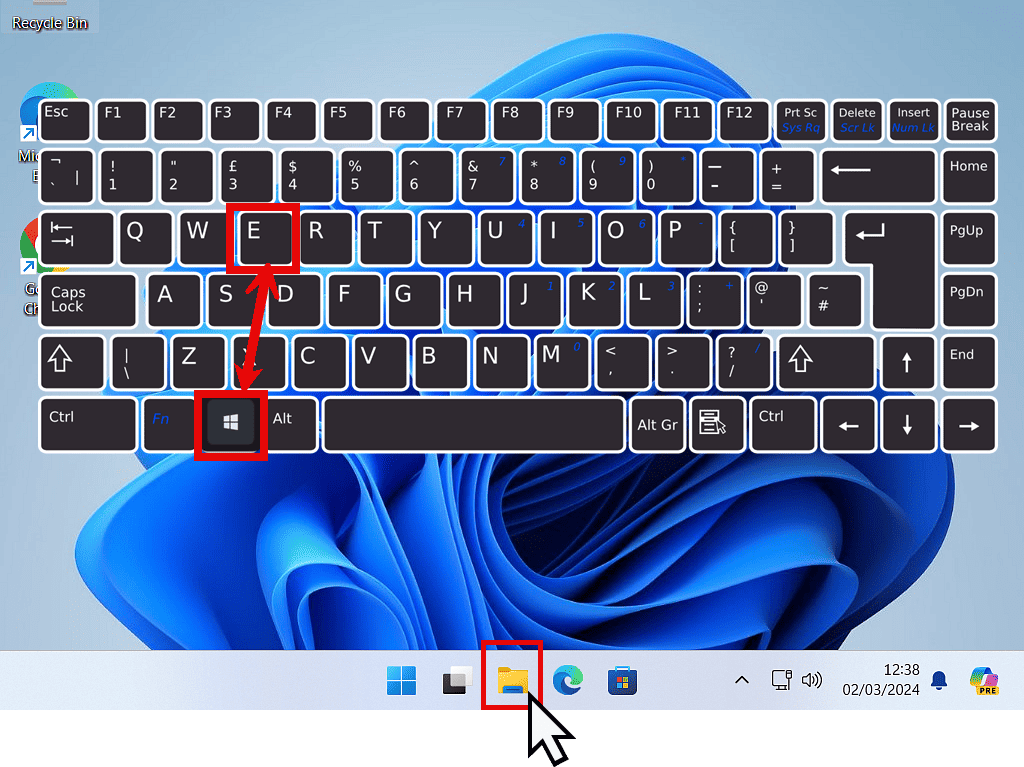
- Explore The Content: The contents of the CD will be displayed in File Explorer. You can navigate through the folders and files just like you would with any other drive.
- Play Audio Cds: If the CD contains music, click on “Play” to listen to the tracks.
Macos Instructions
If you’re using a Mac, follow these steps:
- Insert The CD: Place the CD into the drive and wait for the computer to recognize it.
- Open Finder: Click on the Finder icon in the Dock or press Command + Shift + D.
- Select The CD: Locate the CD in the sidebar of the Finder window. Double-click on it to open its contents.
Troubleshooting: What If The CD Doesn’t Open?
If your CD doesn’t open, try the following:
- Check that the CD is properly inserted into the drive.
- Clean the CD with a soft cloth and reinsert it.
- Restart your computer and try again.
- Use a software tool to recover data from a damaged or scratched CD.
Reading Radiographies on Your PC
If you have a diagnostic CD containing radiographies, follow these steps:
- Insert The CD: Place the CD into the drive and wait for the computer to recognize it.
- Open The Folder: Open File Explorer (Windows) or Finder (Mac) and locate the folder containing the radiography files (.DCM or .DCM30).
- Use a Dicom Viewer Software: Download and install software specifically designed for viewing DICOM files, such as MicroDicom (for Windows) or Horos Mobile (for Mac).
Conclusion
Opening a CD on your PC is a straightforward process that requires some basic knowledge of your computer’s operating system. By following the steps outlined in this article, you should be able to access the information stored on a CD with ease.
Frequently Asked Questions (FAQs)
- Q: What if my Computer Doesn’t Have a CD Drive?
A: You can use an external CD drive or create an ISO image of the CD and play it back using software. - Q: How do I Read Radiographies on my Pc?
A: Use a software tool specifically designed for viewing DICOM files, such as MicroDicom (for Windows) or Horos Mobile (for Mac). - Q: What if The CD is Damaged or Scratched?
A: Try cleaning the CD with a soft cloth and reinserting it. If that doesn’t work, use software to recover data from the CD. - Q: Can I Play Audio Cds on my Pc?
A: Yes, you can play audio CDs by clicking on “Play” in the AutoPlay window (for Windows) or double-clicking on the CD icon in Finder (for Mac). - Q: How do I Create an Iso Image of a Cd?
A: Use software specifically designed for creating ISO images, such as ImgBurn (for Windows). - Q: Can I Use a Mac to Open a CD on my Pc?
A: No, you need to use the same operating system (Windows or macOS) to open and access the contents of a CD. - Q: What if my Computer Doesn’t Recognize The Cd?
A: Try cleaning the CD with a soft cloth and reinserting it. If that doesn’t work, restart your computer and try again.
Hope this helps!


