
The Ultimate Guide to Downloading Music on Spotify Android
Are you tired of listening to music only when you have a stable internet connection? Do you want to enjoy your favorite tunes offline, without worrying about data consumption or streaming issues? Look no further! In this comprehensive guide, we’ll show you how to download music on Spotify Android, and explore the benefits and limitations of doing so.
Why Download Music on Spotify Android?
Spotify is one of the most popular music streaming services in the world, with a vast library of songs, playlists, and albums. However, streaming music can be data-intensive, especially if you’re using a mobile network or a limited internet plan. By downloading music on Spotify Android, you can enjoy your favorite tracks offline, without worrying about:
- Data consumption
- Streaming issues
- Limited internet access
How to Download Music on Spotify Android
To download music on Spotify Android, follow these steps:
Step 1: Subscribe to Spotify Premium
While it’s possible to listen to music on Spotify for free, the app restricts offline listening to Premium subscribers only. To unlock this feature, you’ll need to subscribe to a paid plan.
Spotify Premium Plans
Spotify offers several premium plans, including:
- Individual (€9.99/Month)
- Duo (€14.99/Month) – perfect for couples or families
- Family (€17.99/Month) – ideal for large families or groups
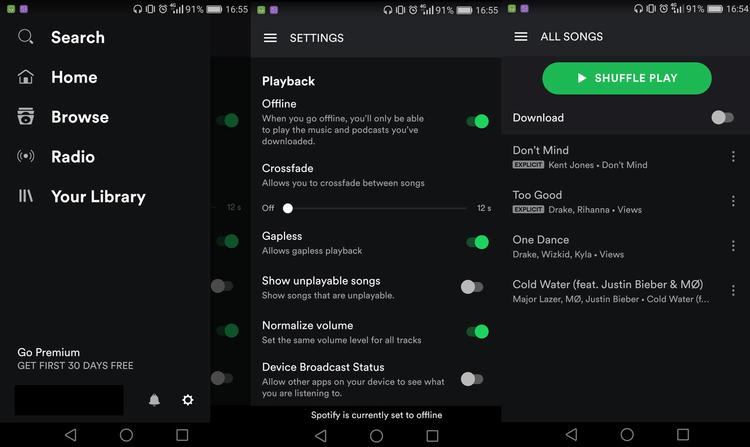
Step 2: Enable Offline Mode on Spotify Android
Once you’ve subscribed to a Premium plan, follow these steps:
- Open the Spotify app on your Android device.
- Tap the profile icon in the top-right corner and select “Settings.”
- Scroll down to the “Music Quality” section.
- Toggle the switch next to “Offline Mode” to enable it.
Step 3: Download Music
With Offline Mode enabled, you can now download music on Spotify Android:
- Open the Spotify app and navigate to the playlist or album you want to download.
- Tap the three dots next to the playlist or album name.
- Select “Download” from the dropdown menu.
How to Transfer Music From Android to Spotify
If you already have music stored on your Android device, you can transfer it to Spotify using the following steps:
- Open the Spotify app and navigate to the “Your Library” section.
- Tap the three dots next to the playlist or album name.
- Select “Local Files” from the dropdown menu.
- Follow the prompts to import your local music files into Spotify.
Tips And Tricks
- Make sure you have a stable internet connection when downloading music on Spotify Android.
- You can download multiple playlists or albums at once, but be aware that larger files may take longer to download.
- If you encounter any issues with downloading music, restart the app and try again.
What’s Next?
In this article, we’ve covered the basics of downloading music on Spotify Android. Stay tuned for more guides and tutorials on how to get the most out of your Spotify experience!
Frequently Asked Questions (FAQs)
- Q: Do I Need a Premium Subscription to Download Music on Spotify Android?
A: Yes, you’ll need a Spotify Premium subscription to enable offline listening. - Q: Can I Download Music on Spotify Android Without an Internet Connection?
A: No, you’ll need a stable internet connection when downloading music on Spotify Android. - Q: How do I Transfer Music From my Android Device to Spotify?
A: Follow the steps outlined in this article to transfer your local music files into Spotify. - Q: Can I Download Multiple Playlists or Albums at Once?
A: Yes, you can download multiple playlists or albums at once, but be aware that larger files may take longer to download.
Conclusion
Downloading music on Spotify Android is a straightforward process that requires a Premium subscription and some basic setup. By following the steps outlined in this article, you’ll be able to enjoy your favorite tunes offline, without worrying about data consumption or streaming issues. Happy listening!


