
Google Passkey: What It Is, How It Functions, And Its Advantages
If you’re someone who struggles to remember passwords or wants a more convenient way to access your Google account without having to memorize complex passwords, then this article is for you. We’ll delve into what Google Passkey is, how it functions, and its advantages.
What Is Google Passkey?
Google Passkey is a new system of authentication proposed by Google to simplify the process of accessing their services while ensuring maximum security. Unlike traditional passwords that can be easily stolen or intercepted by malicious actors, Google Passkey relies on a hardware safety token or biometric recognition such as facial recognition or digital footprints.
How Does Google Passkey Function?
The process of activating Google Passkey is straightforward and swift. You can activate it on various devices supported by Google, including smartphones, tablets, laptops, and desktops. These devices must have at least Android 9 or iOS 16 installed, with a browser that supports Chrome (version 109 or higher), Safari (version 16 or higher), or Edge (version 109 or higher). Additionally, your device should have a compatible FIDO2 key for maximum security.
Advantages of Google Passkey
One of the leading advantages of Google Passkey is its high level of safety. The use of a hardware safety token or biometric recognition makes it more difficult for malicious actors to steal your credentials. If you have already protected your account with 2FA, Google Passkey can bypass this second phase of authentication, ensuring that your identity has been verified.
Actuating Google Passkey
To activate Google Passkey on your device:
- Open the settings of your Google account.
- On smartphones and tablets, use the Google app for Android or iOS/iPadOS to tap on your profile picture in high resolution and select Account Google.
- On a PC or mobile device, access this website and log in with your Google account.
Configuring Google Passkey
After accessing the settings, navigate to the Safety section and click on Passkey. You can also directly reach this URL to be taken immediately to the Passkey section of Google. Then, use your Google account credentials to log in. If you have a device running Android, the passkey will be generated automatically, and you only need to enable it (if you previously set up a device lock on your Android device). To do so, tap on the Use passkey button, and a confirmation message will notify you that this form of access has been enabled. Finally, click on the Done button to complete the operation.
Using Google Passkey
When accessing your Google account on an Android smartphone or tablet, you’ll be required to use the passkey as soon as it’s been activated. To do so:
- Log in to your Google account using a web page or access any part of your Google account.
- After entering your email address, a notice will ask you to use the passkey: Tap on the Continue button and then use the safety form set up on your device (facial recognition, digital footprint, PIN, or sequence) to access.
Creating a Passkey on Other Devices
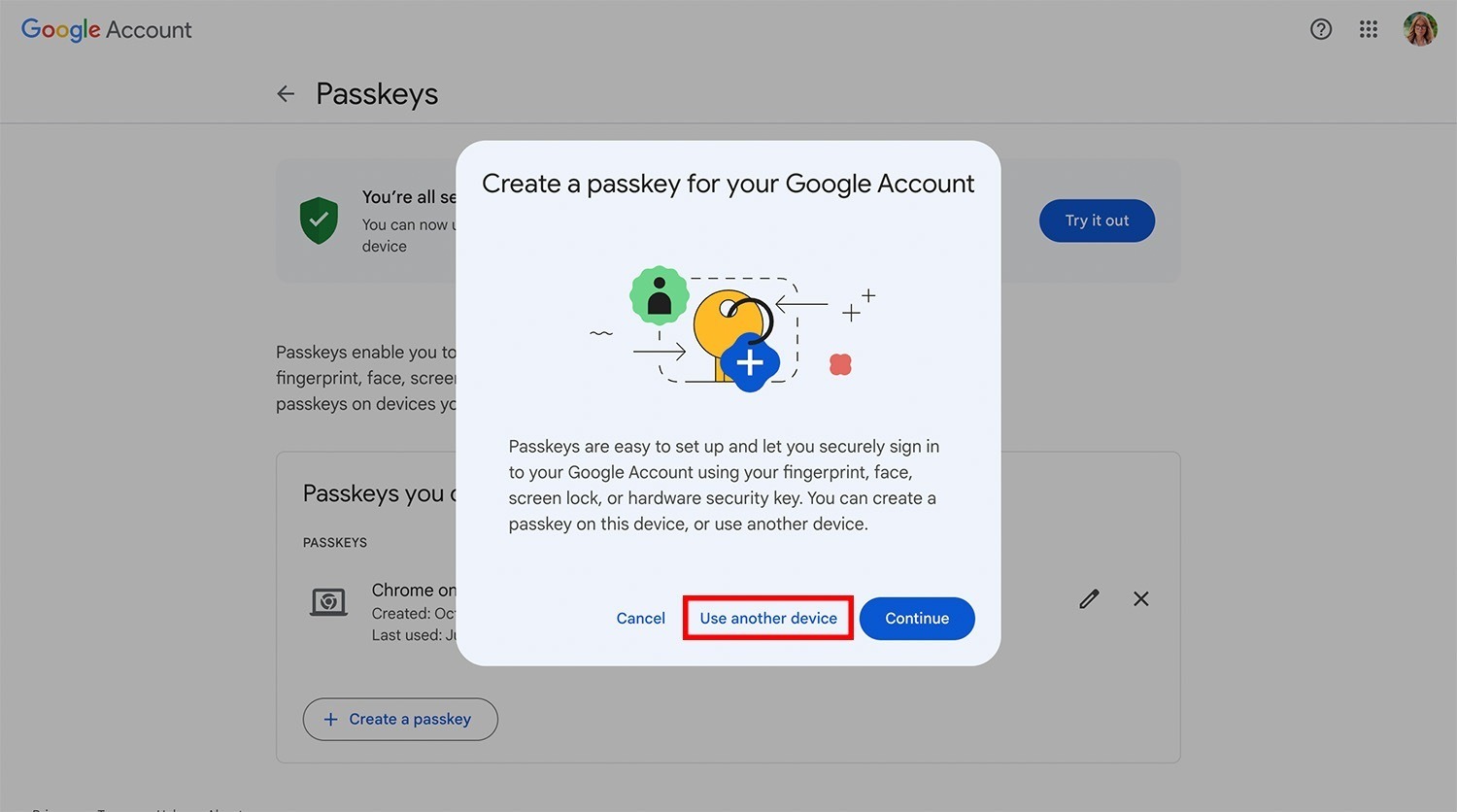
If you want to create a passkey on other devices (such as an iPhone, iPad, Mac, or PC running Windows), navigate to the Safety section of your Google account and click on the Create a passkey button. Then, tap on the Continue button, use the form set up on your mobile device or computer, and follow the instructions.
Revoking a Passkey
To revoke a passkey if you’ve lost your device or want to remove it for security reasons:
- Access your Google account’s settings.
- Navigate to the Safety section.
- Select the Passkey option.
- Find the device in question and click on the Remove button.
- Confirm by tapping on the Remove again.
Revoking a Passkey From an Automatically Created Device
If you’ve created a passkey automatically on a device:
- Access your Google account’s settings website and log in with your credentials.
- Identify the device in question, click on it, and then select Remove twice to disconnect your Google account from that device.
Faqs About Google Passkey
- What is Google Passkey?
Google Passkey is a new system of authentication proposed by Google for simplifying access to their services while ensuring maximum security. - How Does Google Passkey Function?
It relies on a hardware safety token or biometric recognition such as facial recognition, digital footprints, PIN, or sequence. - What Are The Advantages of Google Passkey?
Its high level of safety and ability to bypass 2FA for verified identities. - How do I Actuate Google Passkey on my Device?
You must have at least Android 9 or iOS 16 installed with a browser that supports Chrome, Safari, or Edge, as well as a FIDO2 key. Then, follow the steps outlined in this article to activate and configure it. - How do I Revoke a Passkey if I Lose my Device?
Access your Google account settings, navigate to Safety, select Passkey, find and remove the unwanted device.
Conclusion
Google Passkey offers a more convenient way to access your Google services while ensuring maximum security. By understanding how it functions and its advantages, you can make an informed decision about whether to use this innovative system of authentication.


