
How to Connect Ipad to Mac: A Step-by-step Guide
Are you looking for a way to connect your iPad to your Mac? Do you want to use your iPad as an external monitor, share files between devices, or even type on it using the virtual keyboard? Look no further! In this article, we’ll show you how to connect your iPad to your Mac in various ways, including using cables, Wi-Fi, and Apple’s Sidecar feature.
What You Need to Know Before Getting Started
Before we dive into the nitty-gritty details, here are a few things you should know:
- Make sure both your iPad and Mac are running the latest operating systems. For this guide, we’ll assume you’re using macOS Catalina 10.15 Or later and iPadOS 13 or later.
- Ensure that your Mac has enough free space to run the required software.
Connecting Ipad to Mac Using a Cable
If you want to connect your iPad to your Mac using a cable, follow these steps:
- Connect Your Ipad to Your Mac: Use a Lightning cable to connect your iPad to your Mac. The other end of the cable should be inserted into your Mac’s USB port.
- Open Finder: Open Finder on your Mac and select “iPad” from the sidebar.
- Authorize Access: If prompted, authorize access to your iPad’s memory by clicking “Authorize.”
- Configure Synchronization: Configure synchronization settings as needed.
Connecting Ipad to Mac Without a Cable
If you’d rather not use a cable, you can connect your iPad to your Mac using Wi-Fi. Here’s how:
- Connect Your Ipad And Mac: Connect your iPad and Mac to the same Wi-Fi network.
- Open Finder: Open Finder on your Mac and select “iPad” from the sidebar.
- Configure Synchronization: Configure synchronization settings as needed.
Using Apple’s Sidecar Feature
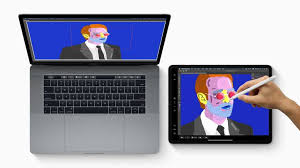
Apple’s Sidecar feature allows you to use your iPad as an external monitor for your Mac. Here’s how:
- Connect Your Ipad And Mac: Connect your iPad and Mac using a cable or Wi-Fi.
- Open Centre of Control: Open the Centre of Control on your Mac and select “Monitor” from the menu.
- Select Ipad: Select your iPad from the list of available monitors.
Using Sidecar to Type on Your Ipad
You can also use your iPad as an external keyboard for your Mac using Sidecar. Here’s how:
- Connect Your Ipad And Mac: Connect your iPad and Mac using a cable or Wi-Fi.
- Open Finder: Open Finder on your Mac and select “iPad” from the sidebar.
- Configure Synchronization: Configure synchronization settings as needed.
Using Your Ipad as a Graphic Tablet
You can also use your iPad as a graphic tablet for your Mac. Here’s how:
- Connect Your Ipad And Mac: Connect your iPad and Mac using a cable or Wi-Fi.
- Open Centre of Control: Open the Centre of Control on your Mac and select “Monitor” from the menu.
- Select Ipad: Select your iPad from the list of available monitors.
Conclusion
Connecting your iPad to your Mac is easier than you think! Whether you want to use your iPad as an external monitor, share files between devices, or even type on it using the virtual keyboard, we’ve shown you how to do it. By following these simple steps, you can unlock a whole new world of possibilities for your iPad and Mac.
Frequently Asked Questions
Here are some frequently asked questions about connecting your iPad to your Mac:
Q: Do I need to update my operating systems?
A: Yes, make sure both your iPad and Mac are running the latest operating systems.
Q: Can I use Sidecar with an older Mac?
A: No, you’ll need a Mac running macOS Catalina 10.15 Or later to use Sidecar.
Q: How do I configure synchronization settings?
A: You can configure synchronization settings as needed in Finder on your Mac.
Q: Can I use my iPad as a graphic tablet?
A: Yes, you can use your iPad as a graphic tablet using Apple’s Sidecar feature.
Q: How do I type on my iPad using the virtual keyboard?
A: Simply tap on the virtual keyboard icon on your iPad and start typing!
Q: Can I use my iPad without a cable?
A: Yes, you can connect your iPad to your Mac using Wi-Fi.
Q: What other features are available with Sidecar?
A: With Sidecar, you can also use your iPad as an external monitor, share files between devices, and more!


