
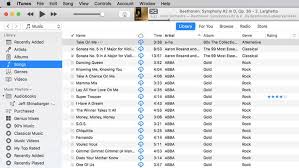
How to Download Itunes on Pc: A Step-by-step Guide
Are you an Apple user looking to manage your devices on a Windows computer? Look no further! In this article, we will guide you through the process of downloading and installing iTunes on your PC.
Why Do I Need Itunes on My Pc?
ITunes is a software developed by Apple that allows you to manage your iOS devices (iPhone, iPad, iPod) on your PC. It provides a seamless way to transfer files, sync music and videos, and update your device’s operating system. Even if you’re an avid user of Microsoft products, iTunes remains an essential tool for Apple enthusiasts.
Downloading Itunes on Windows 10 And Later
If you’re using Windows 10 or later, downloading iTunes is a breeze. Simply follow these steps:
- Visit The Microsoft Store: Open the Microsoft Store app on your PC.
- Search For Itunes: Type “iTunes” in the search bar, and select the official Apple iTunes app from the results.
- Click Download: Click the “Download” button to initiate the download process.
- Authorize Installation: If prompted, authorize the installation by clicking “Yes” or entering your Microsoft account credentials.
- Install Itunes: Once downloaded, click on the “Open” or icon that appears on your desktop/start menu to launch the app.
Using Itunes With Your Ios Device
To manage your iPhone, iPad, or iPod on your PC using iTunes, follow these steps:
- Connect Your Device: Connect your device to your PC using a USB cable.
- Open Itunes: Open the iTunes app on your PC and click on the icon of your device in the top-left corner.
- Authorize Access: Click “Continue” and then enter the code displayed on your device’s screen to authorize access.
- Manage Your Device: You can now manage your device by accessing its settings, updating its software, and transferring files.
Downloading Itunes on Mac
If you’re a Mac user, you might be wondering if you need to download iTunes separately. The answer is yes! Although macOS has integrated some of iTunes’ features into other apps like Music and Photos, there are still times when you’ll need to use iTunes. Here’s how to download it:
- Visit The Apple Website: Go to the Apple website and select “Download” next to the iTunes section.
- Select Your Version: Choose the correct version of iTunes for your Mac (e.G., 64-Bit or 32-bit).
- Download The Installer: Click on the download link to initiate the download process.
- Install Itunes: Once downloaded, double-click on the installer and follow the prompts to install iTunes.
Troubleshooting Tips
If you encounter any issues during the installation process, don’t worry! Here are some troubleshooting tips:
- Windows 7 Users: Unfortunately, Apple has discontinued support for Windows 7. If you’re using an older version of Windows, it’s recommended that you update to a newer version (e.G., Windows 10) before attempting to download iTunes.
- Itunes Not Working: If iTunes isn’t working correctly on your Mac, try restarting your device or reinstalling the app.
Conclusion
Downloading and installing iTunes on your PC is a straightforward process. By following these steps, you’ll be able to manage your iOS devices seamlessly and enjoy all the features that iTunes has to offer. Whether you’re a seasoned Apple user or just starting out, this guide should help you get started with confidence.
Faqs
- Q: Do I Need Itunes on my PC if I’m Using a Mac?
A: While macOS has integrated some of iTunes’ features into other apps like Music and Photos, there are still times when you’ll need to use iTunes. Yes, it’s recommended that you download and install iTunes on your Mac. - Q: Can I Update my Windows 7 Computer to a Newer Version?
A: Unfortunately, Apple has discontinued support for Windows 7. If you’re using an older version of Windows, it’s recommended that you update to a newer version (e.G., Windows 10) before attempting to download iTunes. - Q: What if I Encounter Issues During The Installation Process?
A: Don’t worry! If you experience any problems during the installation process, try restarting your device or reinstalling the app.


