
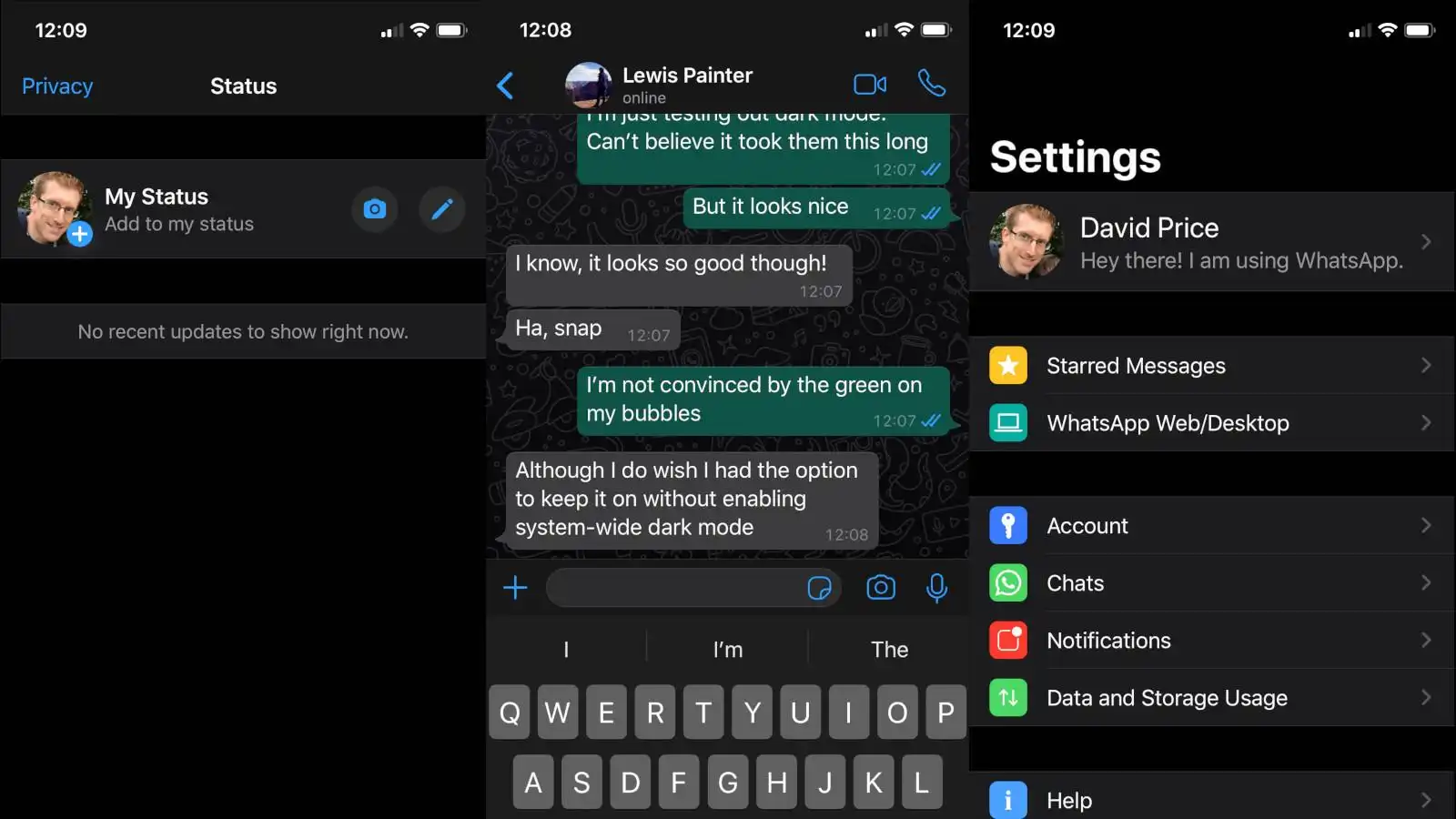
Contacting Dark Modes on Whatsapp
Are you tired of staring at your phone’s bright screen? Do you wish there was a way to reduce eye strain while using the popular messaging app, WhatsApp? Look no further! In this article, we’ll guide you through the process of activating dark mode on WhatsApp for Android and iOS devices. We’ll also show you how to enable it on WhatsApp Web.
Why Activate Dark Mode on Whatsapp?
Activating dark mode on WhatsApp can have several benefits:
- Reduced eye strain: The dimmed colors can make it easier on your eyes, especially in low-light environments.
- Battery savings: On OLED screens, using dark mode can help conserve battery life by reducing the amount of power consumed to produce light.
Availability And Compatibility
Before we dive into the step-by-step instructions, it’s essential to note that:
- Whatsapp For Android: The dark mode feature is available on devices running Android 9 and later versions. On earlier versions, you’ll need to activate it manually through the app settings.
- Whatsapp For Ios: The dark mode feature is available on devices running iOS 13 and later versions. It will be automatically enabled if you’ve already activated it in your device’s settings.
- Whatsapp Web: Unfortunately, WhatsApp Web doesn’t natively support dark mode. However, we’ll show you a workaround using a third-party bookmarklet.
Activating Dark Mode on Whatsapp For Android
To activate dark mode on WhatsApp for Android:
- Ensure your device is running Android 10 or later.
- Go to Settings > Display > Theme and select the “Dark” option.
- Open WhatsApp, and you’ll see that it’s now in dark mode.
Activating Dark Mode on Whatsapp For Ios
To activate dark mode on WhatsApp for iOS:
- Ensure your device is running iOS 13 or later.
- Go to Settings > Display & Brightness > Appearance and select the “Dark” option.
- Open WhatsApp, and you’ll see that it’s now in dark mode.
Activating Dark Mode on Whatsapp Web
To activate dark mode on WhatsApp Web:
- Install a third-party bookmarklet like “DarkMode Bookmarklet.”
- Add the bookmarklet to your browser.
- Visit WhatsApp Web, scan the QR code with your device, and open the link in your browser.
- Click the newly added bookmarklet to enable dark mode.
By following these steps, you can enjoy a more comfortable and power-efficient WhatsApp experience on your Android or iOS device, as well as on WhatsApp Web using a workaround.
Conclusion
In conclusion, activating dark mode on WhatsApp is a straightforward process that can be completed in a few easy steps. By doing so, you can reduce eye strain and conserve battery life while using the app. We hope this guide has been helpful in walking you through the process.
Here are eight FAQs to help further:
- Q: What devices support dark mode on WhatsApp?
A: Android devices running Android 9 and later, as well as iOS devices running iOS 13 and later. - Q: How do I enable dark mode on WhatsApp for Android?
A: Ensure your device is running Android 10 or later, then go to Settings > Display > Theme and select the “Dark” option. - Q: How do I enable dark mode on WhatsApp for iOS?
A: Ensure your device is running iOS 13 or later, then go to Settings > Display & Brightness > Appearance and select the “Dark” option. - Q: Can I enable dark mode on WhatsApp Web?
A: Unfortunately, WhatsApp Web doesn’t natively support dark mode. However, a third-party bookmarklet can be used as a workaround. - Q: What are some benefits of using dark mode on WhatsApp?
A: Reduced eye strain and battery savings (on OLED screens) are just a few advantages of using dark mode on WhatsApp. - Q: Are there any specific settings I need to change on my device before enabling dark mode on WhatsApp?
A: Yes, ensure your device is running the required operating system version for dark mode to work seamlessly with WhatsApp. - Q: Can I enable dark mode on older versions of Android or iOS?
A: No, dark mode requires a compatible operating system version to function correctly with WhatsApp. - Q: What if I encounter any issues while enabling dark mode on WhatsApp?
A: Try restarting your device or checking for updates to resolve any potential problems.


