
Are you tired of reading long texts on your screen? Do you wish there was a way to listen to articles while doing other activities or having difficulty monitoring the text? Well, you’re in luck! In this guide, we’ll show you how to read a text to Google using various devices.
Whether you have an Android smartphone, an iPhone, an iPad, a PC (Windows or macOS), or a Chromebook, we’ve got you covered. Follow our step-by-step instructions, and you’ll be able to listen to texts in no time.
Table 1: Devices Supported
| Device | Method |
|---|---|
| PC (Windows/macOS) | Google Chrome extension “Read Aloud” |
| Android smartphone/tablet | Google Assistant or Google Translate app |
| IPhone/iPad | Google Translator app or iOS Accessibility feature |
How to Read a Text to Google on Your PC
If you’re using a PC, you can easily read a text to Google using the Chrome browser. Here’s how:
- Install The “Read Aloud” Extension: Open Google Chrome and navigate to the Chrome Web Store. Search for “Read Aloud” and install the extension.
- Enable The Extension: Click on the three dots in the top right corner of the browser window, go to More tools > Extensions, and toggle the switch next to “Read Aloud” to enable it.
- Select The Text: Navigate to the webpage you want to read and select the text using your mouse or keyboard.
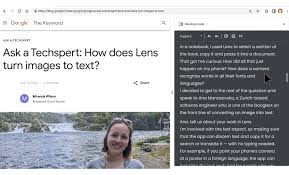
- Initiate The Reading: Click on the puzzle icon in the top right corner of the browser window (or click on the megaphone icon if you’ve installed only “Read Aloud”) and choose Play.
How to Read a Text to Google on Your Android Device
If you’re using an Android device, you can read a text to Google using either the Google Assistant or the Google Translate app. Here’s how:
- Use Google Assistant: Say “Hey Google, read this page” (or “Hey Google, read [insert webpage URL]”) and Google Assistant will start reading the text.
- Use Google Translate App: Open the Google Translate app, select the language you want to translate to, copy the text from a webpage or document, and hit the Translate button.
How to Read a Text to Google on Your Iphone/ipad
If you’re using an iPhone or iPad, you can read a text to Google using either the Google Translator app or the iOS Accessibility feature. Here’s how:
- Use Google Translator App: Open the Google Translate app, select the language you want to translate to, copy the text from a webpage or document, and hit the Translate button.
- Use Ios Accessibility Feature: Go to Settings > Accessibility > Speech > Text-to-Speech and toggle on “Speak Selection” and “Speak Screen”. Navigate to a webpage, select the text using your finger, and swipe up with two fingers to listen to the text.
How to Read a Text to Google in Google Docs
If you have a document stored in Google Drive or Google Docs, you can read it to Google using either the “Read Aloud” extension (for PC) or the Google Translate app (for Android/iPhone). Here’s how:
- Use “Read Aloud” Extension: Install the “Read Aloud” extension on your PC and follow the steps above.
- Use Google Translate App: Open the Google Translate app, copy the text from a Google Doc, and hit the Translate button.
How to Read a Text to Google in Chromebook
If you’re using a Chromebook, you can read a text to Google using the built-in screen reader feature. Here’s how:
- Activate The Screen Reader: Go to Settings > Accessibility > Screen reader and toggle on “ChromeVox”.
- Select The Text: Navigate to a webpage, select the text using your mouse or keyboard.
- Initiate The Reading: Press Ctrl + Alt + Z (or use the shortcut key combination) to initiate the vocal synthesis.
Frequently Asked Questions
Q: How do I enable speech output on my device?
A: Go to Settings > Accessibility and toggle on “Speak Selection” for Android or “Speech” for iOS.
Q: Can I change the voice or speed of the speech output?
A: Yes, you can adjust these settings in the accessibility menu of your device.
Q: How do I save a text to listen later?
A: You can bookmark the webpage and return to it later, or use a note-taking app to save the text.
Q: Can I read a text aloud on multiple devices at once?
A: Yes, you can use a cloud-based service like Google Keep or Evernote to save and sync your texts across multiple devices.
Conclusion
Reading a text to Google is easier than ever with these step-by-step guides. Whether you’re using a PC, Android device, iPhone/iPad, or Chromebook, we’ve got you covered. With just a few clicks or voice commands, you can listen to articles, documents, and web pages without having to monitor the screen. Happy reading!


