
Removing Chrome Notifications: A Step-by-step Guide
Are you tired of receiving notifications from Google Chrome? Do you want to know how to remove them on your computer, smartphone, or tablet? Look no further! In this article, we will guide you through the process of disabling Chrome notifications on various devices.
Why Remove Chrome Notifications?
Chrome notifications can be annoying and distracting. They can also consume battery life and slow down your device. By removing them, you can enjoy a more peaceful browsing experience and reduce distractions.
Removing Chrome Notifications on Computer
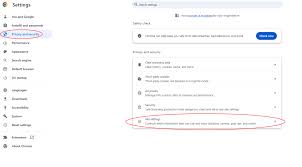
To remove Chrome notifications on your computer, follow these steps:
Procedure Standard
- Open Google Chrome on your computer.
- Click on the three dots in the upper right corner of the browser window.
- Select “Settings” from the dropdown menu.
- Scroll down to the “Privacy and security” section.
- Click on “Notifications” and then select “Blocked” next to the website you want to block notifications for.
Procedure Alternative on Windows
- Press the Windows key + I to open the Settings app.
- Click on “System” and then select “Notifications”.
- Find Google Chrome in the list of apps that have permission to send notifications and toggle off the switch next to it.
Procedure Alternative on Macos
- Click on the Apple logo in the upper left corner of the screen and select “System Preferences”.
- Click on “Notifications” and then select “Chrome” from the list of apps.
- Toggle off the switch next to “Allow notifications”.
Removing Chrome Notifications on Mobile Devices
To remove Chrome notifications on your smartphone or tablet, follow these steps:
Procedure Standard on Android
- Open Google Chrome on your mobile device.
- Tap the three dots in the upper right corner of the browser window.
- Select “Settings” from the dropdown menu.
- Scroll down to the “Advanced” section and tap on “Notifications”.
- Find the website you want to block notifications for and toggle off the switch next to it.
Procedure Alternative on Android
- Open the Settings app on your mobile device.
- Scroll down to the “Apps” section and find Google Chrome in the list of apps.
- Tap on “Notifications” and toggle off the switch next to “Allow notifications”.
Removing Chrome Notifications on Iphone And Ipad
Unfortunately, Chrome notifications are not supported on iOS and iPadOS devices. However, if you see a pop-up notification from Chrome, you can block it by following these steps:
- Open Google Chrome on your iPhone or iPad.
- Tap the three dots in the upper right corner of the browser window.
- Select “Settings” from the dropdown menu.
- Scroll down to the “Block popup” section and toggle off the switch next to “Allow notifications”.
Conclusion
Removing Chrome notifications is a straightforward process that can be completed on various devices, including computers, smartphones, and tablets. By following these steps, you can enjoy a distraction-free browsing experience and reduce battery consumption.
Faqs
- Q: Why do I Need to Remove Chrome Notifications?
A: You can remove Chrome notifications if they’re distracting or consuming too much battery life. - Q: Can I Remove Chrome Notifications on All Devices?
A: Yes, you can remove Chrome notifications on computers, smartphones, and tablets using the steps outlined above. - Q: Do Chrome Notifications Consume Battery Life?
A: Yes, receiving notifications from Chrome can consume battery life, especially if your device is not connected to a power source. - Q: Can I Block Notifications For Specific Websites Only?
A: Yes, you can block notifications for specific websites on both desktop and mobile devices using the steps outlined above. - Q: Why Are Chrome Notifications Not Supported on Ios And Ipados Devices?
A: Unfortunately, Chrome notifications are not supported on iOS and iPadOS devices due to operating system limitations.
I hope this article has been helpful in providing you with a step-by-step guide on removing Chrome notifications on various devices!


