
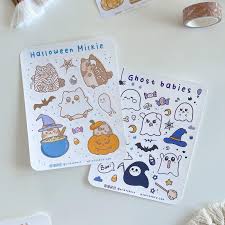
Creating Stickers on Whatsapp, Telegram, Instagram, Tiktok, Android, Iphone, And Online: A Comprehensive Guide
Are you tired of using the same old boring stickers in your conversations? Do you want to create unique and personalized stickers that reflect your personality? Look no further! In this article, we will guide you through the process of creating stickers on various platforms, including WhatsApp, Telegram, Instagram, TikTok, Android, iPhone, and online.
Why Create Stickers?
Creating stickers is a fun and creative way to express yourself in conversations. With just a few taps or clicks, you can transform your favorite photos into colorful and engaging stickers that will surely impress your friends and family.
Getting Started With Whatsapp
To create stickers on WhatsApp, follow these simple steps:
- Open The App: Launch WhatsApp on your smartphone.
- Tap on The Chat Icon: Select the contact or group you want to send a sticker to.
- Long Press on The Emoji Icon: Tap and hold on the emoji icon in the bottom left corner (on Android) or top right corner (on iPhone).
- Select The Sticker Icon: Choose the sticker option from the menu that appears.
- Create a New Sticker: Select an image from your gallery, add text or drawings, and edit as desired.
- Save The Sticker: Tap on the “Done” button to save the sticker.
Creating Stickers on Telegram
To create stickers on Telegram, follow these steps:
- Open The App: Launch Telegram on your smartphone.
- Tap on The Chat Icon: Select the contact or group you want to send a sticker to.
- Tap on The Emoji Icon: Select the sticker option from the menu that appears.
- Select an Image: Choose an image from your gallery or take a new photo.
- Edit The Image: Add text, drawings, or other effects as desired.
- Save The Sticker: Tap on the “Create” button to save the sticker.
Creating Stickers on Instagram
To create stickers on Instagram, follow these steps:
- Open The App: Launch Instagram on your smartphone.
- Tap on The “+” Icon: Select the “Sticker” option from the menu that appears.
- Choose an Image: Select an image from your gallery or take a new photo.
- Edit The Image: Add text, drawings, or other effects as desired.
- Save The Sticker: Tap on the “Use” button to save the sticker.
Creating Stickers on Tiktok
To create stickers on TikTok, follow these steps:
- Open The App: Launch TikTok on your smartphone.
- Tap on The “+” Icon: Select the “Sticker” option from the menu that appears.
- Choose an Image: Select an image from your gallery or take a new photo.
- Edit The Image: Add text, drawings, or other effects as desired.
- Save The Sticker: Tap on the “Next” button to save the sticker.
Creating Stickers With Android
To create stickers with Android, follow these steps:
- Open The Messages App: Launch the Messages app on your smartphone.
- Tap on The Chat Icon: Select the contact or group you want to send a sticker to.
- Tap on The Emoji Icon: Tap and hold on the emoji icon in the bottom left corner (on Android).
- Select The Sticker Icon: Choose the sticker option from the menu that appears.
- Create a New Sticker: Select an image from your gallery, add text or drawings, and edit as desired.
- Save The Sticker: Tap on the “Done” button to save the sticker.
Creating Stickers With Iphone
To create stickers with iPhone, follow these steps:
- Open The Messages App: Launch the Messages app on your smartphone.
- Tap on The Chat Icon: Select the contact or group you want to send a sticker to.
- Long Press on The Emoji Icon: Tap and hold on the emoji icon in the top right corner (on iPhone).
- Select The Sticker Icon: Choose the sticker option from the menu that appears.
- Create a New Sticker: Select an image from your gallery, add text or drawings, and edit as desired.
- Save The Sticker: Tap on the “Done” button to save the sticker.
Creating Animated Stickers
To create animated stickers, follow these steps:
- Open The Messages App: Launch the Messages app on your smartphone.
- Tap on The Chat Icon: Select the contact or group you want to send a sticker to.
- Long Press on The Emoji Icon: Tap and hold on the emoji icon in the bottom left corner (on Android) or top right corner (on iPhone).
- Select The Animated Sticker Option: Choose the animated sticker option from the menu that appears.
- Create a New Animation: Select multiple images, add text or drawings, and edit as desired.
- Save The Sticker: Tap on the “Done” button to save the sticker.
Creating Stickers Online
To create stickers online using Canva, follow these steps:
- Open The Canva Website: Launch the Canva website on your computer or smartphone.
- Search For Stickers: Type “sticker” in the search bar and select a template.
- Customize The Sticker: Add text, drawings, or other effects as desired.
- Save The Sticker: Download the sticker in PNG format with transparent background.
Conclusion
Creating stickers is a fun and creative way to express yourself in conversations. With these simple steps, you can create unique and personalized stickers on WhatsApp, Telegram, Instagram, TikTok, Android, iPhone, and online using Canva. Don’t be afraid to experiment and try new things – the possibilities are endless!
Frequently Asked Questions
Q: What is the best app for creating stickers?
A: The best app for creating stickers depends on your device and personal preference. For Android users, we recommend using the Messages app or Gallery app. For iPhone users, we recommend using the Messages app.
Q: Can I create animated stickers?
A: Yes, you can create animated stickers using the Messages app or a third-party app like GIPHY.
Q: How do I save my sticker?
A: To save your sticker, tap on the “Done” button in the Messages app or download it in PNG format with transparent background using Canva.


