
How to Transfer Contacts From One Phone to Another Using Bluetooth
In today’s digital age, sharing contacts between phones is a common practice. However, with the rise of Bluetooth technology, it has become even easier to transfer contacts from one phone to another without the need for cables or third-party apps. In this article, we will guide you through the process of transferring contacts from an Android device to another Android device using Bluetooth.
Why Use Bluetooth?
Bluetooth is a wireless personal area network (PAN) technology that allows devices to communicate with each other over short distances. It’s a convenient and easy way to transfer files between devices without the need for cables or internet connectivity. In this case, we’ll use Bluetooth to transfer contacts from one Android device to another.
Requirements
Before we begin, make sure you have the following:
- Two Android devices (at least 4.0.3 Ice Cream Sandwich)
- Bluetooth enabled on both devices
- The Contacts app installed on both devices
Step-by-step Guide
- Enable Bluetooth: On the device from which you want to transfer contacts, go to Settings > Connections > Bluetooth and toggle it on.
- Make The Device Visible: Ensure that the device is visible to other Bluetooth devices by toggling the “Visible” switch in Settings > Connections > Bluetooth.
- Pair The Devices: On the receiving device, go to Settings > Connections > Bluetooth and search for the device you want to transfer contacts from. Select it and wait for the pairing process to complete.
- Open The Contacts App: On the sending device, open the Contacts app.
- Select The Contact(s) to Transfer: Choose the contact(s) you want to transfer by tapping on them.
- Share Via Bluetooth: Tap the “Share” button and select “Bluetooth” as the sharing method.
- Choose The Receiving Device: Select the receiving device from the list of available devices.
- Confirm The Transfer: On the receiving device, accept the incoming file transfer by tapping on it.
Transferring an Entire Contact List
If you want to transfer your entire contact list, follow these steps:
- Open The Contacts App: On the sending device, open the Contacts app.
- Select “Settings”: Tap on the three dots (⋮) in the top-right corner and select “Settings”.
- Choose “Export”: Select “Export” from the menu.
- Choose The File Format: Choose “.Vcf” as the file format.
- Save The File: Save the file to a location on your device, such as the Downloads folder.
- Transfer The File Via Bluetooth: Follow steps 3-8 above to transfer the file from one device to another.
Transferring Contacts From an Iphone Using Airdrop
If you’re trying to transfer contacts from an iPhone to another iOS device (iPhone or iPad), follow these steps:
- Enable Airdrop: On the receiving device, go to Settings > General > AirDrop and select “Everyone”.
- Open The Contacts App: On the sending device, open the Contacts app.
- Select The Contact(s) to Transfer: Choose the contact(s) you want to transfer by tapping on them.
- Share Via Airdrop: Tap the “Share” button and select “AirDrop” as the sharing method.
- Choose The Receiving Device: Select the receiving device from the list of available devices.
Common Issues And Solutions
- If you’re experiencing issues transferring contacts using Bluetooth, try restarting both devices or ensuring that Bluetooth is enabled on both devices.
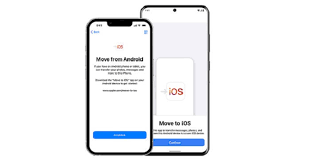
- If you’re trying to transfer contacts between an Android device and an iPhone, you may need to use a third-party app or cable to transfer the files.
Conclusion
Transferring contacts from one phone to another using Bluetooth is a simple process that can be completed in just a few steps. By following these guidelines, you’ll be able to share your contact list with ease, without the need for cables or internet connectivity.
Frequently Asked Questions (FAQs)
- Q: Can I Transfer Contacts Between an Android Device And an Iphone?
A: Unfortunately, it’s not possible to transfer contacts directly between an Android device and an iPhone using Bluetooth. - Q: How do I Enable Bluetooth on my Device?
A: To enable Bluetooth on your device, go to Settings > Connections > Bluetooth and toggle the switch to “ON”. - Q: Can I Transfer Multiple Contacts at Once?
A: Yes, you can transfer multiple contacts at once by selecting them in the Contacts app. - Q: How do I Know if my Contact List Has Been Transferred Successfully?
A: You’ll receive a notification on your receiving device indicating that the file has been received and saved to your Contacts app. - Q: Can I Use Bluetooth to Transfer Other Types of Files, Such as Photos or Videos?
A: Yes, you can use Bluetooth to transfer various types of files, including photos, videos, and documents. - Q: How do I Troubleshoot Issues With Bluetooth File Transfers?
A: Try restarting both devices, ensuring that Bluetooth is enabled on both devices, or checking the file format compatibility. - Q: Can I Use Airdrop to Transfer Contacts From an Iphone?
A: Yes, you can use AirDrop to transfer contacts between two iOS devices (iPhone or iPad). - Q: How do I Enable Airdrop on my Iphone?
A: To enable AirDrop on your iPhone, go to Settings > General > AirDrop and select “Everyone”.


