
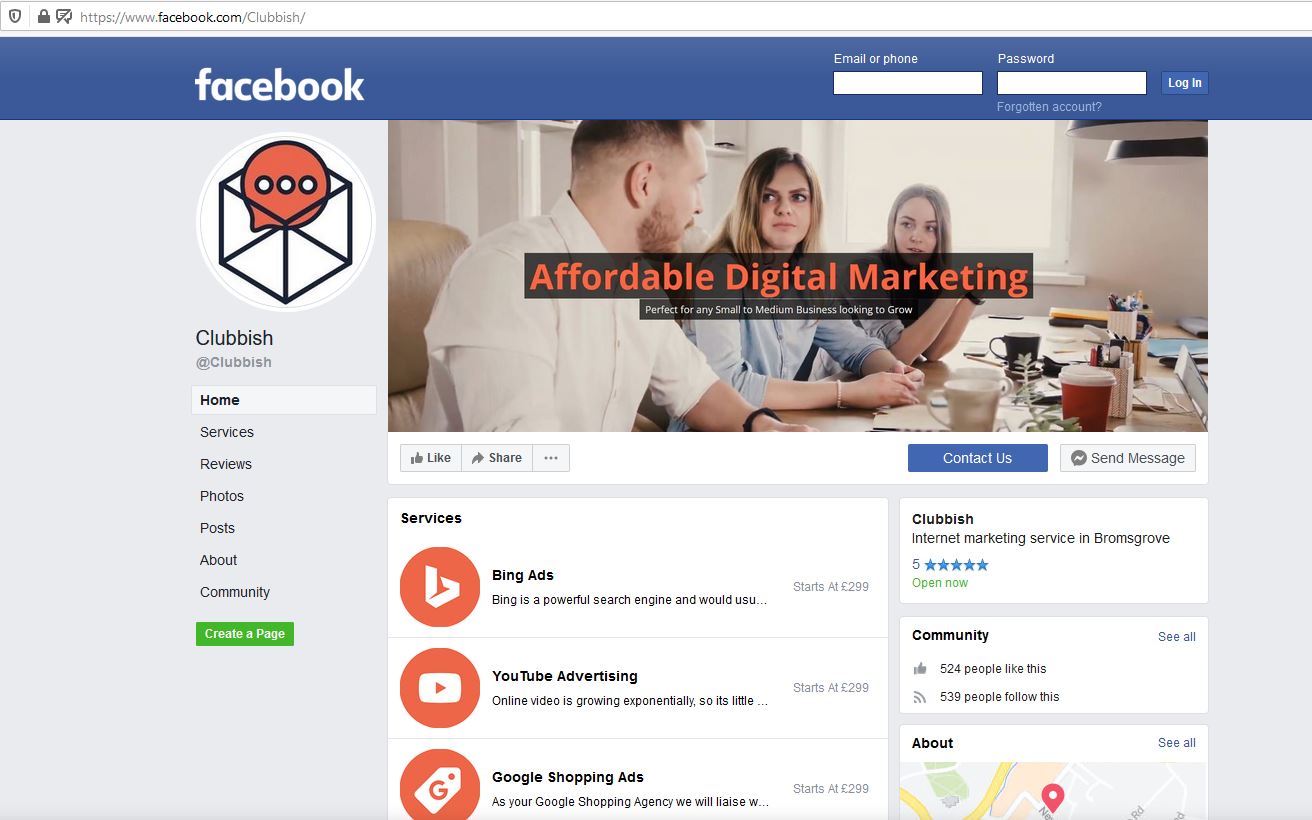
How to Create a Page on Facebook: A Step-by-step Guide
As a business owner or entrepreneur, having a strong online presence is crucial in today’s digital age. One effective way to promote your brand, product, or service is by creating a page on Facebook. In this article, we will guide you through the process of creating a Facebook page using both a PC and a smartphone or tablet.
Benefits of Creating a Page on Facebook
Before diving into the step-by-step guide, let’s explore the benefits of creating a page on Facebook:
- Reach a Larger Audience: With over 2.7 Billion monthly active users, Facebook provides an enormous opportunity to reach a wider audience.
- Increase Brand Awareness: A well-maintained Facebook page can significantly increase your brand’s visibility and credibility.
- Engage With Customers: A Facebook page allows you to interact with your customers, respond to their queries, and build a loyal community.
Creating a Page on Facebook Using a PC
If you want to create a page on Facebook using your PC, follow these steps:
- Access The Facebook Website: Log in to your Facebook account by visiting www.Facebook.Com.
- Click on The “Create New Page” Button: Once logged in, click on the “Create New Page” button located at the top right corner of the screen.
- Select a Category For Your Page: Choose the category that best describes your business or product from the drop-down menu.
- Add an Image to Your Page: Upload an image that represents your brand by clicking on the “Add Image” button and selecting a photo from your computer.
- Enter Basic Information About Your Page: Fill in the required details, such as the name of your page, its description, and other relevant information.
Creating a Page on Facebook Using a Smartphone or Tablet
If you want to create a page on Facebook using your smartphone or tablet, follow these steps:
- Download The Facebook App: Download and install the official Facebook app from the App Store (for iOS devices) or Google Play Store (for Android devices).
- Open The Facebook App: Launch the Facebook app and log in to your account.
- Tap on The “Pages” Tab: Navigate to the “Pages” tab, which is usually located at the bottom of the screen.
- Create a New Page by Tapping on The “+” Icon: Tap on the “+” icon to create a new page.
- Select a Category For Your Page: Choose the category that best describes your business or product from the drop-down menu.
- Add an Image to Your Page: Upload an image that represents your brand by tapping on the “Add Image” button and selecting a photo from your device.
Customizing Your Facebook Page
Once you have created your page, it’s essential to customize it to make it more engaging and informative:
- Add Call-to-action Buttons: Add buttons that encourage users to take a specific action, such as visiting your website or making a purchase.
- Post Regular Updates: Regularly post updates about your business, product, or service to keep your audience engaged.
- Respond to Comments And Messages: Respond promptly to comments and messages on your page to build a loyal community.
Tips For Promoting Your Facebook Page
To promote your Facebook page effectively:
- Share Engaging Content: Share high-quality content that resonates with your target audience.
- Use Relevant Hashtags: Use relevant hashtags in your posts to increase their visibility.
- Run Social Media Contests: Run contests or giveaways to encourage engagement and attract new followers.
Conclusion
Creating a page on Facebook is an essential step towards promoting your business, product, or service online. By following the steps outlined in this article, you can create a professional-looking page that helps you reach a larger audience. Remember to customize your page regularly and engage with your audience to build a loyal community.
Frequently Asked Questions
- What is The Difference Between a Facebook Profile And a Business Page?
A Facebook profile is for personal use, while a business page is designed for businesses or organizations. - How do I Create a Facebook Ad?
To create a Facebook ad, click on the “Create Ad” button located at the top right corner of your newsfeed. - Can I Change my Facebook Page’s Category Later?
Yes, you can change your Facebook page’s category later by editing the basic information section of your page. - How do I Add a Call-to-action Button to my Facebook Page?
To add a call-to-action button to your Facebook page, click on the “Add Button” button located at the top right corner of your newsfeed. - Can I Use Facebook’s Built-in Analytics Tool to Track my Page’s Performance?
Yes, you can use Facebook’s built-in analytics tool, called Insights, to track your page’s performance and engagement metrics.
Recommended Resources
- Facebook Business Suite: A comprehensive guide to managing your Facebook business page using the official app.
- Facebook Advertising Guide: A step-by-step guide to creating effective Facebook ads.
- Facebook Insights: A built-in analytics tool that provides valuable insights into your page’s performance.


