
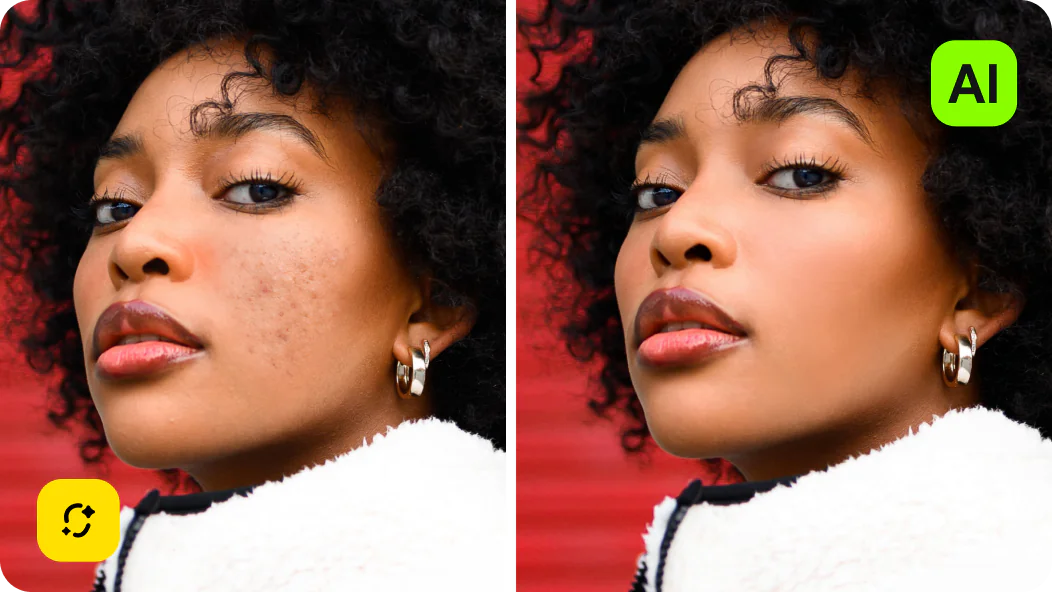
How to Edit a Photo on Your Mobile Phone: A Step-by-step Guide
Are you tired of mediocre photos that don’t quite meet your standards? Do you wish there was an easy way to edit them on the go? Look no further! In this article, we’ll show you how to edit a photo on your mobile phone using various apps and tools.
Why Edit Photos on Your Mobile Phone?
Editing photos on your mobile phone can be a game-changer for anyone who loves taking pictures. With just a few taps, you can enhance the quality of your photos, remove blemishes, and even add creative filters to make them stand out. Plus, with so many apps available, you can edit photos without having to lug around a laptop or computer.
Google Photos: A Free Photo Editing App
If you own an Android device, Google Photos is a great place to start. This app allows you to edit your photos directly from the gallery. Here’s how:
- Open Google Photos on your Android device.
- Select the photo you want to edit.
- Tap on the “Edit” button.
- Choose from various editing options such as crop, rotate, and filter.
Editing Photos on Iphone
If you own an iPhone, Apple’s built-in app called Photos is a great option for editing photos. Here’s how:
- Open Photos on your iPhone.
- Select the photo you want to edit.
- Tap on the “Edit” button.
- Choose from various editing options such as crop, rotate, and filter.
Snapseed: A Powerful Photo Editing App
Snapseed is a popular photo editing app that’s available for both Android and iOS devices. This app offers a wide range of features, including:
- Advanced filters
- Manual adjustments to brightness, contrast, and color balance
- Crop and rotation tools
Here’s how to use Snapseed:
- Download and install Snapseed on your device.
- Open the app and select the photo you want to edit.
- Tap on the “Tools” icon in the bottom menu bar.
- Choose from various editing options such as filters, adjustments, and effects.
Pixlr: A User-friendly Photo Editing App
Pixlr is another popular photo editing app that’s available for both Android and iOS devices. This app offers a range of features, including:
- Advanced filters
- Manual adjustments to brightness, contrast, and color balance
- Crop and rotation tools
Here’s how to use Pixlr:
- Download and install Pixlr on your device.
- Open the app and select the photo you want to edit.
- Tap on the “Tools” icon in the bottom menu bar.
- Choose from various editing options such as filters, adjustments, and effects.
Vsco: A Creative Photo Editing App
VSCO is a popular photo editing app that’s available for both Android and iOS devices. This app offers a range of features, including:
- Advanced filters
- Manual adjustments to brightness, contrast, and color balance
- Crop and rotation tools
Here’s how to use VSCO:
- Download and install VSCO on your device.
- Open the app and select the photo you want to edit.
- Tap on the “Modify” button.
- Choose from various editing options such as filters, adjustments, and effects.
Other Photo Editing Apps
There are many other photo editing apps available for both Android and iOS devices. Some popular options include:
- Lightroom
- PicsArt
- TADAA (for iPhone only)
Tips And Tricks
Here are some tips and tricks to keep in mind when editing photos on your mobile phone:
- Always edit a copy of the original photo, rather than editing the actual file.
- Use the built-in apps first before downloading third-party apps.
- Experiment with different filters and effects to find what works best for you.
- Save edited photos in a separate folder or album to keep them organized.
Conclusion
Editing photos on your mobile phone is easier than ever. With just a few taps, you can enhance the quality of your photos, remove blemishes, and even add creative filters to make them stand out. Whether you choose Google Photos, Snapseed, Pixlr, VSCO, or another app, we hope this article has been helpful in guiding you through the process.
Faqs
Q: What is the best photo editing app for Android?
A: Google Photos, Snapseed, and Pixlr are all great options.
Q: How do I edit a photo on my iPhone?
A: Open Photos, select the photo, tap “Edit,” and choose from various editing options.
Q: Can I edit photos without downloading an app?
A: Yes! Many phones have built-in apps for editing photos.
Q: What is the difference between Google Photos and Snapseed?
A: Both apps offer similar features, but Snapseed has more advanced tools and filters.
Q: How do I save edited photos on my device?
A: Save edited photos in a separate folder or album to keep them organized.
Q: Can I use photo editing apps to edit videos as well?
A: Some apps allow you to edit videos, while others are specifically designed for photos.


