
How to Take a Screenshot of Your Desktop: A Step-by-step Guide
Are you tired of using complicated software to capture your desktop? Look no further! In this article, we will guide you through the process of taking a screenshot of your desktop on various operating systems, including Windows 10/11, Windows 7, macOS, Android, and iPhone.
Why Take a Screenshot of Your Desktop?
Taking a screenshot of your desktop can be useful in various situations. For example, you may want to capture a specific window or a portion of your screen to share with others, or to save a particular configuration for later reference.
Windows 10/11: Capturing The Desktop
On Windows 10 and 11, you can use the built-in “Capture and Note” application to take a screenshot of your desktop. To do this:
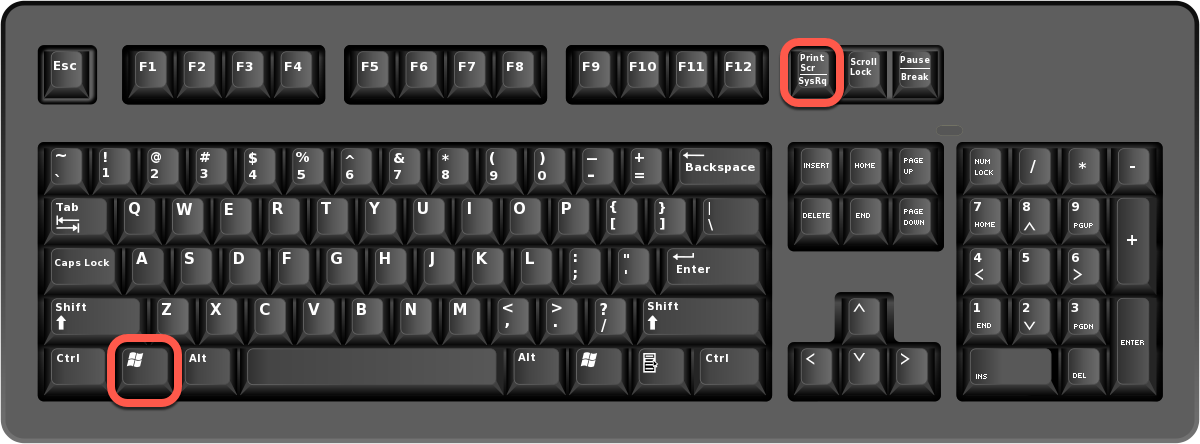
- Press the Windows key + S on your keyboard.
- Type “capture and note” in the search bar.
- Select the “Capture and Note” app from the search results.
- Click on the “New” button to initiate the capture process.
- Choose the area of the screen you want to capture, or select a timer to delay the capture.
- Release the mouse button when you’ve selected the desired area.
Windows 7: Capturing The Desktop
On Windows 7, you can use the “Snipping Tool” application to take a screenshot of your desktop. To do this:
- Press the Windows key + R on your keyboard.
- Type “snipping tool” in the Run dialog box.
- Click on the Snipping Tool icon to launch the app.
- Select the area of the screen you want to capture, or choose a timer to delay the capture.
- Release the mouse button when you’ve selected the desired area.
Macos: Capturing The Desktop
On macOS, you can use the built-in “Screenshot” application to take a screenshot of your desktop. To do this:
- Click on the Launchpad icon in the Dock.
- Select the “Other” folder.
- Open the Screenshot app.
- Choose the type of screenshot you want to capture (e.G., Entire screen, window, or selection).
- Click on the “Capture” button to initiate the capture process.
Android: Capturing The Desktop
On Android devices, you can use a combination of keys to take a screenshot of your desktop. To do this:
- Press and hold the Power and Volume down buttons simultaneously.
- Release the buttons when the screenshot is taken.
Iphone: Capturing The Desktop
On iPhone devices, you can use a combination of keys to take a screenshot of your desktop. To do this:
- Press and hold the Sleep/Wake button and the Home button simultaneously.
- Release the buttons when the screenshot is taken.
Software For Capturing The Desktop
If you’re looking for software specifically designed for capturing the desktop, there are several options available. Some popular choices include:
- Greenshot (Windows)
- ShareX (Windows)
- Skitch (macOS)
- TechSmith Snagit (Windows and macOS)
- Screenshot (Android)
Tips And Tricks
Here are some additional tips and tricks to help you capture the perfect screenshot:
- Use a ruler or other straightedge to draw a rectangle around the area you want to capture.
- Experiment with different timer settings to delay the capture process.
- Use the “Snipping Tool” on Windows 7 to capture a specific window or selection.
- Take advantage of keyboard shortcuts to quickly capture and edit screenshots.
Conclusion
Taking a screenshot of your desktop can be a useful tool for capturing important information, sharing configurations, or simply preserving a moment in time. Whether you’re using Windows 10/11, Windows 7, macOS, Android, or iPhone, the process is relatively straightforward. With these tips and tricks, you’ll be able to capture the perfect screenshot every time!
Faqs
-
What is The Best Software For Capturing Screenshots?
There are several great options available, depending on your operating system and preferences. -
How do I Edit a Screenshot on Windows 10/11?
You can use the built-in “Paint” application or third-party editing software like Adobe Photoshop. -
Can I Capture a Specific Window or Selection on Macos?
Yes, you can use the “Screenshot” app to select a specific window or selection. -
How do I Share a Screenshot on Android?
You can share a screenshot directly from the Notifications panel or by opening the Photos app. -
What is The Best Way to Take a Screenshot of an Iphone?
Press and hold the Sleep/Wake button and the Home button simultaneously to capture a screenshot. -
Can I Use a Timer to Delay The Capture Process on Windows 10/11?
Yes, you can choose a timer setting in the “Capture and Note” app to delay the capture process. -
How do I Save a Screenshot on Android?
Screenshots are saved automatically to the Screenshots folder on your device. -
Can I Use a Ruler or Other Straightedge to Draw a Rectangle Around The Area I Want to Capture?
Yes, you can experiment with different shapes and sizes to find what works best for you!


