
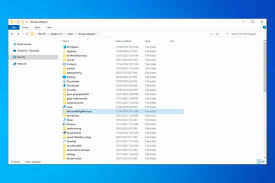
Erasing Empty Folders: A Comprehensive Guide
Are you tired of cluttered computer discs and unwanted folders? Do you struggle to find the time to manually delete empty folders, only to realize that some essential files have been inadvertently deleted along with them?
Look no further! In this article, we’ll explore the easiest ways to erase empty folders on your Windows, Mac, Android, and iOS devices. We’ll also delve into the nuances of each operating system and provide you with expert advice on how to navigate these complexities.
The Problem With Empty Folders
Empty folders can quickly accumulate on your computer, taking up valuable storage space and cluttering your desktop. While it may seem like a minor issue, erasing empty folders can have significant benefits for your computer’s performance and overall health.
By deleting unnecessary folders, you’ll:
- Reduce digital clutter
- Free up storage space
- Improve system performance
- Minimize the risk of data loss
Windows: The Easy Way to Erase Empty Folders
On Windows, erasing empty folders is a straightforward process. Here’s how to do it:
Step 1: Check For Empty Folders
Before deleting any folders, ensure that they are indeed empty by checking their contents. You can do this by right-clicking on the folder and selecting “Properties.” If the folder contains files or subfolders, don’t delete it.
Step 2: Use The Built-in Functionality
Windows provides a built-in feature to erase empty folders. To access it:
- Right-click on the folder you want to delete.
- Select “Delete” from the context menu.
- Confirm that you want to delete the folder by clicking “Yes.”
Alternatively, you can use the Windows search bar to find and delete empty folders.
Step 3: Use a Third-party Tool
If you’re not comfortable using the built-in functionality or need more advanced features, consider using a third-party tool specifically designed for deleting empty folders. Some popular options include:
- Ccleaner
- Glary Utilities
These tools can help you identify and delete unnecessary folders with ease.
Mac: Erasing Empty Folders Made Easy
On Mac, erasing empty folders is also relatively straightforward. Here’s how to do it:
Step 1: Check For Empty Folders
Before deleting any folders, ensure that they are indeed empty by checking their contents. You can do this by right-clicking on the folder and selecting “Get Info.” If the folder contains files or subfolders, don’t delete it.
Step 2: Use The Built-in Functionality
Mac provides a built-in feature to erase empty folders. To access it:
- Right-click on the folder you want to delete.
- Select “Move to Trash” from the context menu.
- Confirm that you want to delete the folder by clicking “Empty Trash.”
Alternatively, you can use the Finder’s “Go to Folder” feature to locate and delete empty folders.
Step 3: Use a Third-party Tool
If you’re not comfortable using the built-in functionality or need more advanced features, consider using a third-party tool specifically designed for deleting empty folders. Some popular options include:
- Cleanmymac X
- Disk Cleanup
These tools can help you identify and delete unnecessary folders with ease.
Android: Erasing Empty Folders in a Few Taps
On Android, erasing empty folders is a breeze. Here’s how to do it:
Step 1: Check For Empty Folders
Before deleting any folders, ensure that they are indeed empty by checking their contents. You can do this by long-pressing on the folder and selecting “Info.” If the folder contains files or subfolders, don’t delete it.
Step 2: Use The Built-in Functionality
Android provides a built-in feature to erase empty folders. To access it:
- Long-press on the folder you want to delete.
- Drag the folder to the top of the screen and select “Delete.”
- Confirm that you want to delete the folder by clicking “OK.”
Alternatively, you can use the File Manager app to locate and delete empty folders.
Step 3: Use a Third-party Tool
If you’re not comfortable using the built-in functionality or need more advanced features, consider using a third-party tool specifically designed for deleting empty folders. Some popular options include:
- ES File Explorer
- Solid Explorer
These tools can help you identify and delete unnecessary folders with ease.
Ios: Erasing Empty Folders in a Few Taps
On iOS, erasing empty folders is also relatively straightforward. Here’s how to do it:
Step 1: Check For Empty Folders
Before deleting any folders, ensure that they are indeed empty by checking their contents. You can do this by long-pressing on the folder and selecting “Info.” If the folder contains files or subfolders, don’t delete it.
Step 2: Use The Built-in Functionality
IOS provides a built-in feature to erase empty folders. To access it:
- Long-press on the folder you want to delete.
- Drag the folder to the top of the screen and select “Delete.”
- Confirm that you want to delete the folder by clicking “OK.”
Alternatively, you can use the Files app to locate and delete empty folders.
Step 3: Use a Third-party Tool
If you’re not comfortable using the built-in functionality or need more advanced features, consider using a third-party tool specifically designed for deleting empty folders. Some popular options include:
- Files by Google
- Documents
These tools can help you identify and delete unnecessary folders with ease.
Conclusion
Erasing empty folders is an essential task that can significantly improve your computer’s performance and overall health. By following the steps outlined in this article, you’ll be able to easily delete unwanted folders on your Windows, Mac, Android, and iOS devices.
Remember to always check for contents before deleting any folders, use built-in functionality or third-party tools as needed, and explore advanced features for more comprehensive cleaning.
Happy erasing!
Frequently Asked Questions
Q: What is The Difference Between Deleting a Folder And Emptying It?
A: Deleting a folder permanently removes it from your device, whereas emptying it moves its contents to the Trash or Recycle Bin, allowing you to recover them if needed.
Q: Can I Delete Multiple Folders at Once?
A: Yes! On Windows and Mac, you can select multiple folders by holding down the Ctrl (Windows) or Command (Mac) key while clicking on each folder. On Android and iOS, long-press on a folder, then drag it to the top of the screen and select “Delete” to delete all selected folders.
Q: Are There Any Risks Associated With Deleting Empty Folders?
A: Yes! Deleting essential files or system folders can lead to data loss, crashes, or other issues. Always ensure that you’re deleting unnecessary folders before proceeding.
Q: What Are Some Popular Third-party Tools For Deleting Empty Folders?
A: Some popular options include CCleaner (Windows), CleanMyMac X (Mac), ES File Explorer (Android), and Files by Google (iOS).
Q: Can I Schedule a Folder Deletion on my Device?
A: Yes! On Windows, you can use the Task Scheduler to automate folder deletions. On Mac, you can use scripts or third-party tools like CleanMyMac X.
Q: What Should I do if I Accidentally Delete an Essential File or System Folder?
A: Don’t panic! If you’ve deleted a critical file or system folder, try recovering it from the Recycle Bin (Windows) or Trash (Mac). If that doesn’t work, seek help from a professional data recovery service.


