
How to Disable Google Now on Android And Ios
Are you tired of Google Now’s constant interruptions? Do you want to disable its features without compromising your smartphone’s functionality? You’ve come to the right place! In this article, we’ll guide you through the process of disabling Google Now on both Android and iOS devices.
What is Google Now?
Google Now is a virtual assistant that provides users with information and answers based on their interests and habits. It can be accessed by swiping left or right on the home screen, or by saying “Hey Google” to activate voice commands. While Google Now can be helpful in providing information and answering questions, some users may find its constant interruptions annoying.
How to Disable Google Now on Android
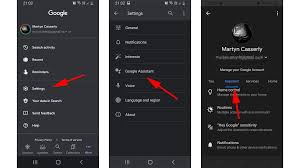
To disable Google Now on an Android device, follow these steps:
- Open Settings: Tap on the settings app on your home screen or search for it in the drawer.
- Select Apps & Notifications: Scroll down and select “Apps & notifications” from the menu.
- Select See All Apps: Select “See all apps” to view a list of installed apps on your device.
- Select Google Assistant: Find and select the Google Assistant app from the list.
- Turn Off Google Assistant: Switch off the toggle button next to “Google Assistant” to disable it.
Alternatively, you can also disable Google Now by long-pressing on an empty area of the home screen and selecting “Settings.” Then, navigate to “Google Assistant” and toggle off the switch.
How to Disable Google Now: Hey Google
If you want to disable the voice command feature “Hey Google,” follow these steps:
- Open Settings: Tap on the settings app on your home screen or search for it in the drawer.
- Select Google: Scroll down and select “Google” from the menu.
- Select Services & Accounts: Select “Services & accounts” to view a list of connected services.
- Select Voice Match: Find and select “Voice match” from the list.
- Turn Off Voice Recognition: Switch off the toggle button next to “Hey Google” to disable it.
How to Disable Google Now: Discover
To disable the Discover feature on Android, follow these steps:
- Open Settings: Tap on the settings app on your home screen or search for it in the drawer.
- Select Home Screen: Scroll down and select “Home screen” from the menu.
- Select Display & Layout: Select “Display & layout” to view options related to the home screen.
- Turn Off Discover: Switch off the toggle button next to “Discover” to disable it.
How to Disable Google Now on Iphone And Ipad
To disable Google Now on an iPhone or iPad, follow these steps:
- Open Settings: Tap on the settings app on your home screen.
- Select Siri & Search: Scroll down and select “Siri & Search” from the menu.
- Turn Off Siri: Switch off the toggle button next to “Siri” to disable it.
- Turn Off Google Assistant: Switch off the toggle button next to “Google Assistant” to disable it.
Conclusion
Disabling Google Now on Android and iOS devices is a straightforward process that can be completed in just a few steps. By following the instructions outlined above, you can customize your smartphone’s functionality to suit your preferences. Remember, you can always re-enable Google Now if you need its features in the future.
Frequently Asked Questions (FAQs)
- Q: Will Disabling Google Now Affect my Phone’s Performance?
A: Disabling Google Now should not have any significant impact on your phone’s performance. - Q: Can I Re-enable Google Now Later if I Need It?
A: Yes, you can always re-enable Google Now by following the same steps outlined above. - Q: Will Disabling Google Now Affect my Ability to Use Other Google Services?
A: Disabling Google Now should not affect your ability to use other Google services such as Google Maps or Google Calendar. - Q: Can I Disable Google Now on Specific Apps Only?
A: Yes, you can disable Google Now on specific apps by going into the app’s settings and toggling off the switch.


